# SSL Certificates

# Ordering & Validation

# Adding a wildcard into a multidomain SSL order

## Question

How to add wildcard into a multidomain product?

## Answer

It is possible to add a wildcard domain in an SSL order.

This is only possible for DV + OV SSL certificates.

[Products for Comodo](https://openprovider.help/books/api-plugins/page/appendix-openprovider-products-id) / Sectigo: PositiveSSL MDC and UCC.

A wildcard (\*.domainname.com) can **only be added** as SAN domain.  
**Impossible** to add a wildcard domain (\*.domain.com) as the common name in the request.

  
An order can look like:

- Common name: www.domain.com
- Extra domains (SAN) : \*.domain.com

Reissue with adding new wildcards can only be requested using [Reseller Control Panel](https://cp.openprovider.eu/).  
Move to [SSL Panel](https://sslpanel.io/), open order then click "Reissue".

  
![ssl_reissue.png](https://openprovider.help/uploads/images/gallery/2026-08/embedded-image-yyccrkpw.png)  
You will be redirected to Reseller Control Panel to [SSL Orders overview from where you can request reissue.](https://cp.openprovider.eu/ssl/order-overview.php)

![mceclip2.png](https://openprovider.help/uploads/images/gallery/2026-08/embedded-image-vfhfr3la.png)

If you would like to have a sub-subdomain wildcard certificate then this is possible with a [Unified Communications Certificate (UCC)](https://openprovider.help/books/api-plugins/page/appendix-openprovider-products-id) certificate.  
For example: \*.sub.example.com

**Note!**

Single domain certificates secure both www and non www version of the domain. But the multidomain certificate is **NOT** automatically valid for both. So both versions (www and non www version of the domain) needs to be added separately to the certificate.

In case you add a wildcard (\*.domain.com) in the multidomain order, the www. is considered a subdomain so this is covered by the wildcard domain and does not need to be added as extra SAN in the order. The base domain however does need to be added as separate SAN.

# Changes in Domain Control Validation Procedure

#### *On the 15th of November 2021, the DCV (Domain Control Validation) procedure will be adjusted to meet new requirements from CA.* 

### What is Domain Control Validation?

<span>Domain Control Validation (DCV) is the process by which a CA gains evidence that a particular domain is managed by the applicant for a certificate. </span>

<span>One of these options is file-based validation (also called; </span>**HTTP/HTTPS, file authentication**<span>), which requires the domain owner to upload to the domain a file containing a unique identifier given to the certificate applicant by the Certificate Authority (CA). </span>

<span>The CA can then locate and interrogate this file as proof that the requestor has control of this domain. </span>

### What will change exactly? 

<span>The new policy will be implemented on the 15th of November and will affect SSLs and orders in the following ways:</span>

<span>**1.** It will be </span>**no longer possible**<span> to validate </span>**Wildcard certificates**<span> using file-based validation (all types of Wildcards are affected)</span>

<span>**2.** When using file validation for </span>**multi-domain certificates**<span>, domain validation will be required for every FQDN/SAN (domain) individually.</span>

*<span>Example: </span>*

**Prior to the 15th of November -** <span>if you ordered a certificate for: </span>

<span>openprovider.nl</span>

<span>www.openprovider.nl</span>

<span>test.openprovider.nl</span>

<span>You would only need to place a file on *openprovider.nl/some-folder*</span>

**After the 15th of November -** <span>if you order a certificate for the above domains you will need to place the file on:</span>

*<span>www.openprovider.nl/</span><span>some-folder</span>*

*<span>test.openprovider.nl/.well-known</span><span>/some-folder</span>*

*<span>openprovider.nl/.well-known</span><span>/some-folder</span>*

<span>**3.** When using file validation for </span>**single domain certificates**<span>, domain validation will be required for every FQDN/SAN (domain) individually.</span>

*<span>Example:</span>*

**Prior to the 15th of November -** <span>if you ordered a certificate for </span>*<span>test.openprovider.nl</span>*<span>, file could be placed either on test.openprovider.nl or openprovider.nl</span>

**After 15th of November -** <span>if you want to protect test.openprovider.nl, the file </span><span>must</span><span> be placed for test.openprovider.nl</span>

<span>**4.** For DV certificates (single domain) you can also receive the "www" as an additional name for free,  
e.g. If you order a certificate for [openprovider.nl](http://openprovider.nl/) you can receive [www.openprovider.nl](http://www.openprovider.nl/) for free, and vice-versa  
If you order for [test.openprovider.nl](http://test.openprovider.nl/) you can receive [www.test.openprovider.nl](http://www.test.openprovider.nl/) for free and vice-versa.  
That also means files must be placed for both domains: with and without www.  
  
**Important**: For Openprovider API users:  
When requesting a certificate using our API, if you wish to request a certificate for a domain with WWW and without WWW, you have to specify host names and domain validation methods for both variants.  
  
**Certificate renewal**: </span>When processing a renewal request, we will first check which variants where initially issued for the particular domain; with WWW and without WWW variant or with just one. If you received first certificate with both, then the renewed certificate will include WWW and non-WWW domain.

If you received the certificate with just one variant but need both, you can always reissue it in SSL Panel with the above checkbox selected.

### What is the impact? 

1. <span>The change will not affect certificate issues prior to the 15th of November.</span>
2. <span>It will affect all </span>**new orders, renewals, and reissues**<span> after November 15, when using file validation as a DCV method.</span>
3. <span>Other domain control validation methods are not impacted by this change, so this change </span>**does not apply to Email- and DNS-based validation, which still are available for wildcard certificates.**
4. <span>If you now use file validation for </span>**wildcard certificates**<span>, you will have to switch to </span>email validation or CNAME validation**.**
5. **Wildcard** certificates which were previously issued with **<span>file validation can not be directly renewed via the ssl panel (using the previous details). Please start a new order and select one of the supported validation methods.</span>**
6. If you use file validation for single and multi-domain certificates and want to continue using it, you will need to prepare a separate file for each subdomain (SAN), or switch to another DCV method.

**Openprovider strongly suggests choosing other methods of domain validation than HTTP / HTTPS validation:-**

- **E-mail validation**
- **DNS / CNAME validation**

 **Both will make validation process quicker to complete.**

# How to order a SSL Certificate

This section will describe how to order a SSL Certificate in the SSL Panel.

In case you are interested to learn how to do this via API, please click [here](https://support.openprovider.eu/hc/en-us/sections/360004444873-API-Guides-SSL-Module)

## Step 1

The most important step when requesting a SSL Certificate is to make sure all details you use in the request are up to date. Especially with OV and EV orderes, we advise to first double check the handles you are about to use, or [create a new handle](https://cp.openprovider.eu/web/action/index#/customer/new) with the latest information. Make sure the handle has a valid firstname / lastname of a contactperson who would be available for a verification-call. (required for OV and EV certificates)   
This can not be changed once the order is submitted.

![Screen_Shot_2023-05-16_at_12.33.31.png](https://openprovider.help/uploads/images/gallery/2026-08/embedded-image-f8txl5zc.png)

## Step 2

Go to the [SSL Panel](https://cp.openprovider.eu/web/action/ssl#/order) and select the SSL Certificate you wish to request.  
Not sure which type you need to order? You can find an [explanation of all types](https://openprovider.help/books/ssl-certificates/page/different-types-of-ssl-certificates-dv-ov-ev-explained) here.

## Step 3

On the following page, you can toggle the auto renew feature on or off and select for how many years you want to order the SSL Certificate. In case you select a 2+ years certificate, an [Subscription SSL](https://openprovider.help/books/ssl-certificates/page/multiyear-ssl-certificates-subscription-ssl-certificates) will be created. Click on "Order" to proceed with the request.

![Screen_Shot_2023-05-16_at_12.42.00.png](https://openprovider.help/uploads/images/gallery/2026-08/embedded-image-etnvnkph.png)

## Step 4

Fill in all the required data for your order.

![Screen_Shot_2023-05-22_at_16.58.20.png](https://openprovider.help/uploads/images/gallery/2026-08/embedded-image-7b8crnb0.png)

<span>Contact data</span>

**Important!** The handle which you select as "Organisation (requestor)", will be used for the SSL certificate. **The data from this handle will be used for the SSL owner and for the SSL validation.** If any data is invalid or outdated, please go back to the customer management and update the handle before requesting the SSL.

<span class="ng-scope">We advise to leave the "Technical contact" assigned to Openprovider (selected by default) for managing purposes.  
</span>

<span class="ng-scope"><span>Technical data</span></span>

<span class="ng-scope">It is highly recommended that you generate the CSR for your certificate in our control panel (exception: IIS certificate), even if you earlier generated it elsewhere. This will guarantee that your CSR is in proper format, which is a must, to generate the certificate successfully.   
**Important!**</span>

<span class="ng-scope">You will need this CSR and Private key during installation of the SSL on your server. Make sure to store the private key locally as this will will not be stored by us. </span>

<span class="ng-scope">Lost the private key? Click [here](https://openprovider.help/books/ssl-certificates/page/where-to-find-the-private-key-of-my-ssl-certificate)  
</span>

<div class="panel-heading" id="bkmrk-step-5-at-the-bottom"><span class="ng-scope">![Screen_Shot_2023-05-22_at_16.38.52.png](https://openprovider.help/uploads/images/gallery/2026-08/embedded-image-e1kffeew.png)</span>

## <span class="ng-scope">Step 5</span>

<span class="ng-scope">At the bottom of the page, there are some additional options:</span>

<span class="ng-scope">  
You can enable DNS automation, very useful when the DNS zone is managed in Openprovider and you wish to validate the certificate via DNS validation.  
  
</span>

<span class="ng-scope">Add the www/non-www domain to your order (additional information [here](https://openprovider.help/books/ssl-certificates/page/is-www-automatically-included-in-my-ssl-order)).</span>

</div><span class="ng-scope">![Screen_Shot_2023-05-22_at_16.47.49.png](https://openprovider.help/uploads/images/gallery/2026-08/embedded-image-zxxxg1pu.png)</span>

<span class="ng-scope">Once everything is filled in, you can select the validation option.  
By default this is set to Http(s) but via the dropdown you can select all available options; http(s), DNS or e-mail. More details about the validation methods can be found in the [How to validate a SSL order](https://openprovider.help/books/ssl-certificates/page/how-to-validate-a-ssl-order) article.</span>

<span class="ng-scope">  
To submit the request, just click on "**Request**".</span>

# How to validate a SSL order

## Question

<span>How to validate a SSL order</span> once the request has been made?

## Answer

In order for Sectigo to issue the SSL Certificate, one or multiple validation steps have to be taken to ensure that the company who requested the SSL, is also actually the owner. Which steps have to be taken all depends on the "[Type of certificate](https://openprovider.help/books/ssl-certificates/page/different-types-of-ssl-certificates-dv-ov-ev-explained)" you have selected.

DV Certificates

- [DCV Validation](#bkmrk-dcv-validation-%28doma)

OV Certificates

- [DCV Validation](#bkmrk-dcv-validation-%28doma)
- [Company validation](#bkmrk-company-validation)
- [Phone Validation](#bkmrk-phone-validation)

EV Certificates

- [DCV Validation](#bkmrk-dcv-validation-%28doma)
- [Company validation](#bkmrk-company-validation)
- [Phone Validation](#bkmrk-phone-validation)
- [Signed Documents](#bkmrk-signed-documents)

###   
DCV validation (Domain Control Validation)

This is a check to confirm that you have ownership over the domain for which you are requesting the SSL Certificate.   
This can be done by 1 of 3 options; via email confirmation, via a record in the DNS or file a file on the server.  
  
[1. Email validation](#bkmrk-email-validation)  
[2. DNS validation](#bkmrk-dns-validation)  
[3. File validation](#bkmrk-file-validation-%28htt)

#### **Email validation**

Confirming an email that is linked to the domain name is one of the options to proof that you own the domain. Therefore is not not possible to sent this email to any random email address, but it has to be connected to the domain.

The following so-called "approver email addresses" are provided as options:

- - **admin**@..., followed by the (sub) domain of the certificate ;
    - **administrator**@..., followed by the (sub) domain of the certificate ;
    - **postmaster**@..., followed by the (sub) domain of the certificate ;
    - **hostmaster**@..., followed by the (sub) domain of the certificate ;
    - **webmaster**@..., followed by the (sub) domain of the certificate ;
    - WHOIS-visible email \[<span>**Deprecated**</span> - ***public Certificate Authorities will no longer allow WHOIS-based email addresses for domain validation. You can read more information about this [here](https://www.sectigo.com/whois-email-dcv-deprecation)***\]

Via the SSL panel, you can review all available options and make changes if required.

![Screen_Shot_2023-05-22_at_17.38.51.png](https://openprovider.help/uploads/images/gallery/2026-08/embedded-image-pbr4u3pe.png)

![Screen_Shot_2023-05-22_at_17.39.16.png](https://openprovider.help/uploads/images/gallery/2026-08/embedded-image-rtvunjds.png)

The email itself will be sent from [noreply\_support@trust-provider.com,](mailto:noreply_support@trust-provider.com,) with the subject Comodo Domain Validation for \[domainname\] (reference #number)

![Screen](https://openprovider.help/uploads/images/gallery/2026-08/embedded-image-xy7hsdmv.png)

Please follow steps as described in the email to validate the request.

![Screen](https://openprovider.help/uploads/images/gallery/2026-08/embedded-image-ppd8bpam.png)

#### **DNS validation** 

<span>Another option to proof that you have control over the DNS, is by adding a record in the DNS zone of the domain. This option is especially interesting for resellers who control the DNS zone of the domain and prefer not to ask the registrant to go look for an email from Sectigo.   
  
In case you select the DNS validation, you will need to add a CNAME in the zone of the domain. Please make sure to check where the zone is managed. If you manage the zone via Openprovider, you can add the record directly in the zone (or use the automated option during the SSL request) and in case you use a third party nameserver, you will need to add the record in the zone there.  
  
</span>

<span>The value which needs to be added will be unique and can be found in the SSL panel (or requested via API) via the button "Follow the instructions".</span>

<span>![Screen_Shot_2023-05-22_at_17.48.53.png](https://openprovider.help/uploads/images/gallery/2026-08/embedded-image-q2qemllt.png)</span>

<span>A pop-up will appear where you can find the details:</span>

<span>![Screen_Shot_2023-05-22_at_17.50.04.png](https://openprovider.help/uploads/images/gallery/2026-08/embedded-image-rqqd3jhj.png)</span>

#### **File validation (HTTP(s)** 

File validation (also referred to as HTTPs) validation works a bit similar.

Hash values are provided to you to create a simple plain-text file and place this in a specific host directory on the server. Sectigo will check the location and when the file is visible, the validation is approved.

  
<span>Please note:</span> this method can not be used for validating certificates with **Wildcard** names. <span>When using file validation for </span>**multi-domain certificates**<span>, domain validation will be required for every FQDN/SAN (domain) individually.   
Note that validation will fail if redirection is in place.</span>

![Screen_Shot_2023-06-02_at_16.34.29.png](https://openprovider.help/uploads/images/gallery/2026-08/embedded-image-mzpzihlz.png)

The "hash: (the plain text value) which needs to be uploaded can be found in the ssl panel (Button "<span>*Follow the instructions*</span>" once the order is submitted or can be retrieved via API.

Please put the same file for a domain with www or without www in a respective folders, eg. www.exampledomain.com/.well-known/pki-validation/ and exampledomain.com/.well-known/pki-validation/

**![Screen_Shot_2023-06-02_at_16.36.31.png](https://openprovider.help/uploads/images/gallery/2026-08/embedded-image-tlmrydle.png)**

### Company validation

Sectigo will verify that your organization is legally registered on the address that you have entered in the handle which you used to submit the request. This will typically be verify through a government database or online directories, like Dun &amp; Bradstreet ([https://www.dnb.com/](https://www.dnb.com/)), the Chamber of Commerce (for example; kvk.nl), etc.  
Therefore it is very important that the information in the online directory is matching the information in the handle!

### Phone Validation

In order to receive an OV and EV certificate, you must have a registered active telephone listing that is verifiable by an online telephone directory. It is important that your listing matches the exact business name and physical address that have been provided and verified.  
In most cases the phone number is found in the company registration database when the company validation step is preformed.  
During this call, Sectigo will ask to speak to the contact person which is mentioned in the handle  
  
Note: It is **not** possible to ask Sectigo to call an unlisted phone number. It will only be possible to use phone numbers which are listed in a public directory. Your own website is not a public source, so phone numbers from your own website can not be used.

### Signed Documents

In order to validate an EV certificate, a "subscriber agreement" document must be signed. This document will be sent to the email address mentioned in the handle.

# Making changes after the SSL has been issued (reissue)

## Question:

The SSL has been issued, but I want to make changes. Is that possible?

## Answer:

There can situations when you realize after the SSL has been issued (delivered), that a mistake was made. In some cases, you will have the option to make changes via a reissue.  
Examples of those scenarios are:

\- I forgot to add the [WWW domain](https://openprovider.help/books/ssl-certificates/page/is-www-automatically-included-in-my-ssl-order) in the order.

\- I forgot to store the [Private key](https://openprovider.help/books/ssl-certificates/page/where-to-find-the-private-key-of-my-ssl-certificate) during the order process.

\- I want to add or remove SAN domain(s) in my multidomain SSL. Please note that adding extra domains will be charged during the reissue request, removing domains will not result in a refund.

In some scenarios, a reissue can not resolve the problem. The only option is to cancel the SSL (See [SSL refund policy](https://openprovider.help/books/ssl-certificates/page/ssl-certificate-refund-policy)) and start the order again.  
Examples of those scenarios are:

\- I ordered the SSL for the wrong domain.

\- I used the wrong handle for the validation.

\- I ordered the wrong type of SSL (DV instead of OV for example).

\- I used the wrong CSR in my order.

It can happen that a certain handle / contact person is attached to your SSL orders, which can not validate the order anymore (for example - this person has left the company).   
Unfortunately, this can not be updated in existing issued SSL Certificates.

The only option to update a handle or contact person for SSL Certificates, is waiting until the order reaches it final expiration date, disable the auto renewal and start a new request with the new details.

# Making changes during the validation process

## Question

My order is stuck due to invalid or outdated details. Can I make changes?

## Answer

In case your order is stuck due to invalid details during the [pre-validation phase](https://openprovider.help/books/openprovider-internal-agents-only/page/pre-validation-checks) (Status is "*Open"*, the order has not been send to Sectigo yet), we would recommend to cancel the order (do not proceed via the *force request* button) , make the required changes in the handle or in the business registration database and start the order again.

In case the order is being reviewed by Sectigo (Status is "*Requested"*) and they inform you via the chat\* that information is invalid (for example, the address in the handle is not matching with the business registration database), Sectigo can ask you in the chat if they may update the order for you.

You have the option to reply via your ssl panel chat\* window directly towards the Sectigo validation team.

**Important**!   
In case you allow Sectigo to change the details in the order to match the company registration database, this will be <span>only</span> applied to the <span>current</span> SSL request.

The SSL will be issued with different details as mentioned in your SSL panel. This means that every reissue and renewal will face the same issue, as the reissue / renewal will be initiated with the old details.

In those cases, we advise to check the deadline of the order.

In case the order is **not urgent** - we advise to reject the manual change via the Sectigo validation team, cancel the order and start it again with the correct details.

In case the order is urgent - we advise to accept the manual change via the Sectigo validation team, disable the auto renewal of the SSL and once the SSL is within 30 days of the final expiration date, start a new request manually with the correct details. Note that the remaining period of the ssl will be lost, as the details of the order are not a 100% match anymore.

Please note that it is also not possible to change the SSL details via a reissue.

\*Keep in mind, this is not a realtime chat. Replies from the Sectigo validation team generally take 24 / 48 hours during business days.  
This CHAT is only operational from the moment the SSL request is "*Requested*" and will be closed once the SSL is issued. When the SSL has the status "open" the CHAT can not be used yet.

# Transitioning SSL Validation from WHOIS to DNS

[Recent vulnerabilities](https://labs.watchtowr.com/we-spent-20-to-achieve-rce-and-accidentally-became-the-admins-of-mobi) in the domain name WHOIS system have highlighted the WHOIS-based domain-validation method as a weakness in the process of validating publicly-trusted digital certificates. As a result, Sectigo and all other public Certificate Authorities have announced that WHOIS-listed email addresses are no longer acceptable for domain validation, nor can historic domain validations based on WHOIS email addresses be reused. You can read more information about this change [here](https://www.sectigo.com/whois-email-dcv-deprecation).

Renewal or Re-issue of SSL orders that currently use WHOIS email address will fail with error "**CA request failed**" due to this. To ensure continued successful validation and issuance of your SSL certificates, at Openprovider we will be proactively switching the validation method from WHOIS to DNS validation for affected orders. This change will apply automatically before the next renewal or issuance. After the certificate is issued, you will still have the option to change the validation method (e.g., to email or HTTP) if preferred. You ca find available validation methods [here](https://openprovider.help/books/ssl-certificates/page/how-to-validate-a-ssl-order).

# SSL renewal and Multiyear Certificates

# Automatic  reissue initiated for my (Subscription) SSL Certificate

<span>In August 2020, the major browsers decided to stop supporting SSL certificates with an expiration date longer than 1 year. As a result, our provider, Sectigo, has been issuing SSL certificates valid for a 1 year period, even if you purchased them for 2 years.   
These orders are called </span>[<span>Subscription SSL certificates</span>](https://openprovider.help/books/ssl-certificates/page/multiyear-ssl-certificates-subscription-ssl-certificates)<span>. </span><span>  
</span>

<span>When you buy an SSL for 2 years, Sectigo issues the certificate for 1 year and after that, the second year will need to be ‘activated’ via a reissue.</span><span>  
  
</span>

<span>Openprovider will start reissuing the SSL certificate 15 days before its expiration date.   
</span><span>**That is the reason why you received the notification about the initiated reissue.** </span>

<span>It is important that the validation and the installation is done before the current SSL certificate expires, to prevent issues for the website. </span>

## <span>What action is required?</span>

<span>We advise to check the validation of the ssl.  
The type of ssl (DV, OV or EV) will determine which validation steps are required.  
</span>

<span><span>**DV**</span>  
If it was validated by the ‘</span>*<span>DNS Validation</span>*<span>’ method and the zone is managed by Openprovider, we will update the Cname record and validate the order for you. </span>

I<span>f the validation is set to the ‘Email’, ‘HTTP(s)’ or ‘DNS’ methods (and the zone is not managed by Openprovider), the reseller or end customer will need to </span>[<span>validate</span>](https://openprovider.help/books/ssl-certificates/page/how-to-validate-a-ssl-order)<span> the SSL order. </span><span>  
<span>**OV / EV**</span>  
</span>

<span>Keep in mind that OV and EV orders will have </span>[<span>extra validation</span>](https://openprovider.help/books/openprovider-internal-agents-only/page/requirements-for-comodo-sectigo-ssl-ovev-validation)<span> requirements (such as passing a telephone verification call), which will need to be passed successfully.</span>

<span>Our advice is to keep an eye on the SSL certificates that need to be reissued in order to activate their second year of validity and inform your end customers about it in advance.</span><span>  
  
</span>

<span>You can change the validation method for the reissuing process by using the buttons in the SSL panel ![Screen_Shot_2021-07-16_at_16.37.16.png](https://openprovider.help/uploads/images/gallery/2026-08/embedded-image-6klyxicp.png)  
  
  
</span>

## Important!

<span>  
</span><span>Once the new SSL certificate has been issued and delivered, it is important to reinstall it before the previous SSL certificate reaches its expiration date in order to avoid any issues.</span>

The CSR and the private key will **not** be changed or adjusted during the reissue.

## <span>Refunds</span>

There will be no refunds in case the client does not want to extend the certificate for the second year anymore after completion of one year.

# Automatic Renewal for SSL Certificates

## Question

Is it possible for certificates to be renewed automatically before their expiration date?

## Answer  


Yes.

[RCP](https://cp.openprovider.eu/) lets you set an auto-renew option.  
To enable, in the SSL overview of your control panel you can find the option "*Autorenew*" (AR).

If you enable the option, we will automatically create a new SSL order for you, **15 days** prior to the expiration date using the same details as the old certificate.

**Important**! We will place the SSL order, but the validation which is performed by the Certification Authority is still a necessary step before the certificate will be delivered.

Be aware you will receive a new certificate, which still needs to be installed with the "old" private key.

![Screenshot_2021-02-17_at_11.09.54.png](https://openprovider.help/uploads/images/gallery/2026-08/embedded-image-77jj7hvp.png)

**AR** = Auto-Renew  
**RN** = Renew  
**RI** = Reissue  
**CN** = Cancel

If you request a certificate renewal within the last 30 days of SSL expiration, then a **remaining period of the SSL certificate will be added to the new certificate**. The **remaining period won't be added** if you start a new order instead of renewing an existing one. **The button to renew** your certificate is therefore **only shown in the control panel in the last 30 days of the SSL expiration date.**

The renewal request will be initiated based on the same details as the previous request. No changes can be made.

Do not want to use the auto-renew settings?  
[Start a new order](https://openprovider.help/books/ssl-certificates/page/how-to-order-a-ssl-certificate) in your [RCP](https://cp.openprovider.eu/) and let the old SSL expire (disable autorenew)

# How to renew an expired SSL certificate?

## Question

How to renew an expired SSL certificate?

## Answer

That is not possible.  
You should [request a new certificate](https://cp.openprovider.eu/web/action/ssl#/order) instead.

# Multiyear SSL Certificates / Subscription SSL Certificates

## <span>Question:</span>

<span>Can I order multi year SSL Certificates? How does this work technically?</span>

## <span>Answer:</span>

<span>Starting from March 12, 2026 any newly issued SSL certificate will have a maximum lifespan of approximately 199 days.</span>

This applies to  
• New orders  
• Renewals  
• Reissues

#### <span>What will happen with active certificates?</span>

<span>Certificates issued before this date remain valid until their original expiration date unless they are revoked.</span>

#### <span>Impact on reissues</span>

<span>During the validity period of a certificate, you can always apply for a reissue.</span>

<span>The validity period of certificates re-issued after </span><span>March 12, 2026</span><span> will then be limited to 199 days. This does not mean that the certificate has lost its initial validity period, because if you reissue again at a later time it will be matched to the initial validity period. For example, a one year SSL product issued after March 12, 2026 will first be issued as a certificate valid for up to 199 days. When it expires a new certificate will be reissued for the remaining time. If 30 days remain the reissued certificate will be valid for 30 days.</span>

#### <span>Options for a longer validity term</span>

Customers can continue to purchase one year and multi year SSL products. The commercial term does not change and there is no loss of paid time.

What changes is how certificates are issued during that term.

Instead of a single long certificate multiple certificates will be issued over the lifetime of the order.

Example:  
A one year SSL product issued after March 12, 2026 will first be issued as a certificate valid for up to 199 days. When it expires a new certificate will be reissued for the remaining time. If 30 days remain the reissued certificate will be valid for 30 days.

#### <span>Refunds</span>

There will be no refunds, in case after completion of 199 days the client **does not want** to extend the certificate to second year anymore.

#### <span>How will it work?</span>

Effective March 12, 2026 all 2-year orders will be processed as 2-year subscriptions. The Openprovider API functionality will remain unchanged; however, when ordering a 2-year certificate, you will receive a 199 days certificate initially. The certificate will be automatically renewed, and you will be notified accordingly. It is the user's responsibility to install the renewed certificate.

#### <span>What do you need to do?</span>

- <span>**Re-installation**:</span>

<span>As the initial certificate expires after 199 days, it is very important to install the new certificate that you will receive after 199 days is installed on your server timely.</span>

You can find more information about the changes in [this article](https://openprovider.help/books/ssl-certificates/page/ssl-tls-lifecycle-changes-explained-march-12-2026).

**Note: Above rules are subject to change and are requirements set by CA.**

# FAQ - Ordering and Validation

# Can an OV/EV certificate be ordered by a private entrepreneur?

## Question

Can an OV/EV certificate be ordered by a private entrepreneur?

## Answer

<span>Yes, that is possible.</span>

<span>Enrolling Private Entrepreneur has to forego a face-to-face\* verification, which would require providing additional documents, filling out a verification form and mailing it directly to Comodo using postal or courier service.  
</span><span>Please note Russian PE's are eligible for OV certificates only ;</span>

<span>  
</span><span>\* If PE has passed face-to-face verification during the registration in the local commercial registry,  
Comodo's face-to-face verification is not required ;</span>

# Is "www" automatically included in my SSL order?

## Question

Would the certificate for "www.example.com" protect "example.com" (and vice versa)?  
Would "www.subdomain.example.com" protect "subdomain.example.com" as well?

## Answer

**Single Domain Certificate:** When requesting a certificate in the SSL panel, there is a dedicated checkbox that allows selecting if you wish to request the certificate for both variants - with and without WWW. By default, both variants will be requested (checkbox will be selected). If you wish to receive the certificate just for a specified domain name, e.g. [example.com](http://example.com/) (without WWW), please uncheck it.

***Note:** when you request both variants, the validation method can only be changed for the main domain. In case of using DNS or EMAIL validation methods only the main domain is validated, the free SAN is not validated although the method will be visible next to it in SSL panel. If you choose HTTP (file-based validation) then both hostnames must be validated - relevant instruction is provided in SSL panel.*

![www_variant.jpg](https://openprovider.help/uploads/images/gallery/2026-08/embedded-image-k4o1nhgi.jpeg)

\* if you do not see this checkbox yet, please clear your cache / cookies for sslpanel.io from the browser, to make sure the latest release of the ssl panel is shown.

<span>Important for Openprovider API users:</span>  
When requesting a certificate using our API, if you wish to request a certificate for a domain with WWW and without WWW, you have to specify host names and domain validation methods for both variants. For example:

```auto
"domain_validation_methods": [
  {
    "host_name": "domain.com",
    "method": "https"
  },
  {
    "host_name": "www.domain.com",
    "method": "https"
  }
],
"host_names": [
  "www.domain.com"
]
```


**Multidomain Certificate:** No, you must add both www and non-www domains which you want to secure in the list of domains (SAN domains).   
  
**Wildcard Certificate:** In case you add a wildcard (\*.domain.com) in the multidomain order, the www. is considered a subdomain so this is covered by the wildcard domain. Check this [article](https://openprovider.help/books/ssl-certificates/page/adding-a-wildcard-into-a-multidomain-ssl-order) how to order a wildcard in a multidomain ssl.  
  
**Certificate renewals**: When processing a renewal request, the Openprovider system will first check which variants where initially issued for the particular domain; with WWW and without WWW variant or with just one. If you received first certificate with both, then the renewed certificate will include WWW and non-WWW domain.

If you received the certificate with just one variant but need both, you can always reissue it in SSL Panel with the above checkbox selected.

# Order been flagged for a brand validation, what does that mean?

## Question

My order has been flagged for a brand validation, what does that mean, what should I do?

## Answer

The Certificate Authority will try to manually validate your company information stated in the order because CA’s system flagged it for such review. Reasons may vary: a match for a certain keyword has been found in the order details, your company business considered to be risky (banking, gambling, legal services). The manual review takes up to 48 hours.  
If after this period order is still in the brand validation phase - [contact support](https://openprovider.com/about-openprovider/contact-support/).

# The domain in the CSR is restricted

## Question

While requesting a certificate with domain \*.no-ip.org in CSR, SSL Panel returns an error: The domain in the CSR is restricted.

## Answer

<span>That is because the customer does not own the root domain and therefore is never able to complete the validation steps. The blocked domains are:</span>  
<span>'</span>[synology.me](http://synology.me/)<span>',</span>  
<span>'</span>[now-ip.com](http://now-ip.com/)<span>',</span>  
<span>'</span>[dyn.com](http://dyn.com/)<span>',</span>  
<span>'</span>[changeip.com](http://changeip.com/)<span>',</span>  
<span>'</span>[afraid.org](http://afraid.org/)<span>',</span>  
<span>'</span>[freedns.io](http://freedns.io/)<span>',</span>  
<span>'</span>[routable.org](http://routable.org/)<span>',</span>  
<span>/\\.(dyndns|no-ip)\\.(com|net|or</span><span>g)$/</span>

# What do the warranties for SSL certificates mean? What is covered by them?

## Question

What do the warranties for SSL certificates mean? What is covered by them?

## Answer

SSL certificates services include a limited Warranty to provide your site extra assurance that your site is safe to conduct online business.

Warranty is payable to your visitors who rely on the SSL and who incur losses resulting directly from an online card transaction as a result of a mis-issued SSL certificate.  
Warranties start at $10,000 (most DV certificates) and go up to $50,000, $100,000, $250,000+ for OV and EV.

Certification authority will refund you in the event something goes wrong on their end and the website will be hijacked that is why you should feel confident with an SSL certificate.  
If anything goes wrong that causes you to lose the money - you are covered.

# What does "TBD" SSL mean?

## Question

I've noticed one or more certificates with domain: "TBD" in RCP. What does that mean?![mceclip0.png](https://openprovider.help/uploads/images/gallery/2026-08/embedded-image-memp4nvo.png)

## Answer

"TBD" means "To be done". That normally happens when you started ordering SSL and did not complete that and saved the request as a draft. This is an order that is not yet sent to CA. You can open it, fill in the required information and sent to CA, or cancel such order.

If you cancel the TBD order, the reserved balance will be returned directly to your balance.

# Why I can't re-request confirmation email or change validation method for my DV certificate?

## Question

Why I can't re-request confirmation email or change validation method for my DV certificate?

## Answer

<span>The most common reason is that your certificate has already passed the DV check.  
No reason to change methods or send additional emails to the domain owner.</span>

# Why file is uploaded but file validation is not finished yet?

## Question

We have uploaded the .txt file to our server 2 hours ago, but HTTP(s) Validation is not finished yet. What is the reason for the delay?

## Answer

Following reasons are possible:  
  
a) The file name or contents are incorrect:

The file name should always be in uppercase letters  
The file contents should always be in lowercase letters  
  
b) The file is placed incorrectly. Only the following locations are allowed:

```
http://www.example.com/FileName<br></br>https://www.example.com/FileName<br></br>http://example.com/FileName<br></br>https://example.com/FileName
```

For Multi-domain certificates, only the full name is checked, so the valid locations would be:

```
http://www.example.com/FileName<br></br>https://www.example.com/FileName
```

c) The file contents may contain unreadable or additional characters. To check that please use curl utility with the command of a similar pattern:

```
curl -A "COMODO DCV" http://www.example.com/FileName
```

Please check the following:

a) Make sure that the URL containing the file does not redirect to any location aside from the ones that are stated in the section Ib of this FAQ.

b) Please check that the server accepts “COMODO DCV” as a User-Agent.  
Some websites block this in their configuration or .htacess file.

c) The file and server must be accessible from anywhere in the world.

# Why is my SSL Certificate only valid for 1 year when I ordered it for 2 years ?

**This article provides the explanation about the 1 year validity of the SSL Certificate and current Sectigo Policy for the certificates.**

From Aug-Sep 2020, Google and Mozilla (together with Apple, who did it first) will no longer accept freshly issued certificates having a validity term of more than 398 days.

All publicly trusted SSL server certificates with a longer validity period issued before September 1, 2020 will be maintained for the whole duration.

![Screen_Shot_2021-07-08_at_10.55.52.png](https://openprovider.help/uploads/images/gallery/2026-08/embedded-image-g3tof3hv.png)

If you have ordered a SSL Certificate after this period for *2 years*, Sectigo will grant initially the certificate for 1 year (365 days) and at the end of 1 year period another year will be added to your certificate via an **automatic initiated** **reissue for which validation is required!**

You will receive a notification once the reissue for the second period is initiated.

More information about this reissue can be found here:  
Article**: [Why-was-a-reissue-automatically-initiated-for-my-SSL-Certificate-](https://openprovider.help/books/ssl-certificates/page/automatic-reissue-initiated-for-my-subscription-ssl-certificate)**

General subscription SSL information in [this article](https://openprovider.help/books/ssl-certificates/page/multiyear-ssl-certificates-subscription-ssl-certificates).

# Why is my SSL not issued yet ?

***This article explains the factors that may be the reason that the SSL is not issued yet.***

  
The SSL panel will show the status of your SSL request. You can see the steps which will be taken before your ssl can be issued. "Not applicable for this order" means that those steps are skipped for your selected ssl type.  
  
In case you notice that the issuing of your SSL takes longer then you are used to, please review the topics below.

[SSL status is "OPEN" - Did not pass the pre-validation](#bkmrk-ssl-status-is-%22open%22-2)  
[Domain Validation Pending](#bkmrk-domain-validation-pe-1)  
[Missed Message from the CA](#bkmrk-you-may-have-missed--1)  
[CAA Record is prohibiting the validation](#bkmrk-caa-record-is-prohib-1)  
[CA stopped doing automatic checks](#bkmrk-ca-stopped-doing-aut-1)  
[Contact Handle information incomplete or invalid](#bkmrk-contact-handle-infor-1)

- #### **SSL status is "OPEN" - Did not pass the pre-validation**

After creating the SSL order, our system can preform a *[pre-validation](https://openprovider.help/books/openprovider-internal-agents-only/page/pre-validation-checks) check.* This will be done for certain orders, where the business registration database can be reached by API to validate and match your provided details. In case the order did not pass the pre-validation, it stays in the status "*OPEN*" and is not forwarded yet to Sectigo.

![Screen_Shot_2021-06-17_at_10.20.35.png](https://openprovider.help/uploads/images/gallery/2026-08/embedded-image-4pevosv2.png)  
  
We advise to *Edit* the order details, before submitting your request to Sectigo for validation. Changing details once the order is submitted to Sectigo is less easy.

You can review the pre-validation results in your ssl panel.

![Screen_Shot_2021-06-17_at_10.09.48.png](https://openprovider.help/uploads/images/gallery/2026-08/embedded-image-fx7p7txn.png)

- #### **Domain Validation PENDING**

Domain Validation is one of the most important part of SSL Certificate Process.

Domain validation is required for all SSL certificates: DV, OV and EV.

Sometimes, you can see that on the SSL Panel, the following message is displayed.

![mceclip0.png](https://openprovider.help/uploads/images/gallery/2026-08/embedded-image-w48zwx06.png)

Make sure that you have followed all the steps correctly for domain validation.

1. Is the email already successfully verified?
2. Or was the correct Cname value added in the dns zone?
3. Is the file correctly uploaded without a redirect for file based validation?

In case you want to change the validation method, use the buttons in the Action section to change this. More information about how to confirm your domain ownership can be found [here](https://openprovider.help/books/ssl-certificates/page/how-to-validate-a-ssl-order).  
Before performing domain validation, do checkout our article for pre-validation checks [here](https://openprovider.help/books/openprovider-internal-agents-only/page/pre-validation-checks).

![Screen_Shot_2021-06-17_at_10.31.17.png](https://openprovider.help/uploads/images/gallery/2026-08/embedded-image-ch7wfigv.png)

- #### **You may have missed the message from Certificate Authority (Sectigo)**

Sectigo (CA) will validate your SSL request. In case there is an issue with the details, they will inform you via the CHAT window on the detail page of the SSL.  
Examples:

1. The company is registered with a different name or different address in the company registration database and does not match the used handle.
2. During the phone validation, the person who answered was not aware of the order and rejected the validation.
3. There is a CAA record in your zone which prohibits the validation.

You can reply to Sectigo, but keep in mind, this is not a realtime chat.   
This CHAT is only operational from the moment the SSL request is "pending" and will be closed once the SSL is issued. When the SSL has the status "open" the CHAT can not be used yet.

![mceclip1.png](https://openprovider.help/uploads/images/gallery/2026-08/embedded-image-pau6jemy.png)

- #### **CAA record is prohibiting the validation**

During a mandatory check of the CAA record for the (sub)domain it gives a DNS server error. In case a CAA is used in the zone, it must permit Sectigo to issue certificates for your domain.

There are 4 options that could solve the issue, before the certificate can be issued.

1: Ensure that the DNS server gives a correct NSEC / NSEC3 signed response that no CAA records exist.

2: Add a CAA record that approves issuance by <span class="text agenttext2" id="bkmrk-sectigo%3B">Sectigo;  
</span>

```
CAA 0 issue "sectigo.com"<br></br><br></br>CAA 0 issuewild “sectigo.com”<br></br><br></br>CAA 0 issuemail “sectigo.com”<br></br>
```

<span class="text agenttext2" id="bkmrk-options%3Aissue%3A-expli-1">Options:  
**issue**: Explicitly authorizes a single certificate authority to issue a certificate (any type) for the hostname.  
**issuewild**: Authorization to issue certificates that specify a wildcard domain.  
Please note: "**issuewild**" properties take precedence over issue properties when specified.  
</span>

CAA for S/MIME involves checking the “**issuemail**” properties of the RRSet, whereas for SSL, it involves checking the “**issue**” and “**issuewild**” properties.

  
3: Fix the failure in the DNS response.

4: Disable DNSSEC on the domain(s).

- #### **CA stopped doing AUTOMATIC CHECKS**

Sectigo does automated checks with a frequency of 15 minutes for a limited time period from the time when the certificate is REQUESTED.

At some point, Sectigo stops doing these automated checks on a frequent basis and limit the amount of checks they are preforming. This can delay the issuing of an "older" certificate.   
In case a validation was stuck and fixed by the requester, inform Sectigo via the CHAT and ask them to continue the validation. This is not a realtime chat but it will trigger Sectigo to check the case manually.   
![Screen_Shot_2021-06-03_at_09.28.38.png](https://openprovider.help/uploads/images/gallery/2026-08/embedded-image-q5k1mqab.png)

- #### **Contact Handle information incomplete or invalid**

This is the most important part when you request a SSL Certificate, the contact information for the certificate. The order will be created based on the handle which you select during the order creation. Make sure this handle contains is complete and valid. In case of a OV or EV order, the contact person mentioned in this handle will be contacted.   
A handle containing:  
  
*Firstname: Domain*  
*Lastname: Administration*    
can therefore not be used for a SSL request as this validation will fail.

We advise to always check the handle which you are going to use if the information and contact person mentioned are still valid. In case the information is outdated, please create a new handle select this one.

# SSL order issued + Installation

# Can not open Wildcard certificate / folder looks empty

## Question

A wildcard certificate is issued, but I receive an error when unpacking the certificate archive downloaded, what’s wrong?  
Once i open the zipfile, the folder looks empty.

## Answer

<span>Sectigo (former Comodo) Wildcard certificates have a “\*” in the file names, which is considered a prohibited characters in default Windows archiver, as a result - your activation tool returns an error or the folder will appear empty. Try using a free achiever tool like [7-Zip](https://www.7-zip.org/) etc.: it mitigates this problem by renaming the files containing ‘\*’ automatically.</span>

# Certificate is not trusted after installation

## Symptoms

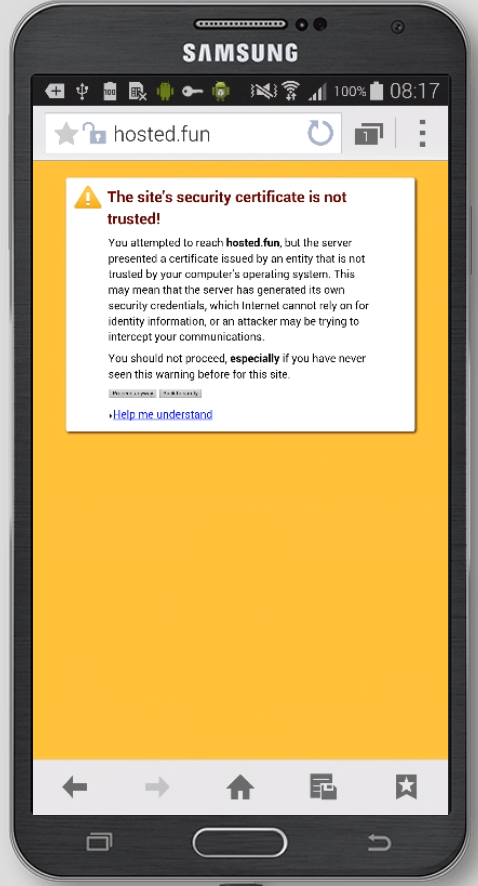
<span>After installing certificate you check the website and are presented with an SSL error:  
<span>The certificate is not trusted!</span>  
This means that you are not presented with a full chain of trust of the certificate.  
![mceclip0.png](https://openprovider.help/uploads/images/gallery/2026-08/embedded-image-knrc2fr5.png)  
</span>

## Cause

SSL Certificate chain is incomplete. Some components are missed.  
Use the full root and intermediate certificates when installing the certificate.

## Resolution  


<span>Please use the full root and intermediate certificates when installing the certificate, these can be found in </span>[this knowledge base article](https://openprovider.help/books/ssl-certificates/page/list-of-root-and-intermediate-certificates)<span>.</span>  
You can check your installation on[this website](https://www.ssllabs.com/ssltest/), we use it often as it has a lot of checks that can give you plenty of information about your server's security

Or use[the tool from Sectigo](https://sectigostore.com/ssl-tools/ssl-checker.php), when you are using a Comodo (Sectigo) certificate.

# How to generate Public Key (PFX)

If your server/device requires a different certificate format other than Base64 encoded X.509, a third party tool such as OpenSSL can be used to convert the certificate into the appropriate format.  
PFX is a container used for MS Windows-based OS that stores your private key, certificate, intermediate certificate and root ceritifcate in one single file.

<table id="bkmrk-type-pem-p7b-%28pkcs%237"><tbody><tr><td>Type</td><td>PEM</td><td>P7B (PKCS#7)</td><td>PFX (P12/PKCS#12)</td><td>DER</td></tr><tr><td>Platforms</td><td>Apache and similar</td><td>MS Windows / Java Tomcat</td><td>MS Windows machines</td><td>Java platforms</td></tr><tr><td>Private key</td><td>Can be included</td><td>Not included</td><td>Can be included</td><td>Not included</td></tr></tbody></table>

  
Archive downloaded from SSL Panel does not include PFX due to security reasons (we do not store private keys, only show during CSR generation and sent to owner email) but you can generate PFX by yourself. Be sure [OpenSSL](https://www.openssl.org/) tool is presented on your system.

## Answer

1\. Copy and paste the private key (find an email in your inbox with subject: "**Your generated CSR and keys for domain** ..." and sender: "**no-reply@sslpanel.io**") to the text editor and save it as a file named 'private.key'.  
  
2\. Extract P7B from the certificate archive (stores certificate, intermediate certificate, and root certificate), rename it to p7b.p7b, and put it in the same folder where the 'private.key' file is located.

![embedded-image-myxfxwpd.png](https://openprovider.help/uploads/images/gallery/2026-08/embedded-image-myxfxwpd.png)

  
![embedded-image-nqbjsb30.png](https://openprovider.help/uploads/images/gallery/2026-08/embedded-image-nqbjsb30.png)

**Note**: If you are using a Windows machine and can't find certificate files for Wildcard SSL orders in the folders using File Explorer, we recommend using 7-Zip<span> to extract the zip archive.  
  
</span>

3\. Recode P7B into PEM format using OpenSSL command:

```
openssl pkcs7 -print_certs -in p7b.p7b -out certificate.pem
```

New file 'certificate.pem' should appear in the folder   
  
4\. Generate PFX with command:

```
openssl pkcs12 -export -in certificate.pem -inkey private.key -out mycert.pfx<strong><br></br></strong>
```

where 'mycert.pfx' - required name of our new PFX

5\. Input and confirm password (use strong password because of PFX besides certificate, intermediate certificate and root certificates also stores your private key). You can generate strong password with e.g. command:

```
openssl rand -base64 32
```

Unauthorised access to PFX can cause certificate compromise.

6\. 'mycert.pfx' will appear in folder. Well done!

The PFX was successfully generated and could be used for further operations.

  
![embedded-image-lxzz0ewx.png](https://openprovider.help/uploads/images/gallery/2026-08/embedded-image-lxzz0ewx.png)

# Installing a Wildcard SSL Certificate on Multiple Servers

## Question

Is it possible to install a Wildcard (.\*) SSL Certificate on Multiple servers?

## Answer

Yes.

The number of servers on which an SSL certificate is installed is not limited.  
Follow the instructions for [Comodo (Sectigo)](https://comodosslstore.com/resources/how-to-install-a-wildcard-ssl-certificate-on-multiple-servers/).

Having trouble to open the zip file and does the file look empty?  
Please review [this article](https://openprovider.help/books/ssl-certificates/page/can-not-open-wildcard-certificate-folder-looks-empty) to resolve that.

# List of Root and Intermediate certificates

## Question

Where to find the root and intermediate certificates for Comodo (Sectigo) certificates?

## Answer

SSL installation requires root and intermediate certificates forming a "chain of trust".  
If at least one component is missed chain will be marked as non-trusted by some browsers.

![mceclip0.png](https://openprovider.help/uploads/images/gallery/2026-08/embedded-image-hvninbtp.png)

Please, find the **updated list** of all the CA intermediate and root [here](https://support.sectigo.com/articles/Knowledge/Sectigo-Intermediate-Certificates?retURL=%2Fapex%2FCom_KnowledgeWeb2Casepagesectigo&popup=false).

  
"Comodo" renamed into "Sectigo" since 01-11-18.  
Since 14-01-19 major part of Comodo products changed root certificates.  
Products active after 14-01-19 use new root during activation and reissue.  
Products active before 14-01-18 using old "Comodo" root for activation and use the same for reissue.

![ÐÐ¾ÑÐ¾Ð¶ÐµÐµ Ð¸Ð·Ð¾Ð±ÑÐ°Ð¶ÐµÐ½Ð¸Ðµ](https://adminvps.ru/content/images/static/comodo.png)  
Actual for certificates issued before 14.01.19 and actual for their further reissues.

EssentialSSL ([SHA-1](https://drive.google.com/file/d/1lqvD4ljkCxTV2xFfvsQinx0RTozI77Dp/view?usp=sharing)/[SHA256](https://drive.google.com/file/d/1CUpXRBUszxa4M94MKBiL3ssUagfKJ1W4/view?usp=sharing))

EssentialSSL Wildcard ([SHA-1](https://drive.google.com/file/d/1jNZd1cxxMxwPgAZcIgtQTpaFM-v8hR-c/view?usp=sharing)/[SHA-256](https://drive.google.com/file/d/1PRlmO0ylykiHIFTDjQ3Vx-SyHMpgQIqD/view?usp=sharing))

[PositiveSSL](https://drive.google.com/file/d/1NfCji7GjMQTjNQCCn065_YWPE0XwWzYA/view?usp=sharing)

[PositiveSSL Wildcard](https://drive.google.com/file/d/1wHfvP3ZK5M9zF9zvXjP-6E8pFHT3nJPO/view?usp=sharing)[  ](https://drive.google.com/file/d/1SNjKW_DIXvldPFOHAgrDgQwfaGuDT1uW/view)

[PositiveSSL Multi-Domain](https://drive.google.com/file/d/1OAegujiRHaJXKzGadY-h9vlmxBfc28-8/view?usp=sharing)

EV SSL ([SHA-1](https://drive.google.com/file/d/1lvnL81WKd6bARHvBShBXdXEJAzcxtWdd/view?usp=sharing)/[SHA-256](https://drive.google.com/file/d/1kqJTI0s4_HJfxBfGcvvlhxfbi7o2Okig/view?usp=sharing))

[EVSSL multi-domain](https://drive.google.com/file/d/1XNBd1vH9MhNNcvcbP5ceLCTLGdwUxOGl/view?usp=sharing)

[InstantSSL](https://drive.google.com/file/d/1Tuf5G7VWK7CKo9LP9MbnBbZu7RYW7g6h/view?usp=sharing)

[InstantSSL Pro](https://drive.google.com/file/d/1fnk08hAqpXjiEYaksNlJ7-9wWoDtzX-k/view?usp=sharing)

[PremiumSSL](https://drive.google.com/file/d/1ZToPfcWMOd9SDNUp_T5ftmWJ7U0Vgnj5/view?usp=sharing)

[PremiumSSL Wildcard](https://drive.google.com/file/d/1jP-bB-JiI6b3gu8FI517u-SnL4Ef7g4c/view?usp=sharing)

[Unified Communications Certificate (UCC)](https://drive.google.com/file/d/1S_sdkUTJuDmhTjlHC0su5_3ldxRx7GYz/view?usp=sharing)

![ÐÐ°ÑÑÐ¸Ð½ÐºÐ¸ Ð¿Ð¾ Ð·Ð°Ð¿ÑÐ¾ÑÑ sectigo logo png](https://openprovider.help/uploads/images/gallery/2026-08/embedded-image-ptoned0y.png)  
  
Actual for certificates issued since 14.01.19 and actual for their further reissues.

ROOT [Root: Sectigo InstantSSL (issued since 14.01.2019)](https://drive.google.com/file/d/1cw3yFbPiQiSDZGZVpmKG_LiqIlR92-ku/view)

INTERMEDIATE [Intermediate: Sectigo InstantSSL (issued since 14.01.2019)](https://drive.google.com/file/d/1Gj-aK2YQseVaW1OL-YoE2Q7lGvHMa3Je/view)

ROOT [Root: Sectigo InstantSSL Pro (issued since 14.01.2019)](https://drive.google.com/file/d/10gEpELtmqQnc-zvUy39ijYgtgY-8YKlR/view)

INTERMEDIATE [Intermediate: InstantSSL Pro (issued since 14.01.2019)](https://drive.google.com/file/d/1DH5OynudBicwJ6287BPrcazqLom_bQ_7/view)

ROOT [Root: Sectigo PositiveSSL (issued since 14.01.2019)  ](https://drive.google.com/file/d/1SNjKW_DIXvldPFOHAgrDgQwfaGuDT1uW/view)

INTERMEDIATE [Intermediate: Sectigo PositiveSSL (issued since 14.01.2019)](https://drive.google.com/file/d/1tjuDdyFGe9lXO_62bzyHoCeOYl-3Zfa4/view)

ROOT [Root: Sectigo PositiveSSL Wildcard (issued since 14.01.2019)  ](https://drive.google.com/file/d/1SNjKW_DIXvldPFOHAgrDgQwfaGuDT1uW/view)

INTERMEDIATE [Intermediate: Sectigo PositiveSSL Wildcard (issued since 14.01.2019)](https://drive.google.com/file/d/1tjuDdyFGe9lXO_62bzyHoCeOYl-3Zfa4/view)

ROOT [Root: Sectigo PositiveSSL MultiDomain (issued since 14.01.2019)](https://drive.google.com/file/d/1TrguCIIIWNiNDAenrExvpfXhlHgijcgg/view)

INTERMEDIATE [Intermediate: Sectigo PositiveSSL MultiDomain (issued since 14.01.2019)](https://drive.google.com/file/d/1b3oJ6dFIjLK_mKx_knXEquUcpODDpRNO/view)

ROOT [Root: Sectigo EssentialSSL (issued since 14.01.2019)](https://drive.google.com/file/d/1MphzR3HMUDSwS1PQQsjFyKfwYiYc5yaG/view?usp=sharing)

INTERMEDIATE [Intermediate: Sectigo EssentialSSL (issued since 14.01.2019)](https://drive.google.com/file/d/1hzGBkCwP-VsW3ZYVznADysNTUm1iLY6I/view?usp=sharing)

ROOT [Root: Sectigo PremiumSSL (issued since 14.01.2019)](https://drive.google.com/file/d/1kfxnBCnki0MULUr9iMEz-nIqu_1_Facj/view)

INTERMEDIATE [Intermediate: Sectigo PremiumSSL (issued since 14.01.2019)](https://drive.google.com/file/d/1c0FAi0pgBwoov4b6FHrjhZV6NAfSUz2o/view)

ROOT [Root: Sectigo PremiumSSL Wildcard (issued since 14.01.2019)](https://drive.google.com/file/d/16-9pn-9YfjJ7YGxRdB4wOWKovtVCwLxw/view)

INTERMEDIATE [Intermediate: Sectigo PremiumSSL Wildcard (issued since 14.01.2019)](https://drive.google.com/file/d/1tjJB0mW9R73_XVMcnmWb4fqa7UKaJdJq/view)

ROOT [Root: Sectigo UCC EV (issued since 14.01.2019)](https://drive.google.com/file/d/1nab41S2ilEHHfkq9wlYR8iIfKSxsuNTE/view)

INTERMEDIATE [Intermediate: UCC EV (issued since 14.01.2019)](https://drive.google.com/file/d/1QGOLx-0s_vzToz08rqo53p89HcN-BWtx/view)

ROOT [Root: Sectigo EVSSL (issued since 14.01.2019)](https://drive.google.com/file/d/17ww5xK7kZ7t43CI2I05r1KzFXJj7LKjw/view)

INTERMEDIATE [Intermediate: EVSSL (issued since 14.01.2019)](https://drive.google.com/file/d/1CbXqMlV-lX8vVJTnDJiTfF3lfR0b8EeZ/view)

ROOT [Root: Sectigo EVSSL Multi-Domain (issued since 14.01.2019)](https://drive.google.com/file/d/1p4GE8s5x08JPfpkCgDyL2kpkL747ePKL/view)

INTERMEDIATE [Intermediate: EVSSL Multi-Domain (issued since 14.01.2019)](https://drive.google.com/file/d/1vGssEGcMtIdzXOD-7GD4_ASPY811vvUK/view)

# Making SSL work on a legacy devices

## Question:

SSL Certificate is not recognized as valid on legacy devices (Android 4X, Old IOS). How to fix?

## Answer:

That is possible for Comodo Certificates.  
The main thing you should know is that you will need to make some changes to a certificates chain.  
On an example of Apache 2.4.9 please [follow a guide on how to set up SSL](https://openprovider.help/books/ssl-certificates/page/ssl-installation-on-apache-249).  
After everything has been done and your website resolves as HTTPS correctly, do the following:  
1\. Find and open your current certificate in a text editor ;  
(You can check configuration to find a path to a certificate: e.g. <span>/etc/apache2/sites-enabled/000-default.conf for Ubuntu includes path for certificate and string 'SSLCertificateFile /etc/ssl/certs/ssl-cert-snakeoil.pem' shows certificate location itself. From system to system paths may vary.)</span>

2\. Open your site certificate in a text editor.  
Add there two blocks including root and specific intermediate chain below site certificate ;  
For example if certificate initially included:

<table id="bkmrk------begin-certifica"><tbody><tr><td>-----BEGIN CERTIFICATE-----  
MIIFtDCCBJygAwIBAgIQE553nZKKeoPq1kf6iN7auDANBgkqhkiG9w0BAQsFADCB  
jzELMAkGA1UEBhMCR0IxGzAZBgNVBAgTEkdyZWF0ZXIgTWFuY2hlc3RlcjEQMA4G  
A1UEBxMHU2FsZm9yZDEYMBYGA1UEChMPU2VjdGlnbyBMaW1pdGVkMTcwNQYDVQQD  
Ey5TZWN0aWdvIFJTQSBEb21haW4gVmFsaWRhdGlvbiBTZWN1cmUgU2VydmVyIENB  
MB4XDTIwMDQyMDAwMDAwMFoXDTIxMDQyMTIzNTk1OVowFTETMBEGA1UEAxMKaG9z  
dGVkLmZ1bjCCASIwDQYJKoZIhvcNAQEBBQADggEPADCCAQoCggEBALIvIh7pLEwG  
lC84+wuzemtOi5zWYpXg2gLIp+Hr6vWofuYzbxKhHQLlsUuHJ3mMRQhRcGWTmI1v  
C2qocDRTpy804yPpz+nrVhhevZniW9MPg1maQgPOcdbUINzWdUT6WZEFg9DVrOj/  
NQRFXcducjtWHwE3dMy7ws4JreoI8epNARmrWFTHshWxO3cL4b0LLRbOG16B6s09  
BfDv5NF2Wm4EHv98mgWHwePQqdQ3XZ/kWLkcV3oCeK3t+J8s8PztSKdeEG/hbL5i  
yeljU/sfVm+1TFYPRdcyeu30eV4otEWHOeipfPUxI4QC4yIS5uyOzsjQx/4U8ctU  
Y7wle3NTnfkCAwEAAaOCAoMwggJ/MB8GA1UdIwQYMBaAFI2MXsRUrYrhd+mb+ZsF  
4bgBjWHhMB0GA1UdDgQWBBQSTE/dgNt43q4GcG7m5bjVBrib7jAOBgNVHQ8BAf8E  
BAMCBaAwDAYDVR0TAQH/BAIwADAdBgNVHSUEFjAUBggrBgEFBQcDAQYIKwYBBQUH  
AwIwSQYDVR0gBEIwQDA0BgsrBgEEAbIxAQICBzAlMCMGCCsGAQUFBwIBFhdodHRw  
czovL3NlY3RpZ28uY29tL0NQUzAIBgZngQwBAgEwgYQGCCsGAQUFBwEBBHgwdjBP  
BggrBgEFBQcwAoZDaHR0cDovL2NydC5zZWN0aWdvLmNvbS9TZWN0aWdvUlNBRG9t  
YWluVmFsaWRhdGlvblNlY3VyZVNlcnZlckNBLmNydDAjBggrBgEFBQcwAYYXaHR0  
cDovL29jc3Auc2VjdGlnby5jb20wJQYDVR0RBB4wHIIKaG9zdGVkLmZ1boIOd3d3  
Lmhvc3RlZC5mdW4wggEFBgorBgEEAdZ5AgQCBIH2BIHzAPEAdgB9PvL4j/+IVWgk  
wsDKnlKJeSvFDngJfy5ql2iZfiLw1wAAAXGXTEtUAAAEAwBHMEUCIAr63zpOX094  
//t4bwpGl9sMmoFOwFkqzK+ldPjACHeGAiEA3fqT9t7ws8m/PrrNXBgeIQnq4OKm  
9QYjiytlH2kEoPUAdwCUILwejtWNbIhzH4KLIiwN0dpNXmxPlD1h204vWE2iwgAA  
AXGXTEt8AAAEAwBIMEYCIQDrzLW8UyfmVsnXwatKVgVf3eChRlktRq1C9EBn3BDX  
/QIhAI2VSJJjUQ01YQGyl7rWPYEh86Vg5/lzoLE9ibSXZvJfMA0GCSqGSIb3DQEB  
CwUAA4IBAQAEVJKyyq/alWNuxDDcjE9IxQ6sjTN+eJFYWzLuybYgLSh+tj0gMxUt  
2fMzvgMwtHZZJYX2LRhJxUlJyaEQtYfiPV+P7v5DcpZdc3zj7idXVf+p1CPEkLo4  
HA0YwEYvbSAjueiuDMVXxQ0DWj+2hCeyguHlrN6Ld/nA8FbZMZqPy0FidLS9AOuo  
kOEcEobe0EFnhRdKNjgmv4kZJAI/R/1U75DDYkx2GvIRRi52Rclko6cBuDgxVSfY  
GYB6D11iZGeo/VGMKRmCcR4kf+sxsEHzBHUvgwHhDVJ7xC5HttxdPfP1CVQjdjJy  
/mn/qbHuybKBmhEfKDIY7ARSgGH+c7ym  
-----END CERTIFICATE-----</td></tr></tbody></table>

<div id="bkmrk-then-after-changes-i">Then after changes it will look like:  
<table><tbody><tr><td><span>-----BEGIN CERTIFICATE-----</span>  
<span>MIIFtDCCBJygAwIBAgIQE553nZKKeoPq1kf6iN7auDANBgkqhkiG9w0BAQsFADCB</span>  
<span>jzELMAkGA1UEBhMCR0IxGzAZBgNVBAgTEkdyZWF0ZXIgTWFuY2hlc3RlcjEQMA4G</span>  
<span>A1UEBxMHU2FsZm9yZDEYMBYGA1UEChMPU2VjdGlnbyBMaW1pdGVkMTcwNQYDVQQD</span>  
<span>Ey5TZWN0aWdvIFJTQSBEb21haW4gVmFsaWRhdGlvbiBTZWN1cmUgU2VydmVyIENB</span>  
<span>MB4XDTIwMDQyMDAwMDAwMFoXDTIxMDQyMTIzNTk1OVowFTETMBEGA1UEAxMKaG9z</span>  
<span>dGVkLmZ1bjCCASIwDQYJKoZIhvcNAQEBBQADggEPADCCAQoCggEBALIvIh7pLEwG</span>  
<span>lC84+wuzemtOi5zWYpXg2gLIp+Hr6vWofuYzbxKhHQLlsUuHJ3mMRQhRcGWTmI1v</span>  
<span>C2qocDRTpy804yPpz+nrVhhevZniW9MPg1maQgPOcdbUINzWdUT6WZEFg9DVrOj/</span>  
<span>NQRFXcducjtWHwE3dMy7ws4JreoI8epNARmrWFTHshWxO3cL4b0LLRbOG16B6s09</span>  
<span>BfDv5NF2Wm4EHv98mgWHwePQqdQ3XZ/kWLkcV3oCeK3t+J8s8PztSKdeEG/hbL5i</span>  
<span>yeljU/sfVm+1TFYPRdcyeu30eV4otEWHOeipfPUxI4QC4yIS5uyOzsjQx/4U8ctU</span>  
<span>Y7wle3NTnfkCAwEAAaOCAoMwggJ/MB8GA1UdIwQYMBaAFI2MXsRUrYrhd+mb+ZsF</span>  
<span>4bgBjWHhMB0GA1UdDgQWBBQSTE/dgNt43q4GcG7m5bjVBrib7jAOBgNVHQ8BAf8E</span>  
<span>BAMCBaAwDAYDVR0TAQH/BAIwADAdBgNVHSUEFjAUBggrBgEFBQcDAQYIKwYBBQUH</span>  
<span>AwIwSQYDVR0gBEIwQDA0BgsrBgEEAbIxAQICBzAlMCMGCCsGAQUFBwIBFhdodHRw</span>  
<span>czovL3NlY3RpZ28uY29tL0NQUzAIBgZngQwBAgEwgYQGCCsGAQUFBwEBBHgwdjBP</span>  
<span>BggrBgEFBQcwAoZDaHR0cDovL2NydC5zZWN0aWdvLmNvbS9TZWN0aWdvUlNBRG9t</span>  
<span>YWluVmFsaWRhdGlvblNlY3VyZVNlcnZlckNBLmNydDAjBggrBgEFBQcwAYYXaHR0</span>  
<span>cDovL29jc3Auc2VjdGlnby5jb20wJQYDVR0RBB4wHIIKaG9zdGVkLmZ1boIOd3d3</span>  
<span>Lmhvc3RlZC5mdW4wggEFBgorBgEEAdZ5AgQCBIH2BIHzAPEAdgB9PvL4j/+IVWgk</span>  
<span>wsDKnlKJeSvFDngJfy5ql2iZfiLw1wAAAXGXTEtUAAAEAwBHMEUCIAr63zpOX094</span>  
<span>//t4bwpGl9sMmoFOwFkqzK+ldPjACHeGAiEA3fqT9t7ws8m/PrrNXBgeIQnq4OKm</span>  
<span>9QYjiytlH2kEoPUAdwCUILwejtWNbIhzH4KLIiwN0dpNXmxPlD1h204vWE2iwgAA</span>  
<span>AXGXTEt8AAAEAwBIMEYCIQDrzLW8UyfmVsnXwatKVgVf3eChRlktRq1C9EBn3BDX</span>  
<span>/QIhAI2VSJJjUQ01YQGyl7rWPYEh86Vg5/lzoLE9ibSXZvJfMA0GCSqGSIb3DQEB</span>  
<span>CwUAA4IBAQAEVJKyyq/alWNuxDDcjE9IxQ6sjTN+eJFYWzLuybYgLSh+tj0gMxUt</span>  
<span>2fMzvgMwtHZZJYX2LRhJxUlJyaEQtYfiPV+P7v5DcpZdc3zj7idXVf+p1CPEkLo4</span>  
<span>HA0YwEYvbSAjueiuDMVXxQ0DWj+2hCeyguHlrN6Ld/nA8FbZMZqPy0FidLS9AOuo</span>  
<span>kOEcEobe0EFnhRdKNjgmv4kZJAI/R/1U75DDYkx2GvIRRi52Rclko6cBuDgxVSfY</span>  
<span>GYB6D11iZGeo/VGMKRmCcR4kf+sxsEHzBHUvgwHhDVJ7xC5HttxdPfP1CVQjdjJy</span>  
<span>/mn/qbHuybKBmhEfKDIY7ARSgGH+c7ym</span>  
<span>-----END CERTIFICATE-----</span>  
<span>-----BEGIN CERTIFICATE-----</span>  
<span>MIIGEzCCA/ugAwIBAgIQfVtRJrR2uhHbdBYLvFMNpzANBgkqhkiG9w0BAQwFADCB</span>  
<span>iDELMAkGA1UEBhMCVVMxEzARBgNVBAgTCk5ldyBKZXJzZXkxFDASBgNVBAcTC0pl</span>  
<span>cnNleSBDaXR5MR4wHAYDVQQKExVUaGUgVVNFUlRSVVNUIE5ldHdvcmsxLjAsBgNV</span>  
<span>BAMTJVVTRVJUcnVzdCBSU0EgQ2VydGlmaWNhdGlvbiBBdXRob3JpdHkwHhcNMTgx</span>  
<span>MTAyMDAwMDAwWhcNMzAxMjMxMjM1OTU5WjCBjzELMAkGA1UEBhMCR0IxGzAZBgNV</span>  
<span>BAgTEkdyZWF0ZXIgTWFuY2hlc3RlcjEQMA4GA1UEBxMHU2FsZm9yZDEYMBYGA1UE</span>  
<span>ChMPU2VjdGlnbyBMaW1pdGVkMTcwNQYDVQQDEy5TZWN0aWdvIFJTQSBEb21haW4g</span>  
<span>VmFsaWRhdGlvbiBTZWN1cmUgU2VydmVyIENBMIIBIjANBgkqhkiG9w0BAQEFAAOC</span>  
<span>AQ8AMIIBCgKCAQEA1nMz1tc8INAA0hdFuNY+B6I/x0HuMjDJsGz99J/LEpgPLT+N</span>  
<span>TQEMgg8Xf2Iu6bhIefsWg06t1zIlk7cHv7lQP6lMw0Aq6Tn/2YHKHxYyQdqAJrkj</span>  
<span>eocgHuP/IJo8lURvh3UGkEC0MpMWCRAIIz7S3YcPb11RFGoKacVPAXJpz9OTTG0E</span>  
<span>oKMbgn6xmrntxZ7FN3ifmgg0+1YuWMQJDgZkW7w33PGfKGioVrCSo1yfu4iYCBsk</span>  
<span>Haswha6vsC6eep3BwEIc4gLw6uBK0u+QDrTBQBbwb4VCSmT3pDCg/r8uoydajotY</span>  
<span>uK3DGReEY+1vVv2Dy2A0xHS+5p3b4eTlygxfFQIDAQABo4IBbjCCAWowHwYDVR0j</span>  
<span>BBgwFoAUU3m/WqorSs9UgOHYm8Cd8rIDZsswHQYDVR0OBBYEFI2MXsRUrYrhd+mb</span>  
<span>+ZsF4bgBjWHhMA4GA1UdDwEB/wQEAwIBhjASBgNVHRMBAf8ECDAGAQH/AgEAMB0G</span>  
<span>A1UdJQQWMBQGCCsGAQUFBwMBBggrBgEFBQcDAjAbBgNVHSAEFDASMAYGBFUdIAAw</span>  
<span>CAYGZ4EMAQIBMFAGA1UdHwRJMEcwRaBDoEGGP2h0dHA6Ly9jcmwudXNlcnRydXN0</span>  
<span>LmNvbS9VU0VSVHJ1c3RSU0FDZXJ0aWZpY2F0aW9uQXV0aG9yaXR5LmNybDB2Bggr</span>  
<span>BgEFBQcBAQRqMGgwPwYIKwYBBQUHMAKGM2h0dHA6Ly9jcnQudXNlcnRydXN0LmNv</span>  
<span>bS9VU0VSVHJ1c3RSU0FBZGRUcnVzdENBLmNydDAlBggrBgEFBQcwAYYZaHR0cDov</span>  
<span>L29jc3AudXNlcnRydXN0LmNvbTANBgkqhkiG9w0BAQwFAAOCAgEAMr9hvQ5Iw0/H</span>  
<span>ukdN+Jx4GQHcEx2Ab/zDcLRSmjEzmldS+zGea6TvVKqJjUAXaPgREHzSyrHxVYbH</span>  
<span>7rM2kYb2OVG/Rr8PoLq0935JxCo2F57kaDl6r5ROVm+yezu/Coa9zcV3HAO4OLGi</span>  
<span>H19+24rcRki2aArPsrW04jTkZ6k4Zgle0rj8nSg6F0AnwnJOKf0hPHzPE/uWLMUx</span>  
<span>RP0T7dWbqWlod3zu4f+k+TY4CFM5ooQ0nBnzvg6s1SQ36yOoeNDT5++SR2RiOSLv</span>  
<span>xvcRviKFxmZEJCaOEDKNyJOuB56DPi/Z+fVGjmO+wea03KbNIaiGCpXZLoUmGv38</span>  
<span>sbZXQm2V0TP2ORQGgkE49Y9Y3IBbpNV9lXj9p5v//cWoaasm56ekBYdbqbe4oyAL</span>  
<span>l6lFhd2zi+WJN44pDfwGF/Y4QA5C5BIG+3vzxhFoYt/jmPQT2BVPi7Fp2RBgvGQq</span>  
<span>6jG35LWjOhSbJuMLe/0CjraZwTiXWTb2qHSihrZe68Zk6s+go/lunrotEbaGmAhY</span>  
<span>LcmsJWTyXnW0OMGuf1pGg+pRyrbxmRE1a6Vqe8YAsOf4vmSyrcjC8azjUeqkk+B5</span>  
<span>yOGBQMkKW+ESPMFgKuOXwIlCypTPRpgSabuY0MLTDXJLR27lk8QyKGOHQ+SwMj4K</span>  
<span>00u/I5sUKUErmgQfky3xxzlIPK1aEn8=</span>  
<span>-----END CERTIFICATE-----</span>  
<span>-----BEGIN CERTIFICATE-----</span>  
<span>MIIFgTCCBGmgAwIBAgIQOXJEOvkit1HX02wQ3TE1lTANBgkqhkiG9w0BAQwFADB7</span>  
<span>MQswCQYDVQQGEwJHQjEbMBkGA1UECAwSR3JlYXRlciBNYW5jaGVzdGVyMRAwDgYD</span>  
<span>VQQHDAdTYWxmb3JkMRowGAYDVQQKDBFDb21vZG8gQ0EgTGltaXRlZDEhMB8GA1UE</span>  
<span>AwwYQUFBIENlcnRpZmljYXRlIFNlcnZpY2VzMB4XDTE5MDMxMjAwMDAwMFoXDTI4</span>  
<span>MTIzMTIzNTk1OVowgYgxCzAJBgNVBAYTAlVTMRMwEQYDVQQIEwpOZXcgSmVyc2V5</span>  
<span>MRQwEgYDVQQHEwtKZXJzZXkgQ2l0eTEeMBwGA1UEChMVVGhlIFVTRVJUUlVTVCBO</span>  
<span>ZXR3b3JrMS4wLAYDVQQDEyVVU0VSVHJ1c3QgUlNBIENlcnRpZmljYXRpb24gQXV0</span>  
<span>aG9yaXR5MIICIjANBgkqhkiG9w0BAQEFAAOCAg8AMIICCgKCAgEAgBJlFzYOw9sI</span>  
<span>s9CsVw127c0n00ytUINh4qogTQktZAnczomfzD2p7PbPwdzx07HWezcoEStH2jnG</span>  
<span>vDoZtF+mvX2do2NCtnbyqTsrkfjib9DsFiCQCT7i6HTJGLSR1GJk23+jBvGIGGqQ</span>  
<span>Ijy8/hPwhxR79uQfjtTkUcYRZ0YIUcuGFFQ/vDP+fmyc/xadGL1RjjWmp2bIcmfb</span>  
<span>IWax1Jt4A8BQOujM8Ny8nkz+rwWWNR9XWrf/zvk9tyy29lTdyOcSOk2uTIq3XJq0</span>  
<span>tyA9yn8iNK5+O2hmAUTnAU5GU5szYPeUvlM3kHND8zLDU+/bqv50TmnHa4xgk97E</span>  
<span>xwzf4TKuzJM7UXiVZ4vuPVb+DNBpDxsP8yUmazNt925H+nND5X4OpWaxKXwyhGNV</span>  
<span>icQNwZNUMBkTrNN9N6frXTpsNVzbQdcS2qlJC9/YgIoJk2KOtWbPJYjNhLixP6Q5</span>  
<span>D9kCnusSTJV882sFqV4Wg8y4Z+LoE53MW4LTTLPtW//e5XOsIzstAL81VXQJSdhJ</span>  
<span>WBp/kjbmUZIO8yZ9HE0XvMnsQybQv0FfQKlERPSZ51eHnlAfV1SoPv10Yy+xUGUJ</span>  
<span>5lhCLkMaTLTwJUdZ+gQek9QmRkpQgbLevni3/GcV4clXhB4PY9bpYrrWX1Uu6lzG</span>  
<span>KAgEJTm4Diup8kyXHAc/DVL17e8vgg8CAwEAAaOB8jCB7zAfBgNVHSMEGDAWgBSg</span>  
<span>EQojPpbxB+zirynvgqV/0DCktDAdBgNVHQ4EFgQUU3m/WqorSs9UgOHYm8Cd8rID</span>  
<span>ZsswDgYDVR0PAQH/BAQDAgGGMA8GA1UdEwEB/wQFMAMBAf8wEQYDVR0gBAowCDAG</span>  
<span>BgRVHSAAMEMGA1UdHwQ8MDowOKA2oDSGMmh0dHA6Ly9jcmwuY29tb2RvY2EuY29t</span>  
<span>L0FBQUNlcnRpZmljYXRlU2VydmljZXMuY3JsMDQGCCsGAQUFBwEBBCgwJjAkBggr</span>  
<span>BgEFBQcwAYYYaHR0cDovL29jc3AuY29tb2RvY2EuY29tMA0GCSqGSIb3DQEBDAUA</span>  
<span>A4IBAQAYh1HcdCE9nIrgJ7cz0C7M7PDmy14R3iJvm3WOnnL+5Nb+qh+cli3vA0p+</span>  
<span>rvSNb3I8QzvAP+u431yqqcau8vzY7qN7Q/aGNnwU4M309z/+3ri0ivCRlv79Q2R+</span>  
<span>/czSAaF9ffgZGclCKxO/WIu6pKJmBHaIkU4MiRTOok3JMrO66BQavHHxW/BBC5gA</span>  
<span>CiIDEOUMsfnNkjcZ7Tvx5Dq2+UUTJnWvu6rvP3t3O9LEApE9GQDTF1w52z97GA1F</span>  
<span>zZOFli9d31kWTz9RvdVFGD/tSo7oBmF0Ixa1DVBzJ0RHfxBdiSprhTEUxOipakyA</span>  
<span>vGp4z7h/jnZymQyd/teRCBaho1+V</span>  
<span>-----END CERTIFICATE-----</span></td></tr></tbody></table>

<span>**Green**</span> is a website certificate, **<span>Red</span>** = root, <span>**Blue**</span> = special AAA intermediate certificate.</div><div id="bkmrk-attention%21-root-and-">**Attention**! Root and intermediates may vary. Refer to actual ones from this **[article](https://openprovider.help/books/ssl-certificates/page/my-domain-certificate-is-untrusted-after-the-may-30th)**.</div>Check configuration:

```
apachectl -t
```

Reboot apache:

```
sudo service apache2 reload
```

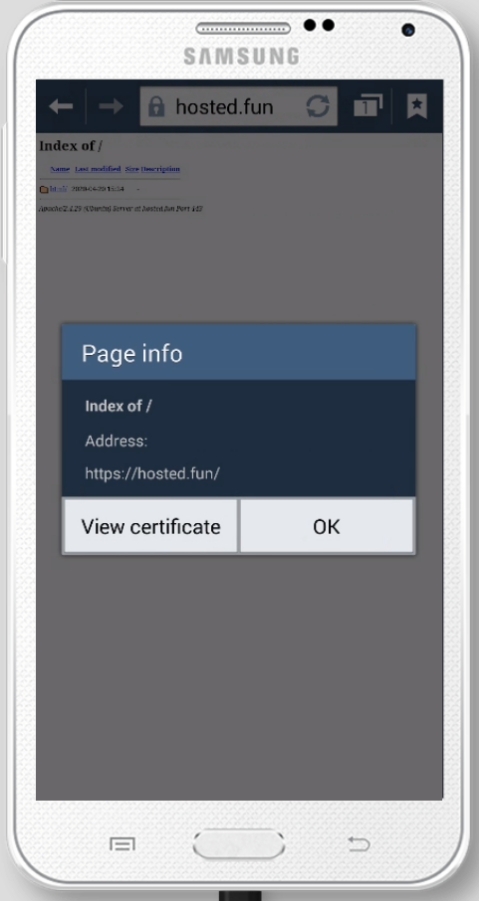
Changes reflects immidiatelly, your SSL Certificate will be shown as trusted and valid in both modern and legacy browsers.

<table id="bkmrk-before-%28android-4.4%29"><tbody><tr><td>Before (Android 4.4)</td><td>After (Android 4.4)</td></tr><tr><td>![mceclip1.png](https://openprovider.help/uploads/images/gallery/2026-08/embedded-image-8goczvtt.png)</td><td>![mceclip3.png](https://openprovider.help/uploads/images/gallery/2026-08/embedded-image-7ktcnzyi.png)</td></tr></tbody></table>

# My domain certificate is untrusted after the May 30th

## Question:

After the 30th of May 2020, my website certificate becomes untrusted. Why and how to fix that?

## Answer:

On May 30, 2020, 10:48:38 +0000 root certificate "**AddTrust External CA Root**" and intermediate certificate "**USERTrust RSA Certification Authority**" expired.  
That could impact leaf certificates validation on outdated systems.

Modern browsers are not affected by the expiration since they automatically switch to the new SHA-2 root (Comodo or USERTrust).  
![mceclip0.png](https://openprovider.help/uploads/images/gallery/2026-08/embedded-image-sdrn3t9a.png)

If your service meets one of the following conditions, it may be affected:

- Your application is set up to explicitly trust **Addtrust External CA Root** ;
- Your service is using the expired Root certificate and is being accessed by applications other than browsers (e.g. API, cURL, OpenSSL, etc.) ;
- Your service is using an application that has not received security updates since mid-2015 ;
- Your service is using an application with broken certificate path validation (e.g. OpenSSL, OpenLDAP, Postfix) ;

If your service uses one of the affected applications regardless of the Root certificate installed, you should update the settings of the affected application.

Follow this guide to check if your service is using the expired Root:

- Start [**OpenSSL**](https://www.openssl.org/) ```
    <em>openssl</em><span> s_client -connect <strong>remote.host</strong>:443</span>
    ```
    
    where "**remote.host**" equals your domain name ;
- If you see**AddTrust External CA Root**as**CN**, please follow the next steps.  
    Otherwise, the service is not affected by the issue.  
    ![mceclip0.png](https://openprovider.help/uploads/images/gallery/2026-08/embedded-image-kuygsuor.png)

To fix any issue reinstall root and intermediate certificates bundle.  
Check your "**Issuer Common Name**" using OpenSSL  
![mceclip1.png](https://openprovider.help/uploads/images/gallery/2026-08/embedded-image-5adhylj4.png)  
Depending on your current vendor use following root and intermediates (updated 03.06.2020):

<table id="bkmrk-product-domain-valid"><tbody><tr><td>Product</td><td>Domain Validation</td><td>Organization Validation</td><td>Extended Validation</td></tr><tr><td>Comodo</td><td>[root](https://drive.google.com/file/d/1-HTu-5i24P_AH7mres51No06Yn1bcndi/view?usp=sharing) | [int](https://drive.google.com/file/d/1AuTOXcvSgGJCnNsw8xMhaTtpudizF00N/view?usp=sharing)</td><td>[root](https://drive.google.com/file/d/1-HTu-5i24P_AH7mres51No06Yn1bcndi/view?usp=sharing) | [int](https://drive.google.com/file/d/1LNYOscJB5yzzAAsrnWYxt5OoF1DZP40s/view?usp=sharing)</td><td>[root](https://drive.google.com/file/d/1-HTu-5i24P_AH7mres51No06Yn1bcndi/view?usp=sharing) | [int](https://drive.google.com/file/d/1oSZ0yOyJ_4yUzUjsMWof_zfFLzhgI4Hk/view?usp=sharing)</td></tr><tr><td>Sectigo</td><td>[root](https://drive.google.com/file/d/1z3wbCl9zFZJBa-avYuL46x2DEy3wPcgI/view?usp=sharing) | [int](https://drive.google.com/file/d/1pIwD7SMCw8aIK1nfNuN_8i57OE61QW1Z/view?usp=sharing)</td><td>[root](https://drive.google.com/file/d/1z3wbCl9zFZJBa-avYuL46x2DEy3wPcgI/view?usp=sharing) | [int](https://drive.google.com/file/d/1q-bsf1L_VT7KctyOryXzs7i79thJayIz/view?usp=sharing)</td><td>[root](https://drive.google.com/file/d/1z3wbCl9zFZJBa-avYuL46x2DEy3wPcgI/view?usp=sharing) | [int](https://drive.google.com/file/d/1Wq1sT-IBuPvyKLfnHZeK1KsFKXqP9gTS/view?usp=sharing)</td></tr><tr><td>Sectigo with AAA root  
(for [legacy devices](https://openprovider.help/books/ssl-certificates/page/making-ssl-work-on-a-legacy-devices))</td><td>[root](https://drive.google.com/file/d/1CZAAmk-wSspKB_6KkIRKVY4Zy8qZNksn/view?usp=sharing) | [int](https://drive.google.com/file/d/1pIwD7SMCw8aIK1nfNuN_8i57OE61QW1Z/view)</td><td>[root](https://drive.google.com/file/d/1CZAAmk-wSspKB_6KkIRKVY4Zy8qZNksn/view?usp=sharing) | [int](https://drive.google.com/file/d/1q-bsf1L_VT7KctyOryXzs7i79thJayIz/view?usp=sharing)</td><td>[root](https://drive.google.com/file/d/1CZAAmk-wSspKB_6KkIRKVY4Zy8qZNksn/view?usp=sharing) | [int](https://drive.google.com/file/d/1Wq1sT-IBuPvyKLfnHZeK1KsFKXqP9gTS/view?usp=sharing)</td></tr></tbody></table>

# Recent change Root Certificate from Sectigo CA (June 2025)

This documentation is to inform about a recent change made by our SSL certificate supplier Sectigo that may be causing issues with your SSL certificates.

Sectigo is currently migrating to **new public root Certificate Authorities (CAs)** as part of a global infrastructure upgrade. This change aims to improve longterm compatibility and security but may temporarily affect some systems that do not yet recognize the new root certificates.

  
**What does this mean for you?**  
Some SSL-secured services may experience trust warnings certificate errors or unexpected behavior especially on older devices, systems, or applications that have not updated their root certificate store.

You can read more about the migration directly on Sectigo's official page:  
👉 [Sectigo Public Root CAs](https://www.sectigo.com/sectigo-public-root-cas-migration) Migration

You can find additional root and intermediate certificates to install [via this link](https://support.sectigo.com/IS_KnowledgeDetailPage?Id=kA0Uj0000004IrB):

  
**We're on it!**  
Our team is actively working with Sectigo to ensure a smooth transition and to minimize any disruptions. We're also updating relevant systems and providing necessary documentation to help affected customers resolve issues as quickly as possible.

**What you can do:**

Ensure your servers and clients are using up-to-date operating systems and trust stores.

If you are seeing issues, add the new intermediate certificate.

- Domain Validated (DV) - [new\_intermediate\_DV.crt](https://support.openprovider.eu/hc/article_attachments/27487489820562)
- Extended Validation (EV) - [new\_intermediate\_EV.crt](https://support.openprovider.eu/hc/article_attachments/27487489818258)
- Organization Validated (OV) - [new\_intermediate\_OV.crt](https://support.openprovider.eu/hc/article_attachments/27487489822994)

  
Use intermediate certificate based on "[Type of certificate](https://openprovider.help/books/ssl-certificates/page/different-types-of-ssl-certificates-dv-ov-ev-explained)" you have selected you have. For example, if you have a Domain Validated (DV) certificate, use [new\_intermediate\_DV.crt](https://support.openprovider.eu/hc/article_attachments/27487489820562).

We appreciate your patience and understanding during this transition.

# SSL Installation on Apache 2.4.9

## Question:

My SSL Certificate is already active. How do I install it?

## Answer:

<div id="bkmrk-1.-connect-to-your-h">1. Connect to your host ;</div><div id="bkmrk-2.%C2%A0turn-on-ssl-mod%3A">2. Turn on SSL mod:</div>```
sudo a2enmod ssl
```

<div id="bkmrk-3.%C2%A0check-your-config">3. Check your config path</div>```
 apachectl -S
```

<div id="bkmrk-4.%C2%A0open-your-config%2C">4. Open your config, e.g. in Ubuntu path would be:</div>```
/etc/apache2/sites-enabled/000-default.conf:1
```

<div id="bkmrk-5.-to-set-up-a-virtu">5. To set up a virtual host for HTTPS (port 443) include the following into your configuration.  
Don't forget to include files to correct folders.  
Save configuration.</div>```
<VirtualHost *:443><br></br>ServerName example.com <span><em>(replace with your domain)</em></span><br></br>DocumentRoot /var/www/<br></br>SSLEngine on<br></br>SSLCertificateFile /etc/ssl/certs/ssl-cert-snakeoil.pem<br></br>SSLCertificateKeyFile /etc/ssl/private/ssl-cert-snakeoil.key<br></br>SSLCertificateChainFile /etc/ssl/certs/hosted_fun.ca-bundle<br></br></VirtualHost>
```

<div id="bkmrk-5.%C2%A0here%27s-an-explana">5. Here's an explanation of directives</div>```
SSLCertificateFile /etc/ssl/certs/ssl-cert-snakeoil.pem - this is a pem certificate for site itself<br></br>SSLCertificateKeyFile /etc/ssl/private/ssl-cert-snakeoil.key - your private key<br></br>SSLCertificateChainFile /etc/ssl/certs/hosted_fun.ca-bundle - bundle from downloaded archive (obsolete since 2.4.8, you can comment it by adding "#" before SSLCertificateChainFile or leave it but it won't affect configuration)
```

<div id="bkmrk-6.%C2%A0check-config-synt">6. Check config syntax after you've changed configuration:</div>```
apachectl -t
```

7\. Restart Apache service:

```
sudo service apache2 reload
```

Changes will affect immediately.

# SSL Installation on MS IIS (Windows-powered systems)

<span>**Question:** </span><span>How do I install SSL for Windows-powered hosts?</span>

<span>**Answer:** </span><span>Please refer to [Microsoft IIS](https://en.wikipedia.org/wiki/Internet_Information_Services) v.10 (Windows 10, Windows Server 2016) SSL Installation Guide.  
Details may differ depending on your Operating System.</span>

<table id="bkmrk-iis-version-system-y"><tbody><tr><td>## <span>**IIS version**</span>

</td><td>## <span>**System**</span>

</td><td>## <span>**Year**</span>

</td></tr><tr><td>## <span>1.0</span>

</td><td>## <span>[Windows NT 3.51](https://en.wikipedia.org/wiki/Windows_NT_3.51)</span>

</td><td>## <span><span>1995</span></span>

</td></tr><tr><td>## <span>2.0</span>

</td><td>## <span>[Windows NT 4.0](https://en.wikipedia.org/wiki/Windows_NT_4.0)</span>

</td><td>## <span><span>1996</span></span>

</td></tr><tr><td>## <span>3.0</span>

</td><td>## <span><span>[Service Pack 3](https://en.wikipedia.org/wiki/Windows_NT_4.0#Service_packs) for </span>[Windows NT 4.0](https://en.wikipedia.org/wiki/Windows_NT_4.0)</span>

</td><td>## <span><span>1997</span></span>

</td></tr><tr><td>## <span>4.0</span>

</td><td>## <span><span>Package Option Pack for </span>[<span>Windows NT 4.0</span>](https://en.wikipedia.org/wiki/Windows_NT_4.0)</span>

</td><td>## <span><span>1998</span></span>

</td></tr><tr><td>## <span>5.0</span>

</td><td>## <span>[Windows 2000](https://en.wikipedia.org/wiki/Windows_2000)</span>

</td><td>## <span><span>2000</span></span>

</td></tr><tr><td>## <span>5.1</span>

</td><td>## <span>[Windows XP Professional](https://en.wikipedia.org/wiki/Windows_XP)</span>

</td><td>## <span><span>2001</span></span>

</td></tr><tr><td>## <span>6.0</span>

</td><td>## <span>[Windows Server 2003](https://en.wikipedia.org/wiki/Windows_Server_2003)</span>

</td><td>## <span><span>2003</span></span>

</td></tr><tr><td>## <span>7.0</span>

</td><td>## <span>[Windows Vista](https://en.wikipedia.org/wiki/Windows_Vista)<span>; </span>[Windows Server 2008](https://en.wikipedia.org/wiki/Windows_Server_2008)</span>

</td><td>## <span>2006-2008</span>

</td></tr><tr><td>## <span>7.5</span>

</td><td>## <span>[Windows 7](https://en.wikipedia.org/wiki/Windows_7)<span>; </span>[Windows Server 2008 R2](https://en.wikipedia.org/wiki/Windows_Server_2008_R2)</span>

</td><td>## <span><span>2009</span></span>

</td></tr><tr><td>## <span>8.0</span>

</td><td>## <span>[Windows 8](https://en.wikipedia.org/wiki/Windows_8)<span>; </span>[Windows Server 2012](https://en.wikipedia.org/wiki/Windows_Server_2012)</span>

</td><td>## <span><span>2012</span></span>

</td></tr><tr><td>## <span>8.5</span>

</td><td>## <span>[Windows 8.1](https://en.wikipedia.org/wiki/Windows_8.1)<span>; </span>[Windows Server 2012 R2](https://en.wikipedia.org/wiki/Windows_Server_2012_R2)</span>

</td><td>## <span><span>2013</span></span>

</td></tr><tr><td>## <span>10</span>

</td><td>## <span>[Windows 10](https://en.wikipedia.org/wiki/Windows_10)<span>; </span>[Windows Server 2016](https://en.wikipedia.org/wiki/Windows_Server_2016)</span>

</td><td>## <span><span>2015</span></span>

</td></tr></tbody></table>

<span>SSL installation in IIS 10 requires one certificate file with the .p7b (or .cer) file extension.  
Download an archive from [SSLPanel](https://sslpanel.io) first of all.  
![mceclip0.png](https://openprovider.help/uploads/images/gallery/2026-08/embedded-image-xgnjek5x.png)  
</span>

<span>In order to install the certificate, please follow the steps below.</span>

### <span>Upload your Certificate</span>

1. <span><span>Press </span>**Win + R**<span> and type “</span>***inetmgr***<span>” in the appeared window to run the Internet Information Services (IIS) Manager.</span></span>
2. <span><span>On the IIS Manager home page, locate the </span>**Server Certificates**<span> icon and double-click it.</span><span>  
    </span></span><span><span>![mceclip1.png](https://openprovider.help/uploads/images/gallery/2026-08/embedded-image-ti1hdkwl.png)</span></span>
3. <span><span>Locate the </span>**Actions**<span> panel on the right side and click </span>**Complete Certificate Request**<span>:  
    ![mceclip3.png](https://openprovider.help/uploads/images/gallery/2026-08/embedded-image-uvncbn7a.png)</span></span>
4. <span><span>In the </span>**Specify Certificate Authority Response**<span> window, perform the actions below.a) In the </span>**File name containing the certification authority’s response**<span> field, browse the file system to select your .p7b (or .cer) certificate.</span><span>  
    </span><span>b) In the </span>**Friendly name**<span> field, specify any name that will help you to identify the certificate among other files. It is best to submit the actual domain name of the certificate.</span><span>  
    </span><span>c) In the </span>**Select a certificate store for the new certificate**<span> field, leave the default value </span>**Personal**<span>.  
    ![mceclip4.png](https://openprovider.help/uploads/images/gallery/2026-08/embedded-image-ux8owzvm.png)</span><span>  
    </span></span>
5. <span><span>Click </span>**OK**<span> to import the certificate to the server storage.</span></span>
6. <span><span>Once the import is completed, in the </span>**Server Certificates**<span> window, you will see a new entry associated with the imported certificate:  
    ![mceclip5.png](https://openprovider.help/uploads/images/gallery/2026-08/embedded-image-ixmvlcqe.png)  
    </span></span>

### <span>Bind the Certificate</span>

1. <span><span>Assign the certificate to your website by expanding the </span>**Sites**<span> subsection in the </span>**Connections**<span> menu on the left and select the corresponding site. Then, in the </span>**Actions**<span> panel on the right side, locate the </span>**Edit Site**<span> menu and select the </span>**Bindings**<span> option:  
    ![mceclip6.png](https://openprovider.help/uploads/images/gallery/2026-08/embedded-image-2yhhblus.png)  
    </span></span>
2. <span><span>On the right side of the </span>**Site Bindings**<span> window, click </span>**Add**<span>:  
    ![mceclip7.png](https://openprovider.help/uploads/images/gallery/2026-08/embedded-image-naebsi3s.png)  
    </span></span>
3. <span><span>In the </span>**Add Site Binding**<span> window, modify the fields as below:a) In the </span>**Type**<span> field, select </span>***https***<span>.b) In the </span>**IP address**<span> field, select your website’s IP address or </span>**All Unassigned**<span>.</span><span>  
    </span><span>c) In the </span>**Port**<span> field, specify </span>***443*** <span>(default).</span><span>  
    </span><span>d) In the </span>**SSL certificate**<span> field, select the previously imported certificate, which can be identified by the friendly name.  
    ![mceclip8.png](https://openprovider.help/uploads/images/gallery/2026-08/embedded-image-vtpuodre.png)</span><span>  
    </span><span>  
    </span>**NOTE:** <span>The </span>**Require Server Name Indication**<span> box needs to be checked if there are multiple SSL certificates on the server.</span></span>
4. <span><span>Click </span>**OK**<span> in order for the new </span>***https*** <span>entry to appear in the </span>**Site Bindings**<span> window.  
    ![mceclip9.png](https://openprovider.help/uploads/images/gallery/2026-08/embedded-image-aynvemn1.png)  
    </span></span>

<span>That’s all – the certificate should now be installed and the website should be accessible via HTTPS.</span>

# SSL Legacy devices support

## Question

Is Comodo / Sectigo compatible with legacy devices like Android 4.x?

## Answer

It depends on a certificate chain used.  
Some prefer legacy devices. They are recommended to use the old chain.  
As of 30-05-2020 such devices without a new root certificate in the list of "trusted" will show an error.  
  
If the device detects HTTPS as non-trusted on legacy Android device, then install additional intermediate. Installation guides are [here](https://support.openprovider.eu/hc/en-us/sections/203866448). Find additional intermediates [here](https://drive.google.com/file/d/1Dr3FJbnieYJR28S1GRAk5COUzXD92QD6/view).  
  
Comodo [rebranded](https://www.openprovider.com/en/comodo-ca-has-changed-its-name-to-sectigo-2/) into "Sectigo" on the 01-11-2018.  
Since the 14-01-2019 major part of Comodo, products [changed root certificates](https://openprovider.help/books/ssl-certificates/page/list-of-root-and-intermediate-certificates).  
Products active after 14-01-2019 use new root during activation and reissue.   
Products active before 14-01-18 use old root for activation and will use the same during reissue.

Most browsers support the Addtrust External CA root certificate, so Sectigo continues offering this root certificate. New customers are already using the Sectigo RSA CA root.  
At the time of the expiration of its relevance, users already have Sectigo RSA CA root represented in the trusted root certificates, it will be used automatically.  
Installing the old root will not lead to problems until 30-05-2020.

Certificates are issued for a maximum of two years.  
Certificate may have a longer validity period than the root itself that you use due to "cross-signing" technique that does not cause no problems.

# Setting up OCSP for Apache server

<div id="bkmrk-question">## Question

</div><div class="page view" id="bkmrk-how-do-i-set-up-an-o"><div class="wiki-content" id="bkmrk-how-do-i-set-up-an-o-1">How do I set up an OCSP for server based on Apache?

## Answer

Enable OCSP Stapling on Apache:

1\. First check that Apache HTTPD Server 2.3.3 or above is installed by running one of the following commands:

```
apache2 –v<br></br>httpd -v
```

Versions lower than 2.3.3 do not support OCSP stapling, so you should update Apache before proceeding with the rest of this tutorial.

2\. Check whether OCSP stapling is already enabled or not:

Use openssl command:

```
openssl s_client -connect login.live.com:443 -tls1 -tlsextdebug -status
```

- Scroll down to "OCSP response:"
- If OCSP is enabled, the “OCSP Stapling” is

```
OCSP Response Status: successful (0x0)
```

- If OCSP is not enabled, you won’t see any OCSP Response Data:

```
OCSP response: no response sent
```

If it is not enabled, you won’t see any OCSP Response Data.

3\. If Step 2 revealed no evidence that OCSP is enabled on your server, it is first worth checking that Apache can actually connect to our OCSP servers. Our OCSP servers are at the following locations:

<div class="table-wrap"><table class="confluenceTable"><tbody><tr><td class="confluenceTd">DNS HOSTNAME(S)</td><td class="confluenceTd">Destination IP</td><td class="confluenceTd">Port</td></tr><tr><td class="confluenceTd">[OCSP.ComodoCA.com](http://ocsp.comodoca.com/)  
[OCSP.usertrust.com](http://ocsp.usertrust.com/)</td><td class="confluenceTd">178.255.83.1 or 2a02:1788:2fd::b2ff:5301</td><td class="confluenceTd">Tcp/80</td></tr></tbody></table>

</div>To check connectivity, use the following telnet command:

```
telnet <a class="external-link" href="http://ocsp.comodoca.com/">OCSP.ComodoCA.com</a> 80
```

If the test is successful the reply will state ‘Connected to [OCSP.ComodoCA.com](http://ocsp.comodoca.com/)’ for at least one of the ‘Destination IP’ addresses in the table above.

If the test is unsuccessful the replies will state ‘Network Unreachable’ and/or ‘Connection Timed Out’. Please make the required network changes to allow your Apache server to connect to our OCSP servers. Once complete, we advise you to re-run the test in step 2 to establish whether OCSP stapling is already enabled.

4\. To enable OCSP stapling you need to edit the virtual host configuration file for your site using the editor of your choice (example editors include nano or vi):

```
nano /etc/apache2/sites-available/<a class="external-link" href="http://your-domain.com/">your-domain.com</a>-ssl.conf
```

Make the following changes:

- Add the following lines inside the &lt;VirtualHost&gt; tags:

```
SSLUseStapling on<br></br>SSLStaplingResponderTimeout 5<br></br>SSLStaplingReturnResponderErrors off
```

- Add a line inside the tags which points to a trusted certificate chain file. This must contain the intermediate &amp; root certificates in order:

SSLCACertificateFile /etc/apache2/ssl/full\_chain.pem

- Add the following line outside the &lt;VirtualHost&gt; tags:

```
SSLStaplingCache <a class="external-link" href="http://shmcb/var/run/ocsp(128000)">shmcb:/var/run/ocsp(128000)</a>
```

Use the example below as a reference configuration:

```
SSLStaplingCache shmcb: /var/run/ocsp(128000)<br></br><br></br>  <VirtualHost *:443><br></br>      ServerAdmin <u><a class="external-link" href="mailto:admin@your-domain.com">admin@your-domain.com</a></u><br></br>      ServerName <a class="external-link" href="http://your-domain.com/">your-domain.com</a><br></br>      DocumentRoot /var/www<br></br><br></br>      SSLEngine on<br></br>      SSLUseStapling on<br></br><br></br>      SSLStaplingResponderTimeout 5<br></br>      SSLStaplingReturnResponderErrors off<br></br><br></br>      SSLCertificateFile /etc/apache2/ssl/<a class="external-link" href="http://your-domain.com/your_certificate.crt">your-domain.com/your_certificate.crt</a><br></br>      SSLCertificateKeyFile /etc/apache2/ssl/<a class="external-link" href="http://your-domain.com/your.key">your-domain.com/your.key</a><br></br><br></br>      SSLCACertificateFile /etc/apache2/ssl/full_chain.pem<br></br></VirtualHost><br></br></IfModule>
```

5\. Test your configuration is OK:

```
apachectl –t
```

6\. Restart Apache if OK:

```
service apache2 reload
```

7\. Verify OCSP Stapling is working by repeating Step 2.

</div></div>

# Setting up OCSP for MS Windows Server

<div id="bkmrk-question">## Question

</div><div class="page view" id="bkmrk-how-do-i-set-up-an-o"><div class="wiki-content" id="bkmrk-how-do-i-set-up-an-o-1">How do I set up an OCSP for server based on Microsoft Windows Server?

## Answer

Enable OCSP Stapling on Windows Server:

</div></div>1\. Ensure you are using Windows Server 2008 or above.

- Windows Server 2008 and above – OCSP Stapling is enabled by default.
- Versions below 2008 do not support OCSP Stapling.

Please upgrade to Windows Server 2008 or later to enable OCSP Stapling.

2.Check whether OCSP stapling is already enabled or not:

- Use [openssl](https://wiki.openssl.org/index.php/Binaries) command:

```
openssl s_client -connect login.live.com:443 -tls1 -tlsextdebug -status
```

- Scroll down to "[OCSP](https://openprovider.help/books/ssl-certificates/page/what-is-ocsp) response:"
- If OCSP is enabled, the “[OCSP](https://openprovider.help/books/ssl-certificates/page/what-is-ocsp) Stapling” is

```
OCSP Response Status: successful (0x0)
```

- If OCSP is not enabled, you won’t see any OCSP Response Data:

```
OCSP response: no response sent
```

If you see the ‘No response sent’ message and are using Windows Server 2008 or above, then it is possible you need to (re)enable OCSP stapling. [Please consult Microsoft’s documentation for help](https://technet.microsoft.com/en-us/library/hh826044%28v=ws.10%29.aspx).

3\. If you are still having issues, please check your Windows Server 2008+ can connect to Comodo’s OCSP servers at the following locations:

<div class="table-wrap" id="bkmrk-dns-hostname%28s%29-dest"><table class="confluenceTable"><tbody><tr><td class="confluenceTd">DNS HOSTNAME(S)</td><td class="confluenceTd">Destination IP</td><td class="confluenceTd">Port</td></tr><tr><td class="confluenceTd">[OCSP.ComodoCA.com](http://ocsp.comodoca.com/)  
[OCSP.usertrust.com](http://ocsp.usertrust.com/)</td><td class="confluenceTd">178.255.83.1 or 2a02:1788:2fd::b2ff:5301</td><td class="confluenceTd">Tcp/80</td></tr></tbody></table>

For example, if you use telnet, use the following command:</div>```
telnet <a class="external-link" href="http://ocsp.comodoca.com/">OCSP.ComodoCA.com</a> 80
```

If the test is successful the reply will state ‘Connected to [OCSP.ComodoCA.com](http://ocsp.comodoca.com/)’ for at least one of the ‘Destination IP’ addresses in the table above.

If the connection test is unsuccessful please make the required network changes to allow your server to connect to our OCSP servers. Once complete, we advise you to re-run the test in step 2 to establish whether OCSP stapling is now enabled.

# Setting up OCSP for NGINX server

## Question

How do I set up an OCSP for server-based on NGINX?

<div id="bkmrk-answer"><span>Answer</span></div>How to enable OCSP Stapling on NGINX:

1\. First check that NGINX 1.3.7 or above is installed by running the following command:

```
nginx –v
```

Versions lower than 1.3.7 do not support OCSP stapling, so you should update NGINX before proceeding with the rest of this tutorial.

2\. Check whether OCSP stapling is already enabled or not:

- Use [openssl](https://www.openssl.org/) command:

```
openssl s_client -connect login.live.com:443 -tls1 -tlsextdebug -status
```

- Scroll down to "[OCSP](https://openprovider.help/books/ssl-certificates/page/what-is-ocsp) response:"
- If OCSP is enabled, the “OCSP Stapling” is

```
OCSP Response Status: successful (0x0)
```

- If [OCSP](https://openprovider.help/books/ssl-certificates/page/what-is-ocsp) is not enabled, you won’t see any OCSP Response Data:

```
OCSP response: no response sent
```

3\. If Step 2 revealed no evidence that OCSP is enabled on your server, it is first worth checking that NGINX can actually connect to our OCSP servers. OCSP servers are at the following locations:

<div class="table-wrap" id="bkmrk-dns-hostname%28s%29-dest"><table class="confluenceTable"><tbody><tr><td class="confluenceTd">DNS HOSTNAME(S)</td><td class="confluenceTd">Destination IP</td><td class="confluenceTd">Port</td></tr><tr><td class="confluenceTd">[OCSP.ComodoCA.com](http://ocsp.comodoca.com/)  
[OCSP.usertrust.com](http://ocsp.usertrust.com/)</td><td class="confluenceTd">178.255.83.1 or 2a02:1788:2fd::b2ff:5301</td><td class="confluenceTd">Tcp/80</td></tr></tbody></table>

To check connectivity, use the following telnet command:</div>```
telnet <a class="external-link" href="http://ocsp.comodoca.com/">OCSP.ComodoCA.com</a> 80
```

If the test is successful the reply will state

```
Connected to <a class="external-link" href="http://ocsp.comodoca.com/">OCSP.ComodoCA.com</a>
```

for at least one of the ‘Destination IP’ addresses in the table above.

If the test is unsuccessful the replies will state

```
Network Unreachable
```

or / and

```
Connection Timed Out
```

Please make the required network changes to allow NGINX to connect to our OCSP servers.  
Once complete, re-run the test in Step 2 to establish whether OCSP stapling is already enabled.

4\. To enable OCSP stapling, edit the server block configuration file for your site (or nginx.conf if server blocks are not used) using the editor of your choice (example editors include nano or vim):

```
nano /etc/nginx/sites-enabled/my-domain.com-ssl.conf
```

or

```
nano /etc/nginx/nginx.conf
```

If you need to enable OCSP stapling on just one server block, it must be the “default\_server”. If you need to enable OCSP stapling on more than one server block, it must be enabled on the "default\_server" before it can be enabled on any other server block.

5\. Turn on OCSP stapling and enable the server to check OCSP by adding the following lines inside

```
the server block:<br></br>ssl_stapling on;<br></br>ssl_stapling_verify on;
```

6\. Point to a trusted certificate chain file. This must contain the intermediate &amp; root certificates in order

```
ssl_trusted_certificate /etc/nginx/ssl/full_chain.pem
```

Use the example below as a reference configuration:

```
server {<br></br>  listen 443 default_server;<br></br>  server_name <a class="external-link" href="http://mydomain.com/">mydomain.com</a><br></br><br></br>  # Change this to point to your document root.<br></br><br></br>  root /srv/www/<a class="external-link" href="http://example.com/public_html">example.com/public_html</a>;<br></br>  index index.html index.htm;<br></br><br></br>  ssl on;<br></br>  ssl_certificate /etc/nginx/ssl/<a class="external-link" href="http://mydomain.com/my_certificate.crt">mydomain.com/my_certificate.crt</a>;<br></br>  ssl_certificate_key /etc/nginx/ssl/<a class="external-link" href="http://mydomain.com/mydomain.key">mydomain.com/mydomain.key</a>;<br></br><br></br>  ssl_stapling on;<br></br>  ssl_stapling_verify on;<br></br>  ssl_trusted_certificate /etc/nginx/ssl/full_chain.pem<br></br><br></br>}
```

7\. Test your configuration is OK:

```
sudo service nginx configtest<br></br>OR<br></br>nginx -t
```

8\. Restart NGINX if OK:

```
sudo service nginx reload<br></br>OR<br></br>systemctl restart nginx
```

9\. Verify OCSP Stapling is working by repeating Step 2

# Troubleshooting SSL installation

Sometimes it can happen that you encounter errors when installing or using your certificate. This document is an overview of the different things you can check to analyze what is wrong.

From experience we can tell that most problems arise because you did not install all root and intermediate certificates, after this a missmatch between private key and certificate is the most common issue.

## Certificate is not trusted

After installing your certificate you check the website and are presented with an SSL error. The certificate is not trusted!This means that you are not presented with a full chain of trust of the certificate. Please use the full root and intermediate certificates when installing the certificate, these can be found in [this knowledgebase article](https://openprovider.help/books/ssl-certificates/page/list-of-root-and-intermediate-certificates).

You can check your installation on [this website](https://www.ssllabs.com/ssltest/), we use it often as it has a lot of checks that can give you plenty of information about your server's security

Or use [the tool from Sectigo](https://sectigostore.com/ssl-tools/ssl-checker.php), when you are using a comodo certificate/

## Private key and certificate do not match

When installing your certificate you are presented with a warning that the private key and the certificate do not match. This means that somewhere during the requesting of the certificate or generating the CSR and the certificate being delivered your CSR got changed. This often happens when multiple CSRs are created and people lose track of which one was eventually ordered, or if an old CSR is used that does not actually belong to the certificate.

To check if your certificate and private key belong to each other you can use this command line tool on a linux machine to see how values stack up;

openssl rsa -noout -modulus -in privateKey.key | openssl md5  
 openssl req -noout -modulus -in CSR.csr | openssl md5  
 openssl x509 -noout -modulus -in certificate.crt | openssl md5

From this you will get MD5 values. If they are all the same, then the files belong to each other.

If you get a missmatch, you will need to start a reissue for your certificate using a new CSR and Private key pair.

# What are HSTS and the HSTS preload list?

The HSTS (HTTP Strict Transport Security) protocol is a policy / mechanism that forces a web connection over a secure HTTPS channel. In other words: without a valid SSL certificate, such a website will not load in your browser. The browser will not even show the option to ignore the SSL warning.

## Implementing HSTS on your website

If you want your website always to be served over HTTPS, you can add the *Strict-Transport-Security* header. This HTTPS header carries a parameter *max-age* that defines for how long (in seconds) this requirement is valid. The optional parameter *includeSubDomains* can be added to enforce secure connections for all sub domains as well.

**Example**

An example of a HSTS header is the following:

```
Strict-Transport-Security: max-age=31536000; includeSubDomains
```

This header defines HSTS for a period of 365 days and affects sub domains as well. In other words, next time you will visit this specific website or one of its sub domains and try to do so over an unsecured HTTP connection, your browser will throw an error.

A good source of further information is [Mozilla](https://developer.mozilla.org/en-US/docs/Web/HTTP/Headers/Strict-Transport-Security).

**Limitations**

Note that the HSTS header is accepted only in case the connection is already secure. The HSTS header is ignored by the browser if the page is served over an HTTP connection. For that reason, it is important that you automatically redirect every HTTP request to HTTPS.

While the HSTS header secures against man in the middle attacks (for example when browsing through public wifi access points), there is still a risk if a website is visited for the first time: at that moment a hacker can intercept your request and remove the HSTS requirement. For that reason, ensure your first visit to the website is from a secure access point.

## HSTS preload list

It is possible to enforce secure connections on a higher level, even before visiting a website for the first time: the HSTS preload list. This is a list with domain names that by default support HSTS: no case-by-case HSTS headers are required, it's just *always* HSTS. This list is managed by Google and used by all major web browsers, including Chrome, Firefox and Internet Explorer. For those interested, a [full list](https://cs.chromium.org/chromium/src/net/http/transport_security_state_static.json) of domains added to the HSTS preload list is available. If you want to add your website to the HSTS preload list, check the [hstspreload.org](https://hstspreload.org) website.

Not only domains can be added to the HSTS preload list, also complete top level domains (domain extensions). If a registry decides to add its extension(s) to the HSTS preload list, every domain registered under that TLD must be served over HTTPS. The first extensions using the HSTS preload list are .bank and .insurance - two extensions that have security as their unique selling point. Google Registry has also added .app and .dev to the HSTS preload list.

# What is OCSP?

<div id="bkmrk-question-what-is-ocs"><div class="pagetitle with-breadcrumbs" id="bkmrk-question"><span>Question</span></div><div class="pagetitle with-breadcrumbs">What is OCSP? What is the purpose of using it? </div></div>## Answer

OCSP - Online Certificate Status Protocol.  
Purpose: verify the validity of the SSL certificate to be sure it's not revoked.

The encryption itself is meaningless unless additional measures are implemented, among which you can check the status of the SSL certificate. The certificate must not be revoked or expired if another - it will not be trusted.

![Image result for ocsp](https://openprovider.help/uploads/images/gallery/2026-08/embedded-image-noqdvvnj.png)

<div class="wiki-content" id="bkmrk-using-ocsp-browsers-">Using OCSP browsers verifies the validity of the SSL certificate to be sure it's non-revoked.  
Realized using OCSP Stapling technology (OCSP stapling).  
The web server downloads a copy of the authentication center response, which is sent to the browser.

The OCSP Stapling method helps you quickly and securely check the validity of an SSL certificate. Verification sequence of the validation using OCSP Stapling technology consists of the following steps:

**Step 1**. The web server hosting the SSL-protected website sends the request to the certifying center. In response from the CA, the status of the certificate comes along with a signed timestamp (timestamp). Signing a tag allows you to ensure that it will not be changed in any way by the webserver.

**Step 2**. The visitor's browser connects to the server. At this point, the server binds the timestamp received from the CA to the SSL certificate.

**Step 3**. Web browser checks the timestamp. It is signed by the certificate supplier, which means that it can be trusted.

**Step 4**. If the certificate is trusted, then the browser will open the page.  
Otherwise, the user will receive an error message.

This approach allows you to remove the load from the certification centers and transfer it to web hosting. As a result, SSL connections are installed faster, which helps protect confidential information from users from getting into the hands of intruders.

OCSP Stapling achieves several goals:

- Guarantees the security and confidentiality of user data ;
- Users are more likely to download protected content because browsers do not need to make multiple requests ;
- The bandwidth on the client-side is preserved, which is an advantage for mobile users ;
- Increased confidence and customer satisfaction by increasing the speed of delivery of protected content ;

</div>

# 🇪🇸 Lista de Certificados Raíz y Certificados Intermedios

<div class="article-body" id="bkmrk-cuando-se-instala-un">Cuando se instala un certificado SSL, también se necesita un certificado raíz y un certificado intermedio. Si no se instalan, se corre el riesgo de que los usuarios de la página web reciban un aviso del SSL porqué sus navegadores no creen en la cadena que es presentada por el servidor.

[Aquí](https://support.sectigo.com/articles/Knowledge/Sectigo-Intermediate-Certificates?retURL=%2Fapex%2FCom_KnowledgeWeb2Casepagesectigo&popup=false) tienes una lista de los certificados raíz y los certificados intermedios.

</div>

# FAQ - General questions

# Deprecation of client authentication EKU from Sectigo SSL/TLS certificates

Sectigo recommends against using publicly trusted certificates for Client Authentication purposes.

Also, major browser and root program providers have introduced new security requirements that prohibit the inclusion of the Client Authentication EKU in publicly trusted SSL/TLS certificates.

Thus, since **October 7, 2025** SSL certificates no longer include the Client Authentication EKU <span>by default</span>.

Deadline is **May 15, 2026** when the Client Authentication EKU will be permanently removed from all newly issued SSL/TLS certificates.

---

#### This change applies to both new certificates and reissued or renewed certificates.

SSL/TLS certificates that were issued before the deprecation deadlines and include the Client Authentication EKU will continue to work as they were issued—until they expire or are revoked.

This change only applies to newly issued certificates

- starting April 07, 2025 for eIDAS QWAC
- starting October 14, 2025 for other SSL/TLS certificates.

All public SSL/TLS certificates issued before May 15, 2026 — including those containing the Client Authentication EKU — will remain valid until their expiration date, provided they are not revoked.

However, after May 15, 2026:

- No new or reissued certificates will include the Client Authentication EKU.
- Renewals after this date will automatically exclude Client Authentication.

---

This if only effecting organizations that use certificates for **mutual TLS (**mTLS), **server-to-server authentication**, or other **Client Authentication** purposes.

If your organization relies on SSL/TLS certificates for **Client Authentication**, you will need to transition to a **Private PKI (Private CA)** solution.

No changes are being made at this time to Sectigo’s S/MIME certificates.

- Multipurpose S/MIME certificates will continue to support the Client Authentication EKU.
- Strict profile S/MIME certificates do not support Client Authentication EKU and remain unchanged.

---

#### What to do:

- Assess whether you are using Sectigo SSL/TLS certificates for Client Authentication purposes, including mTLS or server-to-server authentication.
- If so, contact your sales manager to explore Private CA options.
- Plan your migration ahead of the May 15, 2026 soft deadline to avoid disruption.

# My SSL suddenly become revoked

## <span>Question</span>

My SSL certificate was revoked unexpectedly. Why did this happen?

## <span>Answer</span>

The private key of an SSL certificate is highly sensitive data and must be securely stored by the customer. Any leak of the private key can lead to traffic decryption and compromise security. Comodo/Sectigo continuously monitors the security of key storage.

Certificate revocation acts as a safeguard in the event that an SSL/TLS certificate is compromised. When signs of trouble are detected, digital certificates should be revoked to prevent unauthorized users from impersonating entities or otherwise allowing bad actors to exploit compromised certificates. If a leak is detected, the certificate will immediately appear in the 'Revoked' list for security reasons. Sectigo is required to revoke affected certificates within 24 hours of confirming such an incident.

A private key leak usually occurs when a customer's server is compromised or when the key is accidentally or intentionally published in a public source. Please note that if a private key is compromised, no notifications are sent to customers or resellers by the Certificate Authority.  
  
On the host end, the certificate becomes revoked only after a few days of the revocation for most browsers. You can check if your private key is disclosed or not [here ](https://pwnedkeys.com/tools)by uploading certificate ("PEM" format certificate) or CSR (Certificate Signing Request). **IMPORTANT**: None of these tools require you to upload any private key material. If you do upload a private key, that key will be added to the Pwnedkeys dataset.  
  
If such a situation occurs, please follow the recommendations below:

1\. When a certificate is revoked, you can reissue the existing SSL certificate by generating a new CSR with a new private key, which will issue a replacement certificate under the same order.  
2\. If reissue is not working, please [contact us](https://openprovider.help/books/quick-start/page/contact-openprovider-support) and explain the situation.  
3\. Depending on the specific case, Comodo/Sectigo may offer free replacement of the certificate.   
4\. Install the new certificate according to our guides.  
  
<span>Please remember that the safety of your website is also partially in your hands. Never share your private key with anyone and always store it in a secure location.  
</span>

# What to do when my Private key and Certificate do not match

## Symptoms

<span>During certificate installation, you are presented with a warning that the private key and the certificate do not match.  
</span>

## Cause

Somewhere during the requesting of the certificate or generating the CSR and the certificate being delivered your CSR got changed. Such often happens if multiple CSRs are created and people lose track of which one was eventually ordered, or if an old CSR is used that does not belong to the certificate.

## Resolution  


Verify that an RSA private key matches the RSA public key in a certificate, you need to

1. verify the consistency of the private key and ;
2. compare the modulus of the public key in the certificate against the modulus of the private key ;

Verify the consistency of the RSA private key and to view its modulus:

```
openssl rsa -modulus -noout -in myserver.key | openssl md5<br></br>openssl rsa -check -noout -in myserver.key | openssl md5
```

You shall receive the following:

```
RSA Key is ok
```

If it doesn't say "RSA key OK", it isn't OK!"

To view the modulus of the RSA public key in a certificate use the following terminal command:

```
openssl x509 -modulus -noout -in myserver.crt | openssl md5
```

If the first commands show any errors, or if the modulus of the public key in the certificate and the modulus of the private key do not exactly match, then you're not using the correct private key. You can either create a brand new key and CSR, or you can do a search for any other private keys on the system and see if they match.

To search for all private keys on your server use following:

```
find / -name *.key
```

When installing your certificate you are presented with a warning that the private key and the certificate do not match. This means that somewhere during the requesting of the certificate or generating the CSR and the certificate being delivered your CSR got changed. This often happens when multiple CSRs are created and people lose track of which one was eventually ordered, or if an old CSR is used that does not actually belong to the certificate.

To check if your certificate and private key belong to each other you can use this command line to see how values stack up;

```
openssl rsa -noout -modulus -in privateKey.key | openssl md5<br></br>openssl req -noout -modulus -in CSR.csr | openssl md5<br></br>openssl x509 -noout -modulus -in certificate.crt | openssl md5
```

From this, you will get MD5 values. If they are all the same, then the files belong to each other.

<span>If you get a mismatch</span>, start a [reissue](https://support.openprovider.eu/hc/en-us/articles/360020623153) for your certificate using a new CSR and Private key pair.  
That also can be done [using Openprovider API](https://openprovider.help/books/api-plugins/page/9-reissuing-ssl-certificate).

# What will happen to the existing certificate if a reissue or renewal is requested?

## Question

What will happen to the existing certificate if a reissue or a renewal is requested?

Will it still be valid after the new SSL is issued?

## Answer

Yes, the initial certificate will be active until its Expiration Date. It will not be revoked in case a new SSL is issued.  
  
Both certificates (initial and new reissued or renewed one) are left active and valid.

# Where to find the Private Key of my SSL certificate?

## <span class="entry-content">Question</span>

<span class="entry-content">Where to find the private key of my SSL certificate?  
</span><span class="entry-content">What to do if I lost the private key?</span>

## <span class="entry-content">Answer</span>

<span class="entry-content">All SSL certificates require a private key during installation. This private key is a separate file that’s generated when you request your certificate with a Certificate Signing Request (CSR).   
This private key will **not** be stored in Openprovider database, therefore, once lost or forgotten, it is not possible to retrieve this key again via Openprovider.   
</span>

<span class="entry-content">We advise you to store the private key in a location where you can easily locate it again, once you are ready to install your SSL certificate on your server. </span>

<span class="entry-content">In case you generate the CSR for the certificate in the Openprovider SSL Panel, you will be asked to confirm that you have stored the private key.  
  
</span>

<span class="entry-content">![Screenshot_2020-05-28_at_16.56.29.png](https://openprovider.help/uploads/images/gallery/2026-08/embedded-image-zcjln0nt.png)</span>

### <span class="entry-content">What to do if one lost the private key</span>

In some cases when the SSL certificate was already installed (in case of renewal) the private key will already be located on your server. If your SSL certificate was renewed for a new period and the CSR did not change, the private key is already stored in the server and installation of the new certificate would not give problems.

In case it is a new certificate or the private key is no longer in the server or lost / forgotten, the only option is to reissue (**not renew**) the SSL certificate.  
During the reissue, you can connect a new CSR with a new private key to the SSL certificate. Once the reissue is issued, you can install this SSL certificate with the private key (which you stored on a safe place) on your server.

A reissue is free of charge.

# 🇪🇸 FAQ sobre Certificados SSL

A menudo vamos a solicitar un certificado y nos encontramos con un error que no entendemos, con que no sabemos cómo seguir o simplemente se nos vienen a la cabeza preguntas. En este artículo encontrarás respuesta a muchas preguntas:

<span>**Solicitud**</span>

**- Quiero cambiar el nombre de la empresa que aparece en la barra verde o quiero un nombre diferente al de mi empresa. ¿Cómo lo hago?**

El nombre de la barra verde debe ser idéntico al de la empresa.Si quieres cambiar el nombre debes pasar un proceso de validación. Puedes contactar con nosotros.

**He adquirido un certificado pro 2 años, sin embargo, aunque la fecha de la orden es de 2 años, el certificado caducará el tan solo 1 año. ¿qué ocurre?**

<span>Exactamente, se renovará el certificado de manera automática por un año más. Esto significa que deberás realizar de nuevo la validación. Por norma general se utilizan los datos ya almacenados y trataremos de renovarlo directamente, si no es posible, deberás modificar los datos mediante "reexpedir" certificado.</span>

<span>**Renovación**</span>

**- ¿Qué sucede si renuevo un certificado antes de la fecha de expiración? Esos días se añadirán al certificado nuevo?**

Puedes leer[este](https://openprovider.help/books/quick-start/page/renewal-policies-in-openprovider)artículo.

**- ¿Con cuánto tiempo de antelación puedo renovar un certificado?**

<span>Puedes renovarlo hasta 30 dias </span><span>antes de la expiración.</span>

**- ¿Cómo puedo renovar un certificado caducado?**

No se puede. Debes solicitar uno nuevo.

#### **Expedición**

**- Ya tengo el certificado pero necesito generar el fichero .pem, ¿cómo lo obtengo?**

Solo proporcionamos la extensión P7B del certificado, pero puedes usar este conversor para obtener los archivos .pem  
[https://sectigo.com/faqs/detail/SSL-Installation-Jetty-Java-HTTPS-Servlet-Web-Server/kA01N000000bsWi](https://sectigo.com/faqs/detail/SSL-Installation-Jetty-Java-HTTPS-Servlet-Web-Server/kA01N000000bsWi)

#### **Solicitud**

**- ¿He adquirido un certificado por dos años, ¿será válido para todo ese tiempo? ¿debo hacer algo?**

<span>No, los certificados solo pueden ser válidos por un año, por lo tanto, tras el primer año, lo renovaremos automáticamente y deberá iniciar un nuevo proceso de validación si es aplicable (mediante reexpedir). Utilizaremos la información ya existente para su comodidad.</span>

<span>**Reexpedición**</span>

**- He reexpedido el certificado pero no tengo la llave privada. ¿Qué hago?**

La llave privada solamente se muestra cuando se crea el CSR. Si no la tienes, debes crear de nuevo un CSR y volver a reexpedir el certificado con el nuevo CSR.

<span>**Validación**</span>

**- ¿Podemos acelerar el proceso de validación de un EV?**

No. Los certificados EV tienen su proceso, y no es corto. Para saber el estado puedes entrar en el panel SSL. Allí podrás comunicarte directamente con Comodo si el certificado es de Comodo y podrás leer los mensajes que Symantec deja. Si es de Symantec verás que incluso dejan un link para concertar la llamada. Puedes enviar ese link a tu cliente.

**- Qué puedo hacer si la validación tiene un aviso de "Security review failed"?**

Esto quiere decir que necesitan una revisión manual. Puedes enviarnos un email para que contactemos con el CA.

**- ¿Puedo usar diferentes empresas en un multidominio EV?**

No.

**- La validación telefónica ha fallado. ¿Qué debo hacer?**

Primero de todo es IMPORTANTE saber que solamente van a llamar a el número de teléfono que esté añadido en uno de estos directorios online:

Google Address   
Paginas Amarillas  
Guias 11811   
D&amp;B )  
Guias11811  
Paginas Blancas

Si no el número que quieres no aparece allí deberás crear un perfil o actualizar el actual y pasarnos (a nosotros o a Symantec) el link del perfil para que puedan llamar.

Además, si la validación ha fallado, podéis entrar en el certificado, en el SSL panel, y allí veréis que Symantec os ha dejado un mensaje con un link para concertar la llamada. Podéis pasar el link al cliente.

Si aún así tenéis problemas, podéis contactar con nosotros a soporte@openprovider.es.

# General information

# Different types of SSL Certificates (DV / OV / EV explained)

## Question: What types of SSL Certificates exist?

There are several types of SSL certificates available, each with their own set of features and use cases. The main types of SSL certificates include Single Domain, Multi Domain and Wildcard certificates.

**Single Domain SSL Certificate:**

A Single Domain SSL certificate, as the name suggests, is designed to secure a single domain, such as example.com. Single Domain SSL certificates are ideal for websites that only have one primary domain and do not require protection for subdomains or additional domains.

**Multi-Domain SSL Certificate:**

A Multi-Domain SSL certificate, also known as a SAN (Subject Alternative Name) certificate, is designed to secure multiple domains and subdomains on a single certificate in the same validation process. Multi-Domain SSL offer more flexibility as you can reissue the SSL and change the domains covered by this SSL (except for the common name) and can provide cost savings compared to purchasing individual certificates for each domain.

**Wildcard SSL Certificate:**

A Wildcard SSL certificate is designed to secure a main domain and all of its subdomains under a single certificate. For example, a Wildcard SSL certificate for \*.example.com would secure example.com, [www.example.com](http://www.example.com), blog.example.com, mail.example.com, and any other subdomains of example.com. Wildcard SSL certificates are ideal for websites that have multiple subdomains that need SSL protection, as they can provide cost savings and simplify certificate management, as you do not need to know all the subdomains yet, at the moment of requesting the SSL. You can secure an unlimited number of subdomains using a wildcard SSL certificate.

It will **NOT** cover:

- Nested subdomains (e.g., sub2.sub1.example.com)
- Different domains (e.g., example.net or example.org)

Alternative SSL certificates *S/MIME* and *Code Signing* *SSL* are described [here](https://openprovider.help/books/ssl-certificates/page/smime-and-code-signing-ssl-certificates).

Besides the type of SSL, you can also choose the level of Validation;

1. **Domain Validated (DV)** SSL Certificates: DV SSL certificates are the most basic type of SSL certificate, and are typically the least expensive. They only verify that the person or organization requesting the certificate has control over the domain in question. DV SSL certificates do not provide any additional information about the website or organization that operates it.  
    Click [here](https://openprovider.help/books/ssl-certificates/page/how-to-validate-a-ssl-order) to read how DV certificates can be validated.
2. **Organization Validated (OV)** SSL Certificates: OV SSL certificates require a more rigorous verification process than DV certificates. In addition to verifying domain ownership, the certificate authority (CA) will also verify the organization's identity a phone validation. Therefore it is very important that the information provided during the request are valid and up to date. OV SSL certificates can provide more information about the website or organization that operates it, which can help to establish trust with visitors.  
    Click [here](https://openprovider.help/books/ssl-certificates/page/how-to-validate-a-ssl-order) to read how OV certificates can be validated.
3. **Extended Validation (EV)** SSL Certificates: EV SSL certificates are the highest level of SSL certificate available. They require the most rigorous verification process, which includes the same steps as the DV and OV, but adds 1 more step, a signed agreement with the CA itself. This is done via digital signature.   
    EV SSL certificates provide the most information about the website or organization that operates it, and can help to establish the highest level of trust with visitors. Websites that use EV SSL certificates typically display a green address bar in the browser, which indicates that the website is secure and has been verified by a trusted third party. **Note**: EV SSL certificates are not available with the wildcard option; they are only offered for single-domain or multi-domain configurations.  
    Click [here](https://openprovider.help/books/ssl-certificates/page/how-to-validate-a-ssl-order) to read how EV certificates can be validated.

![image.png](https://openprovider.help/uploads/images/gallery/2026-08/embedded-image-ql1g5thv.png)

![mceclip1.png](https://openprovider.help/uploads/images/gallery/2026-08/embedded-image-ji2kktze.png)

It's important to note that the type of SSL certificate you choose will depend on your specific needs and use case. If you're running a personal blog or website, a DV SSL certificate may be sufficient. However, if you're running an e-commerce site or other website that deals with sensitive information, you may want to consider an OV or EV SSL certificate, which can provide additional assurance and establish greater trust with your visitors.

REMEMBER

The certificate will be on the name of the company for which the request has been done. If you are a reseller and are ordering a SSL Certificate for your client, you need to select that client as SSL owner. In most cases, the client will have to preform the validation.  
If you request it for the organization HostingExampleLTD with the domains domain1.de, domain2.fr, and domain3.ch, all 3 domains will show the organization HostingExampleLTD in the certificate.

Each certificate can only be requested for one company, regardless of the domains inside the order.  
It is not possible to put multiple companies in a one request.

**See these FAQ articles for additional information**

[Is "www" automatically included in my SSL order?](https://openprovider.help/books/ssl-certificates/page/is-www-automatically-included-in-my-ssl-order)

[Can I add a wildcard in a multidomain ssl?](https://openprovider.help/books/ssl-certificates/page/adding-a-wildcard-into-a-multidomain-ssl-order)

# FAQ sobre Certificados SSL

A menudo vamos a solicitar un certificado y nos encontramos con un error que no entendemos, con que no sabemos cómo seguir o simplemente se nos vienen a la cabeza preguntas. En este artículo encontrarás respuesta a muchas preguntas:

<span>**Solicitud**</span>

**- Quiero cambiar el nombre de la empresa que aparece en la barra verde o quiero un nombre diferente al de mi empresa. ¿Cómo lo hago?**

El nombre de la barra verde debe ser idéntico al de la empresa.Si quieres cambiar el nombre debes pasar un proceso de validación. Puedes contactar con nosotros.

<span>**Renovación**</span>

**- ¿Qué sucede si renuevo un certificado antes de la fecha de expiración? Esos días se añadirán al certificado nuevo?**

Puedes leer [este](https://openprovider.help/books/ssl-certificates/page/automatic-renewal-for-ssl-certificates) artículo.

**- ¿Con cuánto tiempo de antelación puedo renovar un certificado?**

Puedes renovarlo 3 meses antes de la expiración.

**- ¿Cómo puedo renovar un certificado caducado?**

No se puede. Debes solicitar uno nuevo.

<span>**Reexpedición**</span>

**- He reexpedido el certificado pero no tengo la llave privada. ¿Qué hago?**

La llave privada solamente se muestra cuando se crea el CSR. Si no la tienes, debes crear de nuevo un CSR y volver a reexpedir el certificado con el nuevo CSR.

<span>**Validación**</span>

**- ¿Podemos acelerar el proceso de validación de un EV?**

No. Los certificados EV tienen su proceso, y no es corto. Para saber el estado puedes entrar en el panel SSL. Allí podrás comunicarte directamente con Comodo - Sectigo.

**- Qué puedo hacer si la validación tiene un aviso de "Security review failed"?**

Esto quiere decir que necesitan una revisión manual. Puedes enviarnos un email para que contactemos con el CA o dejar un mensaje para Comodo / Sectigo.

**- ¿Puedo usar diferentes empresas en un multidominio EV?**

No.

# Generating a CSR for an S/MIME Personal certificate using OpenSSL

Openprovider’s SSL panel currently does not support generating a CSR for S/MIME Personal Certificates, which requires an email address in the ‘Common Name’ field. OpenSSL is a versatile command-line tool widely used across UNIX, Linux, BSD, and Windows systems for managing cryptographic operations. This guide outlines the steps to create a private key and CSR, essential for obtaining an email signing certificate (also known as an S/MIME or client certificate).

**Prerequisites**

- Ensure OpenSSL is installed on your system.
- Create a secure directory to store your private key and CSR files.
- Protect this directory to prevent unauthorized access.

**Step-by-Step Instructions**

1. **Open the Terminal** Launch the terminal application on your computer.<span>  
    </span>**<span>  
    </span>**
2. **<span>Generate the Private Key and CSR  
    </span>**<span>Execute the following command:</span>```
    <span>openssl req -nodes -newkey rsa:2048 -keyout certificate.key -out certificate.csr<br></br></span>
    ```
    
      
    This command creates a 2048-bit RSA private key (certificate.key) and a CSR (certificate.csr).
3. **Provide Certificate Details** You'll be prompted to enter the following information:
4. - - **Country Name** (2-letter code): e.g., NL
        - **State or Province Name**: e.g., Gelderland
        - **Locality Name**: e.g., Nijmegen
        - **Organization Name**: e.g., Your Company Name
        - **Organizational Unit Name**: e.g., IT Department
        - **Common Name**: Your Email address for which the S/MIME Personal certificate to be generated
        - **Email Address**: Contact point of the certificate owner e.g., <john.doe@example.com>
        - **Challenge Password (Optional)**: (Leave blank)
        - **Optional Company Name**: (Leave blank)

- **Review and Save the CSR** The certificate.csr file is now created in your current directory. Open this file with a text editor and copy its entire contents, including the -----BEGIN CERTIFICATE REQUEST----- and -----END CERTIFICATE REQUEST----- lines.
- **Submit the CSR** Paste the copied CSR into the appropriate field during the certificate ordering process on your Openprovider SSL panel.  
      
    After purchasing the certificate please refer [https://openprovider.help/books/ssl-certificates/page/how-to-generate-public-key-pfx](https://openprovider.help/books/ssl-certificates/page/how-to-generate-public-key-pfx) to generate a PFX certificate using OpenSSL to use with email client like outlook.  
      
      
    **Note:** Always keep your private key (certificate.key) secure and never share it.

# How SSL products in Openprovider match with Sectigo?

## Question

As there are Comodo products in [SSL Panel](https://SSLPanel.IO), how the [SSL products in Openprovider](https://openprovider.help/books/api-plugins/page/appendix-openprovider-products-id) match with Sectigo?

## Answer

<span>![ca.png](https://openprovider.help/uploads/images/gallery/2026-08/embedded-image-kveraczu.png)</span>

<span>Comodo is a certificate authority powered by Sectigo. </span><span>Any Comodo CA product is a Sectigo product.</span>  
<span>More information about rebranding could be found [here](https://sectigo.com/resource-library/comodo-ca-rebrands-as-sectigo).  
</span>  
<span>E.g. "Essential" is just a name.  
The name has changed that is it.   
"DV Wildcard" is an "EssentialSSL Wildcard".  
</span><span>Premium SSL Wildcard = Sectigo OV Wildcard ;</span>  
<span>Essential SSL Wildcard = Sectigo DV Wildcard ;</span>  
<span>Positive SSL Wildcard is also just a Sectigo DV wildcard ;  
</span><span>Both Essential SSL wildcard and PositiveSSL wildcard are highly trusted and adopted SSL products of by the world’s biggest SSL Certificate Authority Comodo.</span>  
<span>  
The main difference between these two SSL certificates is Comodo Positive SSL Wildcard certificate is generally used by small/medium level organizations or individuals whereas Comodo Essential SSL Certificate is generally used by large-scale organizations or individuals.</span>

# S/MIME and Code Signing SSL Certificates

<span>**Update May 2025**</span>

**Generating a CSR for an S/MIME Personal certificate using OpenSSL, please refer following article:**  
[https://openprovider.help/books/ssl-certificates/page/generating-a-csr-for-an-smime-personal-certificate-using-openssl](https://openprovider.help/books/ssl-certificates/page/generating-a-csr-for-an-smime-personal-certificate-using-openssl)

<span>As from April 2022, Openprovider additionally offers the following certificates: </span>

**S/MIME Personal**  
**Code Signing**  
**Code Signing EV**

  
**Note**: S/MIME PRO is no longer offered.

<span><span>Please find below details about validation, ordering and delivery processes.</span></span>

#### **How to order new certificates**

<span>New certificates can be ordered the same way like other certificates that we have in our offer: through Reseller Control Panel and our public API</span>

<span>1. Login to your Reseller Control Panel and click on “New certificate” in the main dashboard:</span>

<span>2. You will be redirected to a new page where you can choose the “Other certificates” category for SMIME and Code Signing:</span>

![ssl_panel_1.png](https://openprovider.help/uploads/images/gallery/2026-08/embedded-image-lpotwfqo.png)

<span>3. Please select the certificate you wish to order and click “Order Now”</span>  
<span>You will be presented with a screen where you can select options such as auto renewal or subscription period:</span>

![ssl_panel_2.png](https://openprovider.help/uploads/images/gallery/2026-08/embedded-image-wowjqklz.png)

<span>5. Once you choose your preferred options, click Order and you will be taken to the order details page:</span>

<span>6. In order to request a certificate, you have to provide customers details and generate CSR:</span>

**IMPORTANT:**   
**The email address you provide on the below screen is the one that will be used for validation and certificate delivery, for example:** [**yourname@domain.com**](mailto:yourname@domain.com)**.**  
**The only validation option for SMIME and Code Signing certificates is email validation and the applicant's/certificate user email address must be used.**  
**When generating the CSR for Code Signing please choose** <span>**4096bit key size**</span>**.**   
**For SMIME,** <span>**2048bit** **key size is required**</span>**.**

**When generating CSR for S/MIME certificates, email address has to be used instead of common name (CN). Since this is not possible with the CSR generator in SSL panel, please create a CSR locally, or use a third party CSR generation tool for S/MIME certificates.**

  
**NOTE:**   
**For Code Signing certificate the field General domain is removed and for common name the Organization name will be used (it will match your company name)**

![ssl_panel_3.png](https://openprovider.help/uploads/images/gallery/2026-08/embedded-image-5gf1hwgj.png)

7\. <span>Once you generate the CSR, click on Request and the order will be sent to CA. Depending on the selected certificate, the validation can take from 15 minutes to a few business days. </span>  
**The email address used for validation will be visible under the generated CSR.**

![ssl_panel_4.png](https://openprovider.help/uploads/images/gallery/2026-08/embedded-image-p7luaoau.png)

<span>When transacting through API, you should use the following </span>*<span>ProductId </span>*<span>when requesting a specific certificate:</span>

<span>Code Signing - 58</span>

<span>Code Signing EV - 59</span>

<span>S/MIME Personal - 60</span>

### Validation process

<span>Depending on the certificate type, the validation process will differ and it will be as follows:</span>

**S/MIME** **Personal** <span>it is very simple - when ordering the certificate, you are obligated to provide </span>**an email address that will be used with the certificate**<span>. </span>  
<span>After the certificate is requested, you will receive an email message with a link to validate ownership of the email address. </span>  
<span>Once you do that, the certificate will be downloadable from the same website used for validation. The whole process takes up to 15 minutes and it is pretty much fully automated. </span>

**Code Signing**<span> validation process is similar to OV certificates validation - When ordering the certificate, you are obligated to provide </span>**an email address that will be used with the certificate.**   
<span>CA will validate the company and details such as operational existence, physical existence, business phone number, government-issued ID of the requestor and </span><span>authenticity of the order (which is a callback from CA using the provided business email address). </span>  
<span>Once the validation is completed, you will receive an email to confirm ownership of the email address.</span>  
<span>Afterwards the certificate can be downloaded from the dedicated link provided by Sectigo. </span>

**Code Signing** **EV** <span>- When ordering the certificate, you are obligated to provide </span>**an email address that will be used with the certificate.**   
<span>Validation process is similar to EV certificates validation (CA validates your organization details but also applicants ID documents) and it can take between 1 to 5 business days to validate the certificate. </span>  
**The biggest difference between standard Code Signing and EV variant is that you receive a EV Code Signing certificate and key to the address used during the enrollment process.Yes, the EV Code Signing certificate is physically mailed to you using a mail carrier such as FedEx or UPS. This is because of the security requirements that dictate all EV Code Signing private keys be kept off the device to ensure maximum security.**   
<span>The delivery time usually takes up to 2 weeks. You can find more details on the process in </span>[*Sectigo’s Knowledge Base*](https://sectigo.com/knowledge-base/detail/EV-Code-Signing-Certificates-Collection/kA01N000000brbF)

If the verification fails, the CA will contact the issuer directly using their registered email address. The reseller can simply reply to that email to complete the verification, without needing to contact Openprovider support.

  
**NOTE**<span>: For S/MIME certificates it is normal for the issued certificate's Common Name field to be blank — the email address will instead appear under Subject Alternative Names (SAN) as email:yourname@domain.com. This does not affect the certificate's validity or functionality.</span>

<span>**NOTE:** For all above certificates the only validation method in e-mail. Neither files based validation nor DNS validation is possible. In addition all certificates require a domain name and a CSR.</span>

  
<span>For these kind of certificates, you may see an error "**domain: This domain is invalid**" on your ssl panel. It can be ignored.</span>

<figure id="bkmrk--4">![embedded-image-matmuvkk.png](https://openprovider.help/uploads/images/gallery/2026-08/embedded-image-matmuvkk.png)</figure>

# SSL Certificate Refund Policy

## When one is eligible for an SSL Certificate refund?

<span><span class="aCOpRe">Sectigo offers a 30-day return policy.   
Once the 30-day refund period has expired, no refunds could be provided.   
</span></span>

<span><span class="aCOpRe">This is only applicable for new orders and renewals. This is not applicable in the first 30 days following a reissue of an existing certificate.   
Note: A 2nd year subscription SSL activation is a reissue and not a renewal.  
  
</span></span>

## How to receive a refund?

<span>This is a fully automated process. You can cancel your SSL via the SSL panel. A message will pop-up, to inform if the order will be refunded or not. The refund will be processed within 24 hours (This is not a not real-time operation).  
</span>

<span>![Screenshot_2021-02-11_at_11.23.06.png](https://openprovider.help/uploads/images/gallery/2026-08/embedded-image-o0bzul91.png)</span>

# SSL Certificates and SEO

## Question

Does SSL have any impact on SEO for a website?

## Answer

Yes, it does.  
Google announced a ranking boost to websites that secure their connection with an SSL with a key of at least 2048-bit.

[Google informed the world that this SSL ranking boost counts only as a 'very lightweight signal'](https://webmasters.googleblog.com/2014/08/https-as-ranking-signal.html) in the overall ranking algorithm. While minimal, the tiniest gain in your ranking can mean the difference between being found or being lost in the masses.

# SSL TLS lifecycle changes explained - March 12 2026

The SSL TLS industry is introducing changes to how certificates are issued. These changes affect certificate issuance and validation but do not change how long customers can purchase SSL products.

The most important point is that certificate lifespan and validation are separate concepts. They are now managed independently.

### Certificate lifespan vs validation

Certificate lifespan is the period a single issued SSL certificate can be used on a server.

Validation is the period during which Sectigo can reuse a previously completed Domain Control Validation when issuing a new certificate.

A certificate can expire while validation is still valid. Validation can also expire while there is still paid time remaining on the order.

### Maximum certificate lifespan from March 12 2026

From March 12 2026 any newly issued SSL certificate will have a maximum lifespan of approximately 199 days.

This applies to  
• new orders  
• renewals  
• reissues

Certificates issued before this date remain valid until their original expiration date unless they are revoked.

### Buying one year and multi year SSL products

Customers can continue to purchase one year and multi year SSL products. The commercial term does not change and there is no loss of paid time.

What changes is how certificates are issued during that term.

Instead of a single long certificate multiple certificates will be issued over the lifetime of the order.

Example  
A one year SSL product issued after March 2026 will first be issued as a certificate valid for up to 199 days. When it expires a new certificate will be reissued for the remaining time. If 30 days remain the reissued certificate will be valid for 30 days.

### Domain Control Validation reuse changes

From March 2026 Domain Control Validation reuse will be shortened to approximately six months.

This means some certificate reissues can reuse existing validation while others will require the customer to complete domain validation again.

Customers using manual validation methods may need to repeat validation more frequently.

### Future changes

This is a phased industry wide approach.

In 2029 the maximum certificate lifespan will be reduced further to approximately 47 days.

The same rules apply. Customers keep their full paid term but certificates must be reissued more often during that time.

### Pricing impact

There are no pricing changes related to these policy updates.

The impact is operational only and relates to certificate reissuance and validation frequency.

# 🇪🇸 Solicitud e instalación de un certificado SSL (Reseller Control Panel)

<div class="article-body" id="bkmrk-el-primer-paso-para-">El primer paso para pedir un certificado lo debes hacer desde tu servidor: tienes que crear un Certificate Signing Request (CSR). Cada web server tiene una manera diferente para generar el CSR. Puedes comprobar[aquí](https://support.comodo.com/index.php?_m=knowledgebase&_a=view&parentcategoryid=33&pcid=1&nav=0%2C1)las diferentes maneras de crear el CSR. También puedes crear el CSR desde Openprovider, clicando[aquí](https://cp.openprovider.eu/tools/csr-generator.php) (Certificados SSL / Creación de CSR).

![](https://support.openprovider.eu/hc/en-us/article_attachments/115000495287/Captura_de_pantalla_2016-12-22_a_las_17.36.37.png)

Cuando crees el CSR es importante que indiques si el certificado es para un solo dominio, es Wildcard o multidominio. El nombre común es el nombre del dominio (si lo añades con www te certificará www.dominio.com y dominio.com).

Una vez creas el CSR, recuerda de guardarlo en un archivo de texto junto con la llave privada. En el proceso de instalación la llave será necesaria. Si olvidas o pierdes la llave tendrás que reexpedir el certificado para tener otra llave privada nueva. ASí es como se muestra la llave privada y el CSR (espectáculo CSR).

![](https://support.openprovider.eu/hc/en-us/article_attachments/115000496307/Captura_de_pantalla_2016-12-22_a_las_17.41.56.png)

Una vez hayas creado el CSR, tienes que[solicitar](https://cp.openprovider.eu/web/action/index#/ssl/overview?utm_source=KB-Article&utm_medium=kb&utm_campaign=KB)el certificado (Certificados SSL / Pedir certificado SSL).

PASO 1: Deberás copiar el CSR en la casilla correspondiente (sin ningún espacio que sobre).

![](https://support.openprovider.eu/hc/en-us/article_attachments/115000497147/Captura_de_pantalla_2016-12-22_a_las_17.49.43.png)

PASO 2: Deberás añadir los datos de contacto del solicitante y el mail del aprobador. Recuerda que el mail del aprobador debe aparecer en el whois o ser un alias del dominio (admin@, hostmaster@...). Si has introducido correctamente todos los datos, Openprovider solicita el certificado al proveedor correspondiente.

![](https://support.openprovider.eu/hc/en-us/article_attachments/115000510068/Captura_de_pantalla_2016-12-22_a_las_17.50.35.png)

Dependiendo del tipo de certificado se iniciará un tipo de validación de datos o otro, donde puedes estar involucrado o no. Un certificado DV solo requiere la confirmación de un mail mientras que un EV requiere documentos, llamada, confirmación de mail...

Puedes comprobar el estado de la validación con nuestro nuevo panel de[certificados SSL](https://sslpanel.io/#/orders/overview?utm_source=KB-Article&utm_medium=kb&utm_campaign=KB).

Una vez el proceso de validación ha finalizado, el certificado es expedido. Openprovider enviará el certificado via mail y puede que sea enviado también por el proveedor al cliente final. La instalación es diferente también dependiendo de los servidores. Puedes encontrar manuales en[Comodo](https://support.comodo.com/index.php?_m=knowledgebase&_a=view&parentcategoryid=88&pcid=1&nav=0%2C1).

Symantec ha publicado una serie de guías en 9 idiomas diferentes. Esas guías contienen información básica y consejos para la instalación. Podrás encontrar esas guías en el documento adjunto.

</div><div class="article-attachments" id="bkmrk-symantec-ssl-certifi">- [Symantec SSL Certificate Installation Guides.zip](https://support.openprovider.eu/hc/es/article_attachments/205423348/Symantec_SSL_Certificate_Installation_Guides.zip)

</div>

# 🇪🇸 Solicitud e instalación de un certificado SSL (SSL Panel)

Para solicitar un certificado SSL puedes hacerlo desde el panel de control o desde el nuevo panel de SSL, que de momento está en fase BETA. En este artículo te explicamos como solicitarlo desde este nuevo panel.

El primer paso para pedir un certificado lo debes hacer desde tu servidor: tienes que crear un Certificate Signing Request (CSR). Cada web server tiene una manera diferente para generar el CSR. Puedes comprobar[aquí](https://support.comodo.com/index.php?_m=knowledgebase&_a=view&parentcategoryid=33&pcid=1&nav=0%2C1)las diferentes maneras de crear el CSR. También puedes crear el CSR desde Openprovider, clicando[aquí](https://cp.openprovider.eu/tools/csr-generator.php) (Certificados SSL / Creación de CSR). Si no lo creas, durante el proceso de solicitud del certificado podrás hacerlo.

![](https://support.openprovider.eu/hc/en-us/article_attachments/115001041628/Captura_de_pantalla_2016-12-22_a_las_17.36.37.png)

Cuando crees el CSR es importante que indiques si el certificado es para un solo dominio, es Wildcard o multidominio. El nombre común es el nombre del dominio (si lo añades con www te certificará www.dominio.com y dominio.com).

Una vez creas el CSR, recuerda de guardarlo en un archivo de texto junto con la llave privada. En el proceso de instalación la llave será necesaria. Si olvidas o pierdes la llave tendrás que reexpedir el certificado para tener otra llave privada nueva. ASí es como se muestra la llave privada y el CSR (espectáculo CSR).

![](https://support.openprovider.eu/hc/en-us/article_attachments/115001041688/Captura_de_pantalla_2016-12-22_a_las_17.41.56.png)

Una vez tienes el CSR tienes que solicitar el certificado. Puedes hacerlo desde el panel clicando "Certificados SSL / Pedir certificado SSL". Una vez dentro, clica en "[Try our new SSL panel!](https://cp.openprovider.eu/web/action/ssl#/order)" Al clicar aquí irás directamente al nuevo panel de SSL. Podrás cambiar el idioma arriba a la derecha. El panel es el siguiente y podrás filtrar los certificados por marca y por categoría.

![](https://support.openprovider.eu/hc/en-us/article_attachments/115000996447/Captura_de_pantalla_2017-01-02_a_las_15.49.30.png)

El siguiente paso es elegir el tiempo que quieres el certificado. Como más años lo pidas más descuento tendrás. Ten en cuenta también la opción de la autorenovación del certificado. Puedes activarla o desactivarla desde esta pantalla.

![](https://support.openprovider.eu/hc/en-us/article_attachments/115000997047/Captura_de_pantalla_2017-01-02_a_las_16.34.41.png)

Una vez lo solicites, tendrás que clicar en "SSL panel" para añadir el CSR, los datos del solicitante y todo lo necesario para la solicitud del certificado. Recuerda que será en este momento donde tendrás que pegar el CSR creado anteriormente o crear uno nuevo.

![](https://support.openprovider.eu/hc/en-us/article_attachments/115000997247/Captura_de_pantalla_2017-01-02_a_las_16.55.23.png)

Es importante que guardes la llave privada para la posterior instalación. Puedes pegarla en un documento de texto para usarla cuando sea necesario. Debajo puedes elegir entre diferentes métodos de validación.

Después de seguir las instrucciones, si se ha solicitado correctamente, la pantalla que aparecerá será la siguiente:

![](https://support.openprovider.eu/hc/en-us/article_attachments/115001042828/Captura_de_pantalla_2017-01-02_a_las_17.17.11.png)

Desde aquí podrás ver el estado del certificado, todo lo que necesitarás para la validación, si ha habido algún fallo... todo. También podrás cancelar el pedido (recuerda que si lo cancelas durante los primeros 30 días se hace la devolución completa) o cambiar los métodos de validación.

Dependiendo del tipo de certificado se iniciará un tipo de validación de datos o otro, donde puedes estar involucrado o no. Un certificado DV solo requiere la confirmación de un mail mientras que un EV requiere documentos, llamada, confirmación de mail...

Una vez el proceso de validación ha finalizado, el certificado es expedido. Openprovider enviará el certificado via mail y puede que sea enviado también por el proveedor al cliente final. La instalación es diferente también dependiendo de los servidores. Puedes encontrar manuales en[Comodo](https://support.comodo.com/index.php?_m=knowledgebase&_a=view&parentcategoryid=88&pcid=1&nav=0%2C1).

Symantec ha publicado una serie de guías en 9 idiomas diferentes. Esas guías contienen información básica y consejos para la instalación. Podrás encontrar esas guías en el documento adjunto.

# 🇪🇸 ¿Cómo reexpedir un certificado SSL?

<span>Si has perdido la llave, has cambiado detalles de la empresa, tienes un nuevo proveedor o tu certificado ha sido desencriptado, necesitas hacer un reissue (reexpedición) del certificado. ¿Cómo se hace?</span>

<span>Primero de todo necesitas encontrar el certificado dentro de “Certificados SSL / Lista de pedidos”. Esta página será como esta: </span>[https://cp.openprovider.eu/ssl/order-overview.php](https://cp.openprovider.eu/ssl/order-overview.php)<span>. Una vez dentro del certificado en cuestión, clicar en “Reexpedir”, un botón verde debajo del todo.</span>

<span>![](https://support.openprovider.eu/hc/es/article_attachments/206743097/Captura_de_pantalla_2016-05-03_a_las_16.16.31.png)</span>

El siguiente paso es insertar el nuevo CSR. Este CSR puede ser generado en tu propio servidor o usando nuestra opción “[Creación de CSR](https://cp.openprovider.eu/tools/csr-generator.php)”. Por favor, ten en cuenta de que el nuevo CSR necesita contener los mismos valores en cada campo que el actual certificado. Si algún campo es diferente, esto puede llevar a complicaciones durante el proceso de validación.

<span>Una vez insertado, aprieta “Siguiente paso” para ir a la pantalla de la reexpedición.</span>

<span>![](https://support.openprovider.eu/hc/es/article_attachments/206743307/Captura_de_pantalla_2016-05-03_a_las_16.18.17.png)En la página siguiente no es necesario cambiar nada. Sólo tienes que pulsar 'Reexpedición de certificado”' para iniciar la reexpedición.</span>

**Qué pasa después?**

Una vez se ha hecho la reexpedición, recibirás un email del proveedor del certificado a la dirección de mail que fue seleccionada en el proceso de pedido. En este mail se tiene que clicar un link.

Una vez aprobado, aparecerá un nuevo certificado en tu panel. Entonces ya podrás reemplazar el certificado existente y la llave privada en tu servidor.

# SSL Panel configuration and explanation

# SSL Order status explanation

## Question

What is the meaning of all SSL Panel statuses?

## Answer

There are few statuses available in "Certificate history" block in the right side of an order in [SSL Panel](https://SSLPanel.io).  
![mceclip0.png](https://openprovider.help/uploads/images/gallery/2026-08/embedded-image-r05kalgd.png)  
After order has been created then following statuses are possible:

- Open
- Requested
- Active
- Rejected
- Revoked
- Expired.

Please refer to table below describing what each status does mean.

<table id="bkmrk-status-description-o"><tbody><tr><td>Status</td><td>Description</td></tr><tr><td>Open</td><td>Order is created but does not sent to CA for review.  
You can change CSR and other information such as requester, company etc. <span>If it is OV/EV certificate with .nl common name and Dutch company then prevalidation is performed. </span><span>If it fails certificate stays in the status "Open" with marked arrow "Requested".</span></td></tr><tr><td>Requested</td><td><span><span>When request is sent to the Certification Authority certificate is moved to the status "Requested" with marked arrow "Requested". You can also check when it was requested. </span></span><span>If the customer has requested Cancellation from this status first it stays in the same "Requested" status with marked "Cancel" arrow. That means we have sent the cancel request to the CA and now we are waiting when they will cancel certificate to get "Cancel" status from CA. We can't influence process: from Comodo, we will get webhook message once it is done. This status corresponds to the "REJ" (Rejected) status in Openprovider.</span></td></tr><tr><td>Active</td><td><span><span>When certificate is activated (we get status from CA) it is moved to the status "Active". </span></span><span>For the "Cancellation" from "Active" status the same logic is applied as for cancellation from "Requested" status - we send cancel request to the CA and mark arrow "Cancel" on the workflow  
(in Openprovider it corresponds to "REJ" - Rejected status):</span></td></tr><tr><td>Rejected</td><td><span>Once we get from CA that certificate is canceled it is moved to the status "Rejected" (corresponds to the "FAI" Failed status in Openprovider). Order set to the "Closed" status and then actions are available:</span></td></tr><tr><td>Revoked</td><td><span>Once certificate is canceled in CA it is moved to the "Revoked" status ("FAI" - Failed, in Openprovider).</span></td></tr><tr><td>Expired</td><td><span>Once a certificate expires it is moved to the "Expired" status.</span></td></tr></tbody></table>

# SSL Panel end users access

## Question

How to provide access to SSL Panel to an end-user?

## Answer

One can do so by generating and providing links including secret [tokens](https://docs.openprovider.com/doc/all#operation/CreateOtpToken).

<span>You can reduce the support load for SSL certificate operations, by allowing the SSL Panel to guide your customers through the issuing process. The [SSL Panel‘s URL](http://sslpanel.io) is brand neutral </span><span>and there is no mention of Openprovider anywhere in the user interface.  
Present yourself as an independent provider to your customers.  
  
</span><span>The SSL purchasing process has two parts:</span>

- <span>ordering in your billing solution ;</span>
- <span>issuing through the SSL Panel ;</span>

**Functionality for user**

1. <span>Edit contact data inside an open certificate ;</span>
2. <span>[Request a certificate](https://support.openprovider.eu/hc/en-us/articles/360020623033) ;</span>
3. <span>Choose DV (domain validation) method ;</span>
4. <span>Change confirmation email address ;</span>
5. <span>Resend confirmation email ;</span>

##### **Functionality for reseller (hidden from user)**

1. <span>Cancel a certificate, so another one can be requested using the same order ;</span>
2. <span>[Cancel order](https://support.openprovider.eu/hc/en-us/articles/360020623173) ;</span>
3. <span>Paid or billing operations such as [Reissue](https://support.openprovider.eu/hc/en-us/articles/360020623153) or [Renew](https://support.openprovider.eu/hc/en-us/articles/360020623113) ;</span>
4. Chat with CA ;

##### **Providing user access via API**

1. <span>Get a temporary token for a particular SSL certificate order in the SSL Panel via the method - **[createOtpToken](https://docs.openprovider.com/doc/all#operation/CreateOtpToken)** ;</span>
2. <span>Use the token and the URL from the response, you can generate a final URL for end user access using this format:</span>**<span> **https://sslpanel.io/auth-order-otp-token?token=&lt;<span>token from createOtpToken request</span>&gt; ;**</span>**

##### **Multi-language support for users**

<span>The SSL Panel interface currently supports languages: English, Russian, Spanish, Dutch, Ukrainian.  
![mceclip0.png](https://openprovider.help/uploads/images/gallery/2026-08/embedded-image-d9qcsijv.png)  
</span>

# Setting up SSL Email notifications

We have recently introduced a few new features that let you set up email notifications directly from the SSL panel for the most important events that happen for SSL certificates.  
Please find below step by step instructions on how to configure them.

**Email notifications - supported events**

<span>  
For the beginning we will support events such as:  
</span>

**Ssl\_panel.requested** <span>- triggered when new certificate is requested from CA</span>

**Ssl\_panel.reissue\_requested**<span> - triggered when a reissue process for a certificates starts</span>

**Ssl\_panel.reissue\_failed**<span> - triggered when for any reason a reissue failed to be completed</span>

***Note:** this notification is triggered when a reissue fails due to the error message from CA or internal error while reissue is requested.*

**Ssl\_panel.renewal\_failed**<span> - triggered when for any reason a renewal failed to be completed</span>

<span>***Note:** **Note:** this notification is triggered when a renewal fails due to the error message from CA or internal error while renewal is requested.* </span>

**Ssl\_panel.validation\_failed**<span> - triggered when a validation failed to be completed</span>

***Note:** Notification is triggered when a validation fails to be completed by CA*

<span>**Ssl\_panel.ca\_chat.new\_message\_from\_ca** - triggered when there is a new chat message from the CA  
**ssl\_panel.expired -** triggered when the certificate expired   
**ssl\_panel.will\_expire\_in\_30\_days -** triggered 30 days before certificate expiration date </span>

<span>**ssl\_panel.will\_expire\_in\_5\_days -** triggered 5 days before certificate expiration date  
</span>

<span>***Note:** By default the platform triggers automatic renewal (if auto-renew option is active) 15 days before the expiry of the certificate.* </span>

<span>*If the renew event is triggered successfully, this notification will NOT be sent as the certificate changes it status to "Requested".* </span>

*<span>You can activate selected events or choose</span> **“ \* “**<span> to activate all of them at once.</span>*

*<span>![mceclip0.png](https://openprovider.help/uploads/images/gallery/2026-08/embedded-image-owdinag1.png)</span>*

<span>We plan also to add events such as: **S**</span>**SL is expiring (triggered X days before expiry date), SSL Expired or SSL renewal started**<span>. They should be available shortly.</span>

#### **How to set up new email notifications**

1\. First, please log in to your SSL Panel through RCP (Go to **RCP &gt; SSL certificates &gt; Orders overview** and click on any of the SSL order from the list):

![embedded-image-kzwb7pa8.png](https://openprovider.help/uploads/images/gallery/2026-08/embedded-image-kzwb7pa8.png)

2\. <span>Once you reach SSL panel click on Settings:</span>

<span>![SSL_3.jpeg](https://openprovider.help/uploads/images/gallery/2026-08/embedded-image-56ynlrc4.jpeg)</span>

3\. <span>In Settings tab please click on Add notification:</span>

<span>![SSL_4.jpeg](https://openprovider.help/uploads/images/gallery/2026-08/embedded-image-eqvvpoo4.jpeg)</span>

4\. <span>You will be presented with a few dropdown options. Choose notification type </span>***email,*** <span>then the event type and provide an email address which should receive them.</span>

<span>![mceclip1.png](https://openprovider.help/uploads/images/gallery/2026-08/embedded-image-vxlm740q.png)</span>

<span>Lastly hit the Save button and that’s it!   
From now on you will start receiving notifications for the events you have chosen.</span>

<span>**IMPORTANT**:   
It is not possible to modify the body of notifications.   
We have prepared a default layout and content for all our Resellers, with a principle in mind that these emails should provide brief and concrete information on a particular event and certificate.   
If you think we can improve them, please let us know!</span>

# Setting up SSL Webhook notifications

## Question

Is that possible to get notifications about SSL Order status change?

## Answer

Yes, that is possible by setting up a webhooks on customer's end.

#### **Webhook terminology**

An event is a certificate change, such as a certificate being requested, issued, or failing validation. Each change has a corresponding Delivery object. Webhook endpoints are URLs defined by users to which Openprovider sends deliveries. A single event may be sent to many webhook endpoints. Webhooks refers to the overall concept of sending notifications to webhook endpoints. Webhooks refers to the overall concept of sending notifications to webhook endpoints.

Use webhooks to be notified about events that happen with certificates in Openprovider. Some events, like pre-validation results or issuance of the certificate, are not the result of a direct API request, so it could be a problem to keep track of the current state of certificates. Webhooks solve these problems by letting you register a URL to which we will send notifications anytime an event happens with a certificate under your account. When an event occurs - for example, when a certificate is issued, Openprovider generates a Delivery object. This object contains all the relevant information about what just happened, including the type of event and the data associated with it. Openprovider then sends the Delivery object to any URLs in your account's webhooks settings via an HTTP POST request. You can find a full list of all event types below.

#### **Configuring webhook settings**

Webhooks are configured in the Webhook settings section in SSL Panel. Clicking Add endpoint reveals a form to add setting for new subscription.

To configure it you should specify:

- URL where to deliver events
- Event type to be sent
- Secret key that will be used to generate a delivery

You can configure as many subscriptions as you want.  
![mceclip0.png](https://openprovider.help/uploads/images/gallery/2026-08/embedded-image-3uslhngx.png)

#### **Common webhook mistakes**

The two most common mistakes with webhooks are providing the wrong URL in the dashboard or the webhook endpoint not returning a 2xx status code. To test against these cases there is an option to send a test ping to each endpoint. Pings can be sent manually to verify functionality.

#### **Available events:**

- ssl\_panel.created - Occurs whenever a new certificate is created
- ssl\_panel.pre\_validation.failed - Occurs whenever a validation fails
- ssl\_panel.pre\_validation.successful- Occurs when all validations have succeeded
- ssl\_panel.requested - Occurs whenever a certificate is requested at the CA
- ssl\_panel.ca\_chat.new\_message\_from\_ca - Occurs whenever the CA has sent new message to the chat
- ssl\_panel.issued - Occurs whenever the CA has issued the certificate
- ssl\_panel.will\_expire\_in\_30\_days - Occurs 30 days before the certificate expires all events - \*
- <span>ssl\_panel.reissue\_failed - Occurs whenever a reissue fails to be processed</span>
- <span>ssl\_panel.renew\_failed - Occurs whenever renewal fails to be processed</span>

#### **Data format**

A webhook will POST to the URL with all data available in the body.

```
POST /payload HTTP/1.1<br></br> <br></br>Host: localhost:4567<br></br>User-Agent: Tribuo/1.0<br></br>Content-Type: application/json<br></br>Content-Length: 6615<br></br>Version: "0.0.1" // Version of delivery structure<br></br>Signature: signature // HMAC hex digest of the payload, using the hook's<br></br>secret as the key (if configured).<br></br>Delivery: b32f3ff1-d7a4-479e-b6ae-1857533caa39 //<br></br>UUID of this delivery (for ability to check it later or store it).<br></br>Entity-Id: 192356 //<br></br>Entity id in application (if specified, for example order id)<br></br>Event: ssl.created<br></br>  <br></br>{<br></br>  // Available metadata<br></br>  "metadata": {<br></br>    "version": "0.0.1",<br></br>    "signature": "signature",<br></br>    "delivery": "b32f3ff1-d7a4-479e-b6ae-1857533caa39",<br></br>    "event": "ssl.created",<br></br>    "entityId": 192356<br></br>  },<br></br>  "data": {<br></br>    // JSON payload from application.<br></br>    // Payloads can be completely different from application<br></br>to application. That logic must be aligned before usage<br></br>of this service.<br></br>  }<br></br>}
```

#### **Structure: delivery details, status mapping**

Rules for status mapping

<table id="bkmrk-openprovider-api-sta"><tbody><tr><td>Openprovider API status</td><td>status</td><td>certificate.status</td><td>certificate.operation</td></tr><tr><td>PAI</td><td>open</td><td>open</td><td>none</td></tr><tr><td>ACT</td><td>open</td><td>active</td><td>none</td></tr><tr><td>open</td><td>replaced</td><td>none</td></tr><tr><td>FAI</td><td>closed</td><td>rejected</td><td>none</td></tr><tr><td>closed</td><td>revoked</td><td>none</td></tr><tr><td>closed</td><td>open</td><td>none</td></tr><tr><td>EXP</td><td>closed</td><td>expired</td><td>none</td></tr><tr><td>REJ</td><td>open</td><td>requested</td><td>deletecancel</td></tr><tr><td>open</td><td>active, replaced</td><td>deletecancel</td></tr><tr><td>REQ</td><td>open</td><td>requested</td><td>request</td></tr><tr><td>open</td><td>requested</td><td>reissue</td></tr><tr><td>open</td><td>requested</td><td>renew</td></tr></tbody></table>

Events:

- ssl\_panel.pre\_validation.failed
- ssl\_panel.pre\_validation.successful

```
{<br></br>"metadata":<br></br>{<br></br>    "version":"1.0.0",<br></br>    "delivery":"18bb58bc-2731-4d12-adb7-ec1e4fcc0ac7",<br></br>    "event":"ssl_panel.created",<br></br>    "signature":"sha256=8aca68f56d115c765cf91c1f2d27a7ef7348b698f8eed80aa2a34056adfee690"<br></br>},<br></br>"data":<br></br>{<br></br>    "id": "3d8b6599-0794-4c92-b019-ee939395b42a",<br></br>     "status": "open",<br></br>     "certificate":<br></br>     {<br></br>        "id": "09a704cb-3598-4324-a56f-eaa792f72a23",<br></br>        "status": "open",<br></br>        "expireAt": null,<br></br>        "operation": "none",<br></br>        "commonName": "openprovider.nl",<br></br>        "activatedAt": null,<br></br>        "certificates":<br></br>        {<br></br>            "main": null,<br></br>            "root": null,<br></br>            "intermediate": null<br></br>        },<br></br>        "preValidationStatus": "failed",<br></br>        "preValidationResults":<br></br>        [<br></br>            {"name": "whois_validator", "status": "passed"},<br></br>            {"name": "kvk_validator", "status": "failed"},<br></br>            {"name": "phone_number_validator", "status": "passed"}<br></br>        ],<br></br>        "openproviderId": 123456<br></br>    }<br></br>}
```

Events:

- ssl\_panel.created
- ssl\_panel.requested
- ssl\_panel.issued ssl\_panel.will\_expire\_in\_30\_days

```
{<br></br>"metadata":<br></br>    {<br></br>    "version":"1.0.0",<br></br>    "delivery":"18bb58bc-2731-4d12-adb7-ec1e4fcc0ac7",<br></br>    "event":"ssl_panel.created",<br></br>    "signature":<br></br>"sha256=8aca68f56d115c765cf91c1f2d27a7ef7348b698f8eed80aa2a34056adfee690"<br></br>},<br></br>"data":<br></br>{<br></br>    "id": "38e792f4-90f4-4e37-93ac-0478d01f954c",<br></br>    "status": "open",<br></br>    "certificate":<br></br>    {<br></br>        "id": "2410c949-9600-46ac-9c53-62de72742859",<br></br>        "status": "open",<br></br>        "expireAt": null,<br></br>        "operation": "none",<br></br>        "commonName": "openprovider.nl",<br></br>        "activatedAt": null,<br></br>        "certificates":<br></br>        {<br></br>            "main": null,<br></br>            "root": null,<br></br>            "intermediate": null<br></br>        },<br></br>        "preValidationStatus": "passed"<br></br>    },<br></br>    "openproviderId": 123456<br></br>}<br></br>}
```

Events:

- ssl\_panel.ca\_chat.new\_message\_from\_ca

```
{<br></br>"metadata":<br></br>    {<br></br>    "version":"1.0.0",<br></br>    "delivery":"18bb58bc-2731-4d12-adb7-ec1e4fcc0ac7",<br></br>    "event":"ssl_panel.created",<br></br>    "signature":<br></br>"sha256=8aca68f56d115c765cf91c1f2d27a7ef7348b698f8eed80aa2a34056adfee690"<br></br>},<br></br>"data":<br></br>{<br></br>    "date": "2017-12-08T10:51:40+0100",<br></br>    "message": "We try to get contact the organization via the public<br></br>number +111111111 but we do not get anyone on the line. Can you indicate<br></br>when we can reached the organization for the validation?",<br></br>    "orderId": "0111111-1640-41d4-9b69-71600031d266",<br></br>    "openproviderId": "111111"<br></br>}  <br></br>}
```

#### **Receiving a webhook notification**

Creating a webhook endpoint on your server is no different from creating any page on your website.  
With PHP, you might create a new .php file on your server; with a framework like Laravel, you add a new route with the desired URL.

Webhook data is sent as JSON in the POST request body. The full delivery details are included and can be used directly, after parsing the JSON into an Delivery object.

```
<span><?php</span><br></br><br></br><span>$body = file_get_contents('php://input'); // get request body</span><br></br><span>$delivery = json_decode($body, true) // decode delivery as array</span><br></br><br></br><span>// handle event</span>
```

#### **Responding to a webhook**

To acknowledge receipt of a webhook, your endpoint should return a 2xx HTTP status code. Any other information returned in the request headers or request body is ignored. All response codes outside this range will indicate to Openprovider that you did not receive the webhook.

If a webhook is not successfully received, Openprovider continues trying to send the webhook once an hour for up to 3 days.

#### **Verifying deliveries**

As an extra security measure, you can verify a delivery before acting upon it:

```
<span><?php</span><br></br><br></br><span>// PHP 7.0+</span><br></br><br></br><span>$body = file_get_contents('<a class="c-link">php://input</a>');<br></br>// get request body$delivery = json_decode($body, true)<br></br>// decode delivery as array// get signature that has been generated by sender</span><br></br><span>[$algorithm, $senderHash] = explode('=', $_SERVER['HTTP_SIGNATURE']);<br></br>// generate our signature</span><br></br><span>$knownHash = hash_hmac($algorithm, $delivery['data'], 'secretPhrase');</span><br></br><br></br><span>// now we can check generated signature against ours</span><br></br><span>if (!hash_equals($knownHash, $senderHash)) {</span><br></br><span>    header('HTTP/1.0 403 Forbidden');</span><br></br><br></br><span>    echo 'You are forbidden!';</span><br></br><span>}</span><br></br><br></br><span>// handle event</span>
```