# General information
# Different types of SSL Certificates (DV / OV / EV explained)
## Question: What types of SSL Certificates exist?
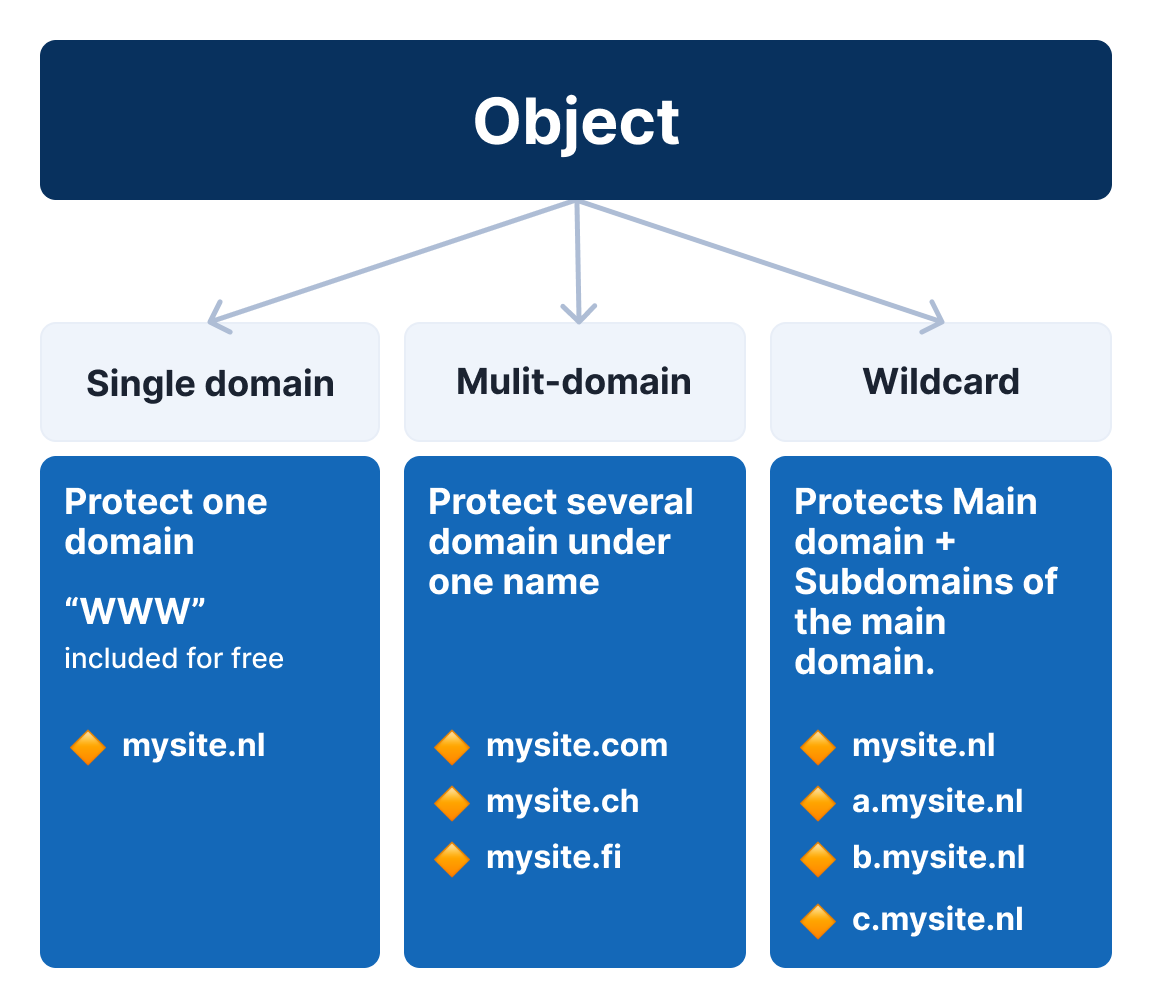
There are several types of SSL certificates available, each with their own set of features and use cases. The main types of SSL certificates include Single Domain, Multi Domain and Wildcard certificates.
**Single Domain SSL Certificate:**
A Single Domain SSL certificate, as the name suggests, is designed to secure a single domain, such as example.com. Single Domain SSL certificates are ideal for websites that only have one primary domain and do not require protection for subdomains or additional domains.
**Multi-Domain SSL Certificate:**
A Multi-Domain SSL certificate, also known as a SAN (Subject Alternative Name) certificate, is designed to secure multiple domains and subdomains on a single certificate in the same validation process. Multi-Domain SSL offer more flexibility as you can reissue the SSL and change the domains covered by this SSL (except for the common name) and can provide cost savings compared to purchasing individual certificates for each domain.
**Wildcard SSL Certificate:**
A Wildcard SSL certificate is designed to secure a main domain and all of its subdomains under a single certificate. For example, a Wildcard SSL certificate for \*.example.com would secure example.com, [www.example.com](http://www.example.com), blog.example.com, mail.example.com, and any other subdomains of example.com. Wildcard SSL certificates are ideal for websites that have multiple subdomains that need SSL protection, as they can provide cost savings and simplify certificate management, as you do not need to know all the subdomains yet, at the moment of requesting the SSL. You can secure an unlimited number of subdomains using a wildcard SSL certificate.
It will **NOT** cover:
- Nested subdomains (e.g., sub2.sub1.example.com)
- Different domains (e.g., example.net or example.org)
Alternative SSL certificates *S/MIME* and *Code Signing* *SSL* are described [here](https://openprovider.help/books/ssl-certificates/page/smime-and-code-signing-ssl-certificates).
Besides the type of SSL, you can also choose the level of Validation;
1. **Domain Validated (DV)** SSL Certificates: DV SSL certificates are the most basic type of SSL certificate, and are typically the least expensive. They only verify that the person or organization requesting the certificate has control over the domain in question. DV SSL certificates do not provide any additional information about the website or organization that operates it.
Click [here](https://openprovider.help/books/ssl-certificates/page/how-to-validate-a-ssl-order) to read how DV certificates can be validated.
2. **Organization Validated (OV)** SSL Certificates: OV SSL certificates require a more rigorous verification process than DV certificates. In addition to verifying domain ownership, the certificate authority (CA) will also verify the organization's identity a phone validation. Therefore it is very important that the information provided during the request are valid and up to date. OV SSL certificates can provide more information about the website or organization that operates it, which can help to establish trust with visitors.
Click [here](https://openprovider.help/books/ssl-certificates/page/how-to-validate-a-ssl-order) to read how OV certificates can be validated.
3. **Extended Validation (EV)** SSL Certificates: EV SSL certificates are the highest level of SSL certificate available. They require the most rigorous verification process, which includes the same steps as the DV and OV, but adds 1 more step, a signed agreement with the CA itself. This is done via digital signature.
EV SSL certificates provide the most information about the website or organization that operates it, and can help to establish the highest level of trust with visitors. Websites that use EV SSL certificates typically display a green address bar in the browser, which indicates that the website is secure and has been verified by a trusted third party. **Note**: EV SSL certificates are not available with the wildcard option; they are only offered for single-domain or multi-domain configurations.
Click [here](https://openprovider.help/books/ssl-certificates/page/how-to-validate-a-ssl-order) to read how EV certificates can be validated.
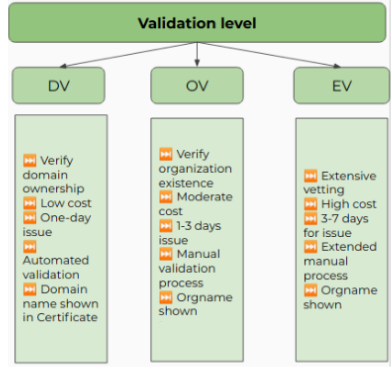
It's important to note that the type of SSL certificate you choose will depend on your specific needs and use case. If you're running a personal blog or website, a DV SSL certificate may be sufficient. However, if you're running an e-commerce site or other website that deals with sensitive information, you may want to consider an OV or EV SSL certificate, which can provide additional assurance and establish greater trust with your visitors.
REMEMBER
The certificate will be on the name of the company for which the request has been done. If you are a reseller and are ordering a SSL Certificate for your client, you need to select that client as SSL owner. In most cases, the client will have to preform the validation.
If you request it for the organization HostingExampleLTD with the domains domain1.de, domain2.fr, and domain3.ch, all 3 domains will show the organization HostingExampleLTD in the certificate.
Each certificate can only be requested for one company, regardless of the domains inside the order.
It is not possible to put multiple companies in a one request.
**See these FAQ articles for additional information**
[Is "www" automatically included in my SSL order?](https://openprovider.help/books/ssl-certificates/page/is-www-automatically-included-in-my-ssl-order)
[Can I add a wildcard in a multidomain ssl?](https://openprovider.help/books/ssl-certificates/page/adding-a-wildcard-into-a-multidomain-ssl-order)
# FAQ sobre Certificados SSL
A menudo vamos a solicitar un certificado y nos encontramos con un error que no entendemos, con que no sabemos cómo seguir o simplemente se nos vienen a la cabeza preguntas. En este artículo encontrarás respuesta a muchas preguntas:
**Solicitud**
**- Quiero cambiar el nombre de la empresa que aparece en la barra verde o quiero un nombre diferente al de mi empresa. ¿Cómo lo hago?**
El nombre de la barra verde debe ser idéntico al de la empresa.Si quieres cambiar el nombre debes pasar un proceso de validación. Puedes contactar con nosotros.
**Renovación**
**- ¿Qué sucede si renuevo un certificado antes de la fecha de expiración? Esos días se añadirán al certificado nuevo?**
Puedes leer [este](https://openprovider.help/books/ssl-certificates/page/automatic-renewal-for-ssl-certificates) artículo.
**- ¿Con cuánto tiempo de antelación puedo renovar un certificado?**
Puedes renovarlo 3 meses antes de la expiración.
**- ¿Cómo puedo renovar un certificado caducado?**
No se puede. Debes solicitar uno nuevo.
**Reexpedición**
**- He reexpedido el certificado pero no tengo la llave privada. ¿Qué hago?**
La llave privada solamente se muestra cuando se crea el CSR. Si no la tienes, debes crear de nuevo un CSR y volver a reexpedir el certificado con el nuevo CSR.
**Validación**
**- ¿Podemos acelerar el proceso de validación de un EV?**
No. Los certificados EV tienen su proceso, y no es corto. Para saber el estado puedes entrar en el panel SSL. Allí podrás comunicarte directamente con Comodo - Sectigo.
**- Qué puedo hacer si la validación tiene un aviso de "Security review failed"?**
Esto quiere decir que necesitan una revisión manual. Puedes enviarnos un email para que contactemos con el CA o dejar un mensaje para Comodo / Sectigo.
**- ¿Puedo usar diferentes empresas en un multidominio EV?**
No.
# Generating a CSR for an S/MIME Personal certificate using OpenSSL
Openprovider’s SSL panel currently does not support generating a CSR for S/MIME Personal Certificates, which requires an email address in the ‘Common Name’ field. OpenSSL is a versatile command-line tool widely used across UNIX, Linux, BSD, and Windows systems for managing cryptographic operations. This guide outlines the steps to create a private key and CSR, essential for obtaining an email signing certificate (also known as an S/MIME or client certificate).
**Prerequisites**
- Ensure OpenSSL is installed on your system.
- Create a secure directory to store your private key and CSR files.
- Protect this directory to prevent unauthorized access.
**Step-by-Step Instructions**
1. **Open the Terminal** Launch the terminal application on your computer.****
2. **Generate the Private Key and CSR
**Execute the following command:```
openssl req -nodes -newkey rsa:2048 -keyout certificate.key -out certificate.csr
```
This command creates a 2048-bit RSA private key (certificate.key) and a CSR (certificate.csr).
3. **Provide Certificate Details** You'll be prompted to enter the following information:
4. - - **Country Name** (2-letter code): e.g., NL
- **State or Province Name**: e.g., Gelderland
- **Locality Name**: e.g., Nijmegen
- **Organization Name**: e.g., Your Company Name
- **Organizational Unit Name**: e.g., IT Department
- **Common Name**: Your Email address for which the S/MIME Personal certificate to be generated
- **Email Address**: Contact point of the certificate owner e.g.,
- **Challenge Password (Optional)**: (Leave blank)
- **Optional Company Name**: (Leave blank)
- **Review and Save the CSR** The certificate.csr file is now created in your current directory. Open this file with a text editor and copy its entire contents, including the -----BEGIN CERTIFICATE REQUEST----- and -----END CERTIFICATE REQUEST----- lines.
- **Submit the CSR** Paste the copied CSR into the appropriate field during the certificate ordering process on your Openprovider SSL panel.
After purchasing the certificate please refer [https://openprovider.help/books/ssl-certificates/page/how-to-generate-public-key-pfx](https://openprovider.help/books/ssl-certificates/page/how-to-generate-public-key-pfx) to generate a PFX certificate using OpenSSL to use with email client like outlook.
**Note:** Always keep your private key (certificate.key) secure and never share it.
# How SSL products in Openprovider match with Sectigo?
## Question
As there are Comodo products in [SSL Panel](https://SSLPanel.IO), how the [SSL products in Openprovider](https://openprovider.help/books/api-plugins/page/appendix-openprovider-products-id) match with Sectigo?
## Answer
Comodo is a certificate authority powered by Sectigo. Any Comodo CA product is a Sectigo product.More information about rebranding could be found [here](https://sectigo.com/resource-library/comodo-ca-rebrands-as-sectigo).
E.g. "Essential" is just a name.
The name has changed that is it.
"DV Wildcard" is an "EssentialSSL Wildcard".
Premium SSL Wildcard = Sectigo OV Wildcard ;Essential SSL Wildcard = Sectigo DV Wildcard ;Positive SSL Wildcard is also just a Sectigo DV wildcard ;
Both Essential SSL wildcard and PositiveSSL wildcard are highly trusted and adopted SSL products of by the world’s biggest SSL Certificate Authority Comodo.
The main difference between these two SSL certificates is Comodo Positive SSL Wildcard certificate is generally used by small/medium level organizations or individuals whereas Comodo Essential SSL Certificate is generally used by large-scale organizations or individuals.
# S/MIME and Code Signing SSL Certificates
**Update May 2025**
**Generating a CSR for an S/MIME Personal certificate using OpenSSL, please refer following article:**
[https://openprovider.help/books/ssl-certificates/page/generating-a-csr-for-an-smime-personal-certificate-using-openssl](https://openprovider.help/books/ssl-certificates/page/generating-a-csr-for-an-smime-personal-certificate-using-openssl)
As from April 2022, Openprovider additionally offers the following certificates:
**S/MIME Personal**
**Code Signing**
**Code Signing EV**
**Note**: S/MIME PRO is no longer offered.
Please find below details about validation, ordering and delivery processes.
#### **How to order new certificates**
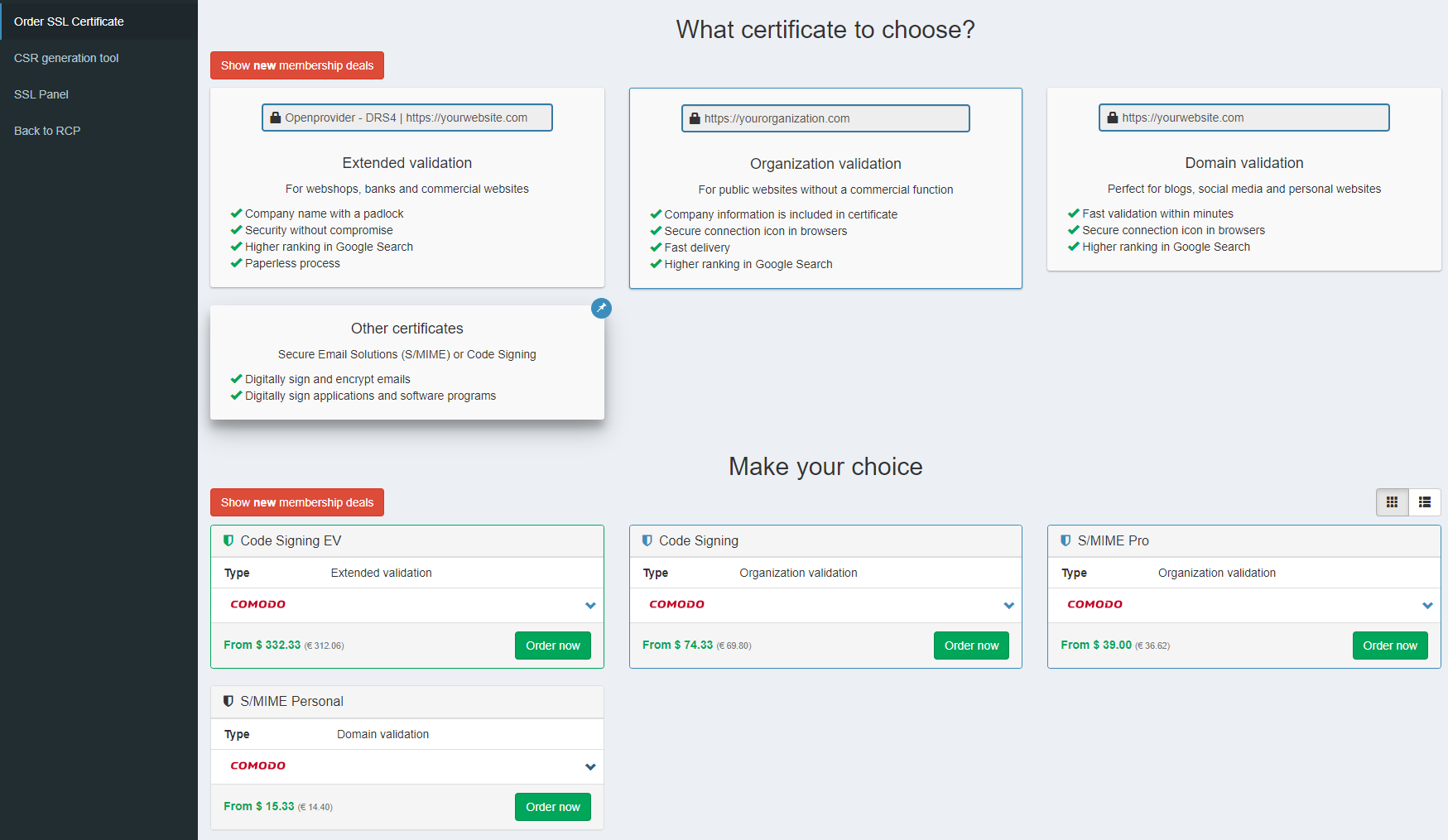
New certificates can be ordered the same way like other certificates that we have in our offer: through Reseller Control Panel and our public API1. Login to your Reseller Control Panel and click on “New certificate” in the main dashboard:2. You will be redirected to a new page where you can choose the “Other certificates” category for SMIME and Code Signing:
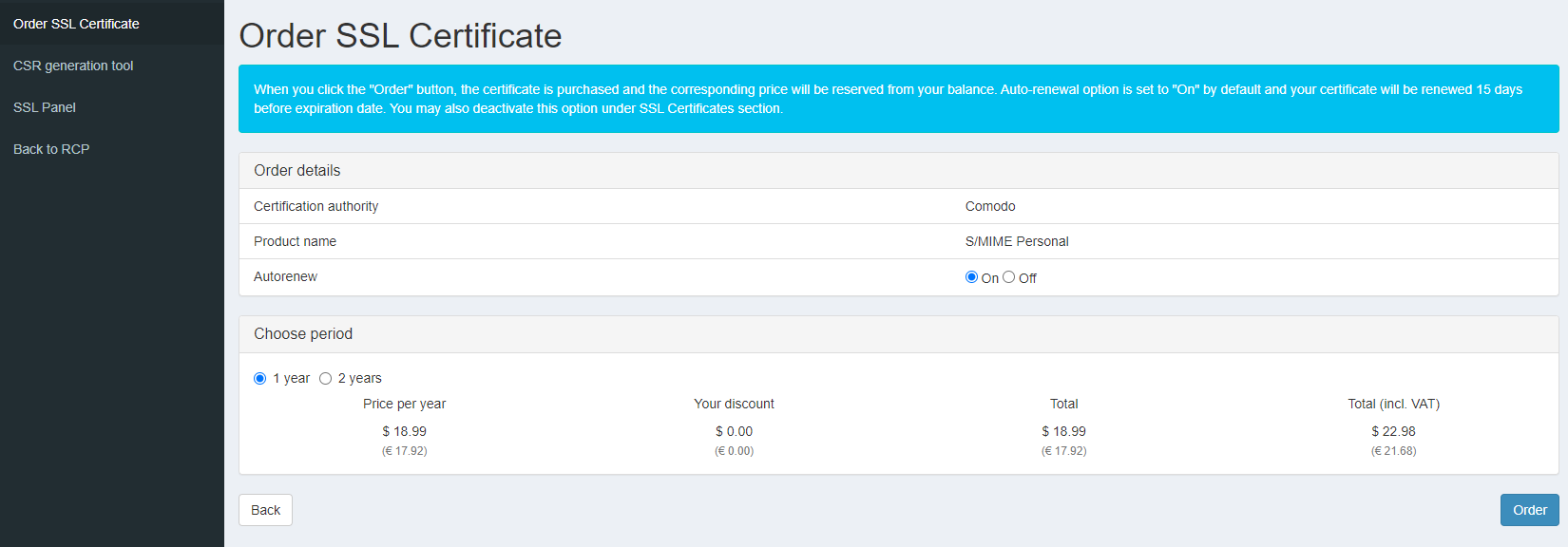
3. Please select the certificate you wish to order and click “Order Now”You will be presented with a screen where you can select options such as auto renewal or subscription period:
5. Once you choose your preferred options, click Order and you will be taken to the order details page:6. In order to request a certificate, you have to provide customers details and generate CSR:
**IMPORTANT:**
**The email address you provide on the below screen is the one that will be used for validation and certificate delivery, for example:** [**yourname@domain.com**](mailto:yourname@domain.com)**.**
**The only validation option for SMIME and Code Signing certificates is email validation and the applicant's/certificate user email address must be used.**
**When generating the CSR for Code Signing please choose** **4096bit key size****.**
**For SMIME,** **2048bit** **key size is required****.**
**When generating CSR for S/MIME certificates, email address has to be used instead of common name (CN). Since this is not possible with the CSR generator in SSL panel, please create a CSR locally, or use a third party CSR generation tool for S/MIME certificates.**
**NOTE:**
**For Code Signing certificate the field General domain is removed and for common name the Organization name will be used (it will match your company name)**
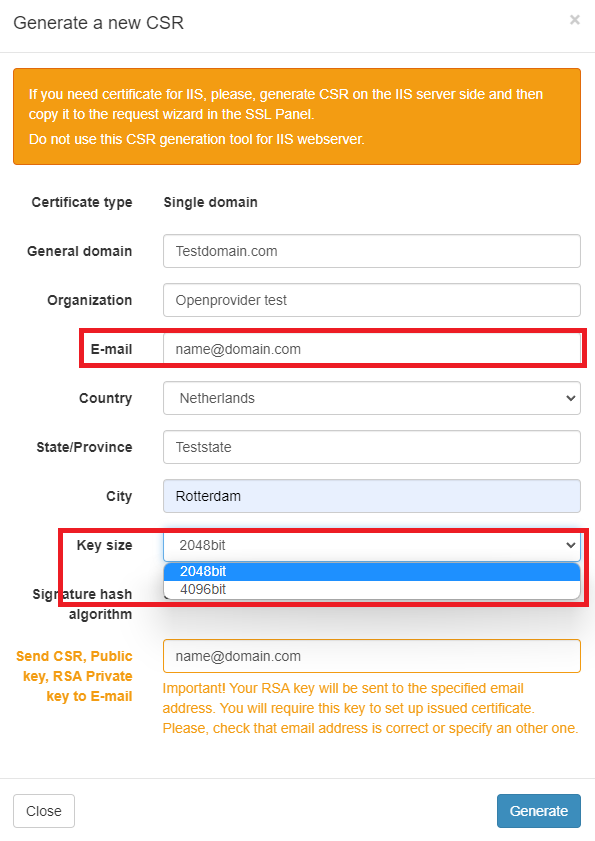
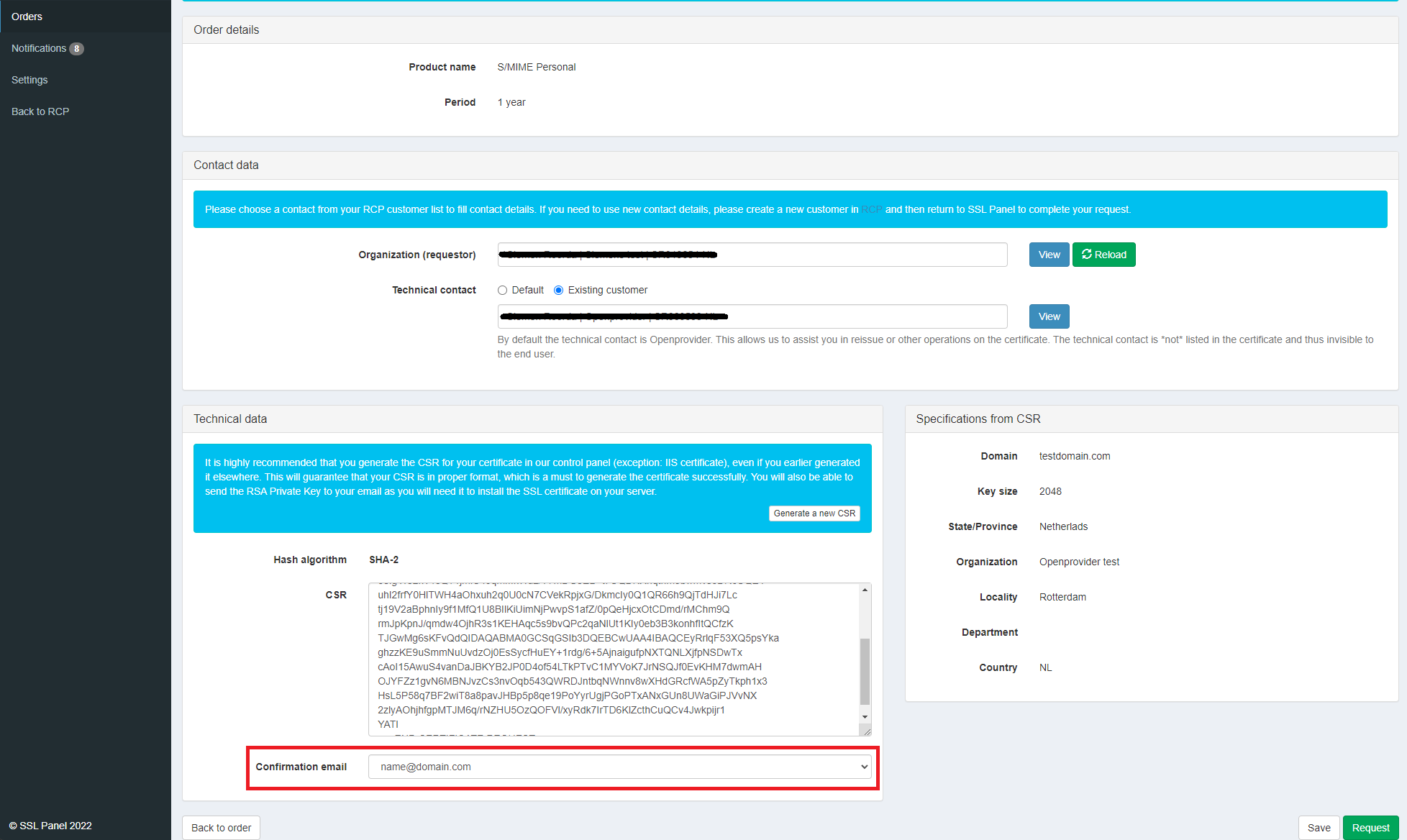
7\. Once you generate the CSR, click on Request and the order will be sent to CA. Depending on the selected certificate, the validation can take from 15 minutes to a few business days.
**The email address used for validation will be visible under the generated CSR.**
When transacting through API, you should use the following *ProductId *when requesting a specific certificate:Code Signing - 58Code Signing EV - 59S/MIME Personal - 60
### Validation process
Depending on the certificate type, the validation process will differ and it will be as follows:
**S/MIME** **Personal** it is very simple - when ordering the certificate, you are obligated to provide **an email address that will be used with the certificate**. After the certificate is requested, you will receive an email message with a link to validate ownership of the email address. Once you do that, the certificate will be downloadable from the same website used for validation. The whole process takes up to 15 minutes and it is pretty much fully automated.
**Code Signing** validation process is similar to OV certificates validation - When ordering the certificate, you are obligated to provide **an email address that will be used with the certificate.**
CA will validate the company and details such as operational existence, physical existence, business phone number, government-issued ID of the requestor and authenticity of the order (which is a callback from CA using the provided business email address). Once the validation is completed, you will receive an email to confirm ownership of the email address.Afterwards the certificate can be downloaded from the dedicated link provided by Sectigo.
**Code Signing** **EV** - When ordering the certificate, you are obligated to provide **an email address that will be used with the certificate.**
Validation process is similar to EV certificates validation (CA validates your organization details but also applicants ID documents) and it can take between 1 to 5 business days to validate the certificate.
**The biggest difference between standard Code Signing and EV variant is that you receive a EV Code Signing certificate and key to the address used during the enrollment process.Yes, the EV Code Signing certificate is physically mailed to you using a mail carrier such as FedEx or UPS. This is because of the security requirements that dictate all EV Code Signing private keys be kept off the device to ensure maximum security.**
The delivery time usually takes up to 2 weeks. You can find more details on the process in [*Sectigo’s Knowledge Base*](https://sectigo.com/knowledge-base/detail/EV-Code-Signing-Certificates-Collection/kA01N000000brbF)
If the verification fails, the CA will contact the issuer directly using their registered email address. The reseller can simply reply to that email to complete the verification, without needing to contact Openprovider support.
**NOTE**: For S/MIME certificates it is normal for the issued certificate's Common Name field to be blank — the email address will instead appear under Subject Alternative Names (SAN) as email:yourname@domain.com. This does not affect the certificate's validity or functionality.**NOTE:** For all above certificates the only validation method in e-mail. Neither files based validation nor DNS validation is possible. In addition all certificates require a domain name and a CSR.For these kind of certificates, you may see an error "**domain: This domain is invalid**" on your ssl panel. It can be ignored.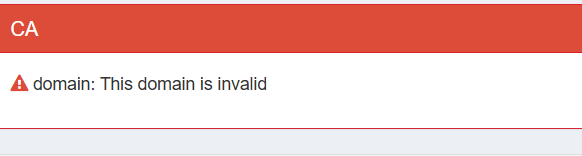
# SSL Certificate Refund Policy
## When one is eligible for an SSL Certificate refund?
Sectigo offers a 30-day return policy.
Once the 30-day refund period has expired, no refunds could be provided.
This is only applicable for new orders and renewals. This is not applicable in the first 30 days following a reissue of an existing certificate.
Note: A 2nd year subscription SSL activation is a reissue and not a renewal.
## How to receive a refund?
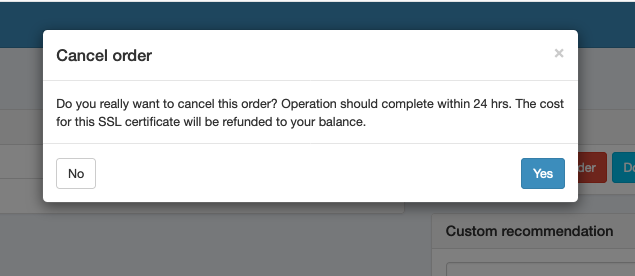
This is a fully automated process. You can cancel your SSL via the SSL panel. A message will pop-up, to inform if the order will be refunded or not. The refund will be processed within 24 hours (This is not a not real-time operation).
# SSL Certificates and SEO
## Question
Does SSL have any impact on SEO for a website?
## Answer
Yes, it does.
Google announced a ranking boost to websites that secure their connection with an SSL with a key of at least 2048-bit.
[Google informed the world that this SSL ranking boost counts only as a 'very lightweight signal'](https://webmasters.googleblog.com/2014/08/https-as-ranking-signal.html) in the overall ranking algorithm. While minimal, the tiniest gain in your ranking can mean the difference between being found or being lost in the masses.
# SSL TLS lifecycle changes explained - March 12 2026
The SSL TLS industry is introducing changes to how certificates are issued. These changes affect certificate issuance and validation but do not change how long customers can purchase SSL products.
The most important point is that certificate lifespan and validation are separate concepts. They are now managed independently.
### Certificate lifespan vs validation
Certificate lifespan is the period a single issued SSL certificate can be used on a server.
Validation is the period during which Sectigo can reuse a previously completed Domain Control Validation when issuing a new certificate.
A certificate can expire while validation is still valid. Validation can also expire while there is still paid time remaining on the order.
### Maximum certificate lifespan from March 12 2026
From March 12 2026 any newly issued SSL certificate will have a maximum lifespan of approximately 199 days.
This applies to
• new orders
• renewals
• reissues
Certificates issued before this date remain valid until their original expiration date unless they are revoked.
### Buying one year and multi year SSL products
Customers can continue to purchase one year and multi year SSL products. The commercial term does not change and there is no loss of paid time.
What changes is how certificates are issued during that term.
Instead of a single long certificate multiple certificates will be issued over the lifetime of the order.
Example
A one year SSL product issued after March 2026 will first be issued as a certificate valid for up to 199 days. When it expires a new certificate will be reissued for the remaining time. If 30 days remain the reissued certificate will be valid for 30 days.
### Domain Control Validation reuse changes
From March 2026 Domain Control Validation reuse will be shortened to approximately six months.
This means some certificate reissues can reuse existing validation while others will require the customer to complete domain validation again.
Customers using manual validation methods may need to repeat validation more frequently.
### Future changes
This is a phased industry wide approach.
In 2029 the maximum certificate lifespan will be reduced further to approximately 47 days.
The same rules apply. Customers keep their full paid term but certificates must be reissued more often during that time.
### Pricing impact
There are no pricing changes related to these policy updates.
The impact is operational only and relates to certificate reissuance and validation frequency.
# 🇪🇸 Solicitud e instalación de un certificado SSL (Reseller Control Panel)
El primer paso para pedir un certificado lo debes hacer desde tu servidor: tienes que crear un Certificate Signing Request (CSR). Cada web server tiene una manera diferente para generar el CSR. Puedes comprobar[aquí](https://support.comodo.com/index.php?_m=knowledgebase&_a=view&parentcategoryid=33&pcid=1&nav=0%2C1)las diferentes maneras de crear el CSR. También puedes crear el CSR desde Openprovider, clicando[aquí](https://cp.openprovider.eu/tools/csr-generator.php) (Certificados SSL / Creación de CSR).

Cuando crees el CSR es importante que indiques si el certificado es para un solo dominio, es Wildcard o multidominio. El nombre común es el nombre del dominio (si lo añades con www te certificará www.dominio.com y dominio.com).
Una vez creas el CSR, recuerda de guardarlo en un archivo de texto junto con la llave privada. En el proceso de instalación la llave será necesaria. Si olvidas o pierdes la llave tendrás que reexpedir el certificado para tener otra llave privada nueva. ASí es como se muestra la llave privada y el CSR (espectáculo CSR).

Una vez hayas creado el CSR, tienes que[solicitar](https://cp.openprovider.eu/web/action/index#/ssl/overview?utm_source=KB-Article&utm_medium=kb&utm_campaign=KB)el certificado (Certificados SSL / Pedir certificado SSL).
PASO 1: Deberás copiar el CSR en la casilla correspondiente (sin ningún espacio que sobre).

PASO 2: Deberás añadir los datos de contacto del solicitante y el mail del aprobador. Recuerda que el mail del aprobador debe aparecer en el whois o ser un alias del dominio (admin@, hostmaster@...). Si has introducido correctamente todos los datos, Openprovider solicita el certificado al proveedor correspondiente.

Dependiendo del tipo de certificado se iniciará un tipo de validación de datos o otro, donde puedes estar involucrado o no. Un certificado DV solo requiere la confirmación de un mail mientras que un EV requiere documentos, llamada, confirmación de mail...
Puedes comprobar el estado de la validación con nuestro nuevo panel de[certificados SSL](https://sslpanel.io/#/orders/overview?utm_source=KB-Article&utm_medium=kb&utm_campaign=KB).
Una vez el proceso de validación ha finalizado, el certificado es expedido. Openprovider enviará el certificado via mail y puede que sea enviado también por el proveedor al cliente final. La instalación es diferente también dependiendo de los servidores. Puedes encontrar manuales en[Comodo](https://support.comodo.com/index.php?_m=knowledgebase&_a=view&parentcategoryid=88&pcid=1&nav=0%2C1).
Symantec ha publicado una serie de guías en 9 idiomas diferentes. Esas guías contienen información básica y consejos para la instalación. Podrás encontrar esas guías en el documento adjunto.
# 🇪🇸 Solicitud e instalación de un certificado SSL (SSL Panel)
Para solicitar un certificado SSL puedes hacerlo desde el panel de control o desde el nuevo panel de SSL, que de momento está en fase BETA. En este artículo te explicamos como solicitarlo desde este nuevo panel.
El primer paso para pedir un certificado lo debes hacer desde tu servidor: tienes que crear un Certificate Signing Request (CSR). Cada web server tiene una manera diferente para generar el CSR. Puedes comprobar[aquí](https://support.comodo.com/index.php?_m=knowledgebase&_a=view&parentcategoryid=33&pcid=1&nav=0%2C1)las diferentes maneras de crear el CSR. También puedes crear el CSR desde Openprovider, clicando[aquí](https://cp.openprovider.eu/tools/csr-generator.php) (Certificados SSL / Creación de CSR). Si no lo creas, durante el proceso de solicitud del certificado podrás hacerlo.

Cuando crees el CSR es importante que indiques si el certificado es para un solo dominio, es Wildcard o multidominio. El nombre común es el nombre del dominio (si lo añades con www te certificará www.dominio.com y dominio.com).
Una vez creas el CSR, recuerda de guardarlo en un archivo de texto junto con la llave privada. En el proceso de instalación la llave será necesaria. Si olvidas o pierdes la llave tendrás que reexpedir el certificado para tener otra llave privada nueva. ASí es como se muestra la llave privada y el CSR (espectáculo CSR).

Una vez tienes el CSR tienes que solicitar el certificado. Puedes hacerlo desde el panel clicando "Certificados SSL / Pedir certificado SSL". Una vez dentro, clica en "[Try our new SSL panel!](https://cp.openprovider.eu/web/action/ssl#/order)" Al clicar aquí irás directamente al nuevo panel de SSL. Podrás cambiar el idioma arriba a la derecha. El panel es el siguiente y podrás filtrar los certificados por marca y por categoría.

El siguiente paso es elegir el tiempo que quieres el certificado. Como más años lo pidas más descuento tendrás. Ten en cuenta también la opción de la autorenovación del certificado. Puedes activarla o desactivarla desde esta pantalla.

Una vez lo solicites, tendrás que clicar en "SSL panel" para añadir el CSR, los datos del solicitante y todo lo necesario para la solicitud del certificado. Recuerda que será en este momento donde tendrás que pegar el CSR creado anteriormente o crear uno nuevo.

Es importante que guardes la llave privada para la posterior instalación. Puedes pegarla en un documento de texto para usarla cuando sea necesario. Debajo puedes elegir entre diferentes métodos de validación.
Después de seguir las instrucciones, si se ha solicitado correctamente, la pantalla que aparecerá será la siguiente:

Desde aquí podrás ver el estado del certificado, todo lo que necesitarás para la validación, si ha habido algún fallo... todo. También podrás cancelar el pedido (recuerda que si lo cancelas durante los primeros 30 días se hace la devolución completa) o cambiar los métodos de validación.
Dependiendo del tipo de certificado se iniciará un tipo de validación de datos o otro, donde puedes estar involucrado o no. Un certificado DV solo requiere la confirmación de un mail mientras que un EV requiere documentos, llamada, confirmación de mail...
Una vez el proceso de validación ha finalizado, el certificado es expedido. Openprovider enviará el certificado via mail y puede que sea enviado también por el proveedor al cliente final. La instalación es diferente también dependiendo de los servidores. Puedes encontrar manuales en[Comodo](https://support.comodo.com/index.php?_m=knowledgebase&_a=view&parentcategoryid=88&pcid=1&nav=0%2C1).
Symantec ha publicado una serie de guías en 9 idiomas diferentes. Esas guías contienen información básica y consejos para la instalación. Podrás encontrar esas guías en el documento adjunto.
# 🇪🇸 ¿Cómo reexpedir un certificado SSL?
Si has perdido la llave, has cambiado detalles de la empresa, tienes un nuevo proveedor o tu certificado ha sido desencriptado, necesitas hacer un reissue (reexpedición) del certificado. ¿Cómo se hace?Primero de todo necesitas encontrar el certificado dentro de “Certificados SSL / Lista de pedidos”. Esta página será como esta: [https://cp.openprovider.eu/ssl/order-overview.php](https://cp.openprovider.eu/ssl/order-overview.php). Una vez dentro del certificado en cuestión, clicar en “Reexpedir”, un botón verde debajo del todo.
El siguiente paso es insertar el nuevo CSR. Este CSR puede ser generado en tu propio servidor o usando nuestra opción “[Creación de CSR](https://cp.openprovider.eu/tools/csr-generator.php)”. Por favor, ten en cuenta de que el nuevo CSR necesita contener los mismos valores en cada campo que el actual certificado. Si algún campo es diferente, esto puede llevar a complicaciones durante el proceso de validación.
Una vez insertado, aprieta “Siguiente paso” para ir a la pantalla de la reexpedición.En la página siguiente no es necesario cambiar nada. Sólo tienes que pulsar 'Reexpedición de certificado”' para iniciar la reexpedición.
**Qué pasa después?**
Una vez se ha hecho la reexpedición, recibirás un email del proveedor del certificado a la dirección de mail que fue seleccionada en el proceso de pedido. En este mail se tiene que clicar un link.
Una vez aprobado, aparecerá un nuevo certificado en tu panel. Entonces ya podrás reemplazar el certificado existente y la llave privada en tu servidor.