# How do I set up my Openprovider email account on an iPhone or iPad?
To set up your Openprovider email on an iPhone or iPad, follow these steps:
####
**Using configuration file**
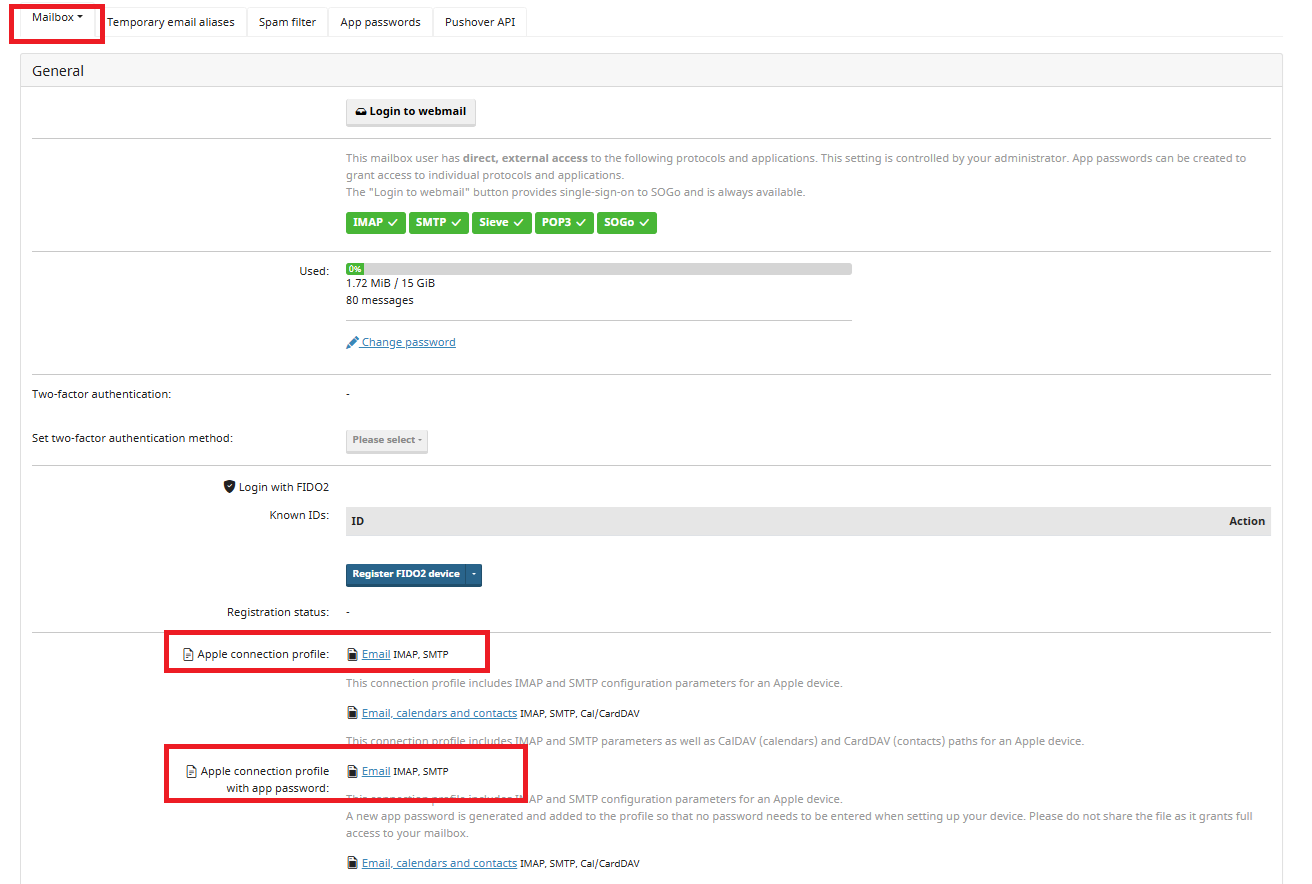
- Log into [https://mail.op-email.eu](https://mail.op-email.eu/) with your email account and it's password.
- Under Mailbox tab, click on the **Email** link next to **Apple connection profile**. This will download the configuration file.
#### **Manual Setup**
- - Go to **Settings** > **Mail** > **Accounts** > **Add Account**.
- Select "**Other**" and choose "**Add Mail Account**".
- Enter your name, full email address, password, and a description for your account.
- Choose IMAP or Exchange as the account type and enter the server settings:
- Incoming Mail Server (IMAP): **mail.op-email.eu**, Port: **993** (SSL)
- Outgoing Mail Server (SMTP): **mail.op-email.eu**, Port: **587** (TLS/STARTTLS).